
Raspberry Pi guides
tested on actual hardware
by someone who knows electronics.
Most Pi tutorials are copy-pasted docs. This isn’t that. Chuck Wilson — decades in telecom and electronics engineering — builds, breaks, and benchmarks everything here on real hardware before a word gets written. If it didn’t work on the bench, it doesn’t go on the page.

Featured Posts
-
Setting Up zram on Raspberry Pi
The Five-Minute Fix That Keeps Swap Off Your SD Card Setting up zram on Raspberry Pi is the fastest single change you can make to reduce SD card wear and improve system stability under memory pressure. It takes about five minutes, survives reboots, and works on every Pi model from the Zero 2 W to…
-
Booting Raspberry Pi from a USB SSD
The Single Best Thing You Can Do for Long-Term Reliability Booting your Raspberry Pi from a USB SSD is the most effective single step you can take to eliminate SD card corruption. Spoiler alert: it is not that complicated, but the steps differ enough between Pi models that doing it wrong wastes an afternoon. This…

Latest Posts
-
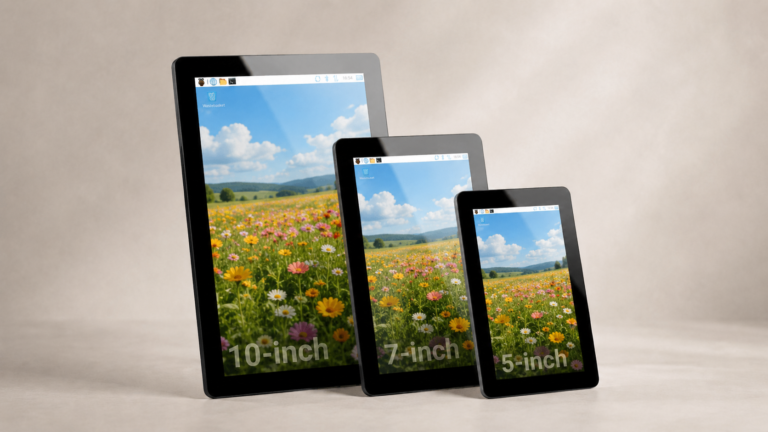
Raspberry Pi Touch Display 2 Review: The Official Touchscreen
The Raspberry Pi Touch Display 2 is the official portrait touchscreen for Raspberry Pi, sold in 5-inch, 7-inch, and 10-inch sizes from $40. It connects over DSI for video and touch, draws power from the GPIO header, and works with…
-
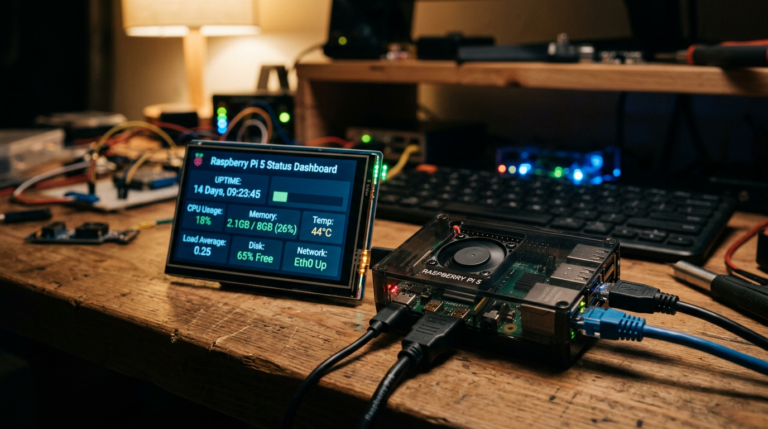
Uptime Kuma on Raspberry Pi: Self-Hosted Monitoring and Status Pages
An Uptime Kuma Raspberry Pi setup gives you a free, self-hosted monitoring dashboard and status page that watches your sites, services, and home lab and alerts you the moment something goes down. It is a single lightweight container that idles…
-
Raspberry Pi Connect: Free Remote Access With No Port Forwarding
Raspberry Pi Connect is a free, official service that gives you remote access to your Pi’s desktop and terminal from any web browser, with nothing to install on the device you connect from and no ports to open on your…
-
The *arr Stack on Raspberry Pi: Sonarr, Radarr, Prowlarr, and Jellyseerr
An *arr stack Raspberry Pi build turns a Pi 5 into an automated media library: Prowlarr manages your indexers, Sonarr handles TV, Radarr handles movies, a download client fetches the files, and Jellyseerr gives you a clean request page in…
-
Ollama On A Raspberry Pi 5: Run a Local LLM with Open WebUI
Ollama on a Raspberry Pi 5 runs small language models entirely on the board, with no cloud and no API keys. You install it with one command, pull a model like Gemma 3 1B, and chat from the terminal. Add…
-
Raspberry Pi AI HAT+ 2: Setup, Object Detection, and Local LLMs
The Raspberry Pi AI HAT+ 2 puts a Hailo-10H accelerator and 8GB of dedicated on-board RAM on a Raspberry Pi 5, delivering 40 TOPS and, for the first time on an official Pi accelerator, enough memory to run small large…



Millions of Users
Since it’s launch in 2012, Raspberry Pi has sold over 40 million units, with the community continuing to grow significantly due to it’s versatility and affordability for various projects, from education to complex tech builds.
Resources
Provides official documentation, downloads, and community support.
Updates on the latest Raspberry Pi projects, news, and developments.
Educational Platforms
Tutorials and guides for electronics and Raspberry Pi projects.
Forums and discussions on Raspberry Pi hardware and accessories.

Hey, meet Chuck Wilson! Chuck is one of those rare people who actually gets technology – not just on the surface, but all the way down to the nuts and bolts. With extensive experience in electronics, telecommunications, and computer sciences, Chuck has spent years building the kind of deep, hands-on knowledge that can only come from doing the real work.
From diagnosing circuit-level electronics to navigating the ever-changing world of modern networking, Chuck has seen it all – and fixed most of it. His background in telecommunications means he understands how systems connect, communicate, and what it takes to keep them running the way they should.
At pidiylab.com, Chuck channels that wealth of experience into practical, straight-talking help for people who want real answers from someone who genuinely knows their stuff. No fluff, no runaround – just solid expertise from a guy who loves what he does.