
The Single Best Thing You Can Do for Long-Term Reliability
Booting your Raspberry Pi from a USB SSD is the most effective single step you can take to eliminate SD card corruption. Spoiler alert: it is not that complicated, but the steps differ enough between Pi models that doing it wrong wastes an afternoon. This guide covers the Pi 3, Pi 4, and Pi 5 — each has its own process, and skipping the right steps for the wrong model is where most people go off the rails.
SD cards were designed for cameras. They handle sequential writes from a single source reasonably well. What they were never built for is an always-on Linux system writing journal entries, swap pages, log entries, and package metadata all day and night. USB SSDs handle all of that without blinking. The controller architecture is different, the wear-leveling is more sophisticated, and most importantly, power-loss protection is dramatically better on any halfway decent SSD.
The result is a system that does not corrupt itself. I’m sure a lot of you have spent more time reimaging SD cards than you want to admit. This is the fix.
Key Takeaways
- Pi 3 (original) requires a permanent OTP bit change before USB boot works
- Pi 3 B+ has USB boot enabled at the factory — no OTP step needed
- Pi 4 needs a one-time EEPROM bootloader update via raspi-config
- Pi 5 supports USB and NVMe boot — NVMe via PCIe is the faster option
- rpi-clone is the easiest way to migrate your existing setup without starting fresh
- USB enclosure chipset compatibility matters more than most guides admit
What You Need Before You Start
Hardware Requirements
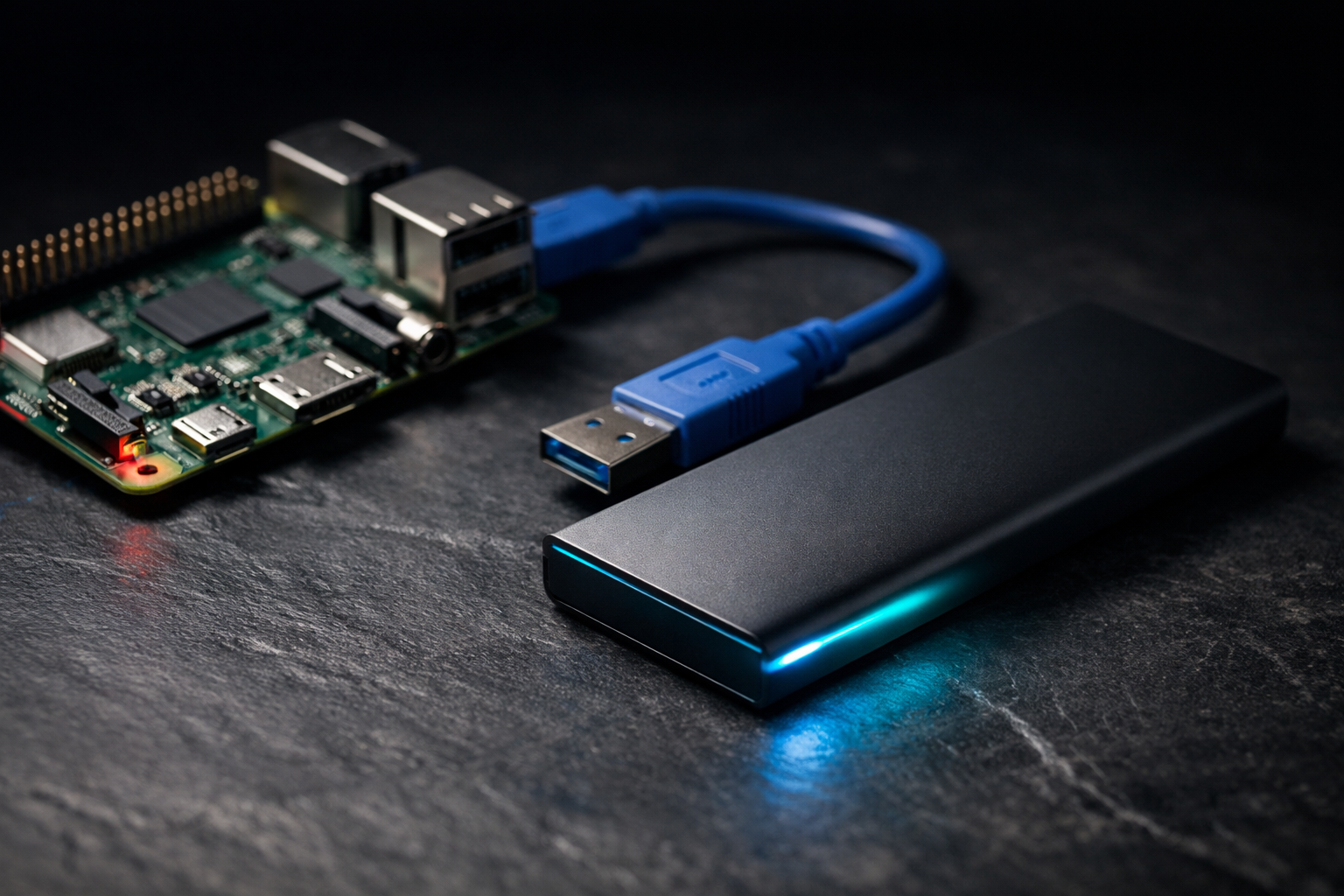
The hardware side is straightforward. You need a USB SSD — not a spinning hard drive, not a flash stick. A SATA SSD in a USB 3.0 enclosure works well on all three Pi models. On the Pi 5 specifically, an NVMe SSD via a PCIe HAT is faster and more reliable than USB, but a USB-attached SATA SSD still beats any SD card by a wide margin.
For USB enclosures, the chipset matters. JMicron and ASMedia chipsets have the best compatibility track record across all Pi models. Realtek RTL9210 and RTL9201 enclosures are common and usually work, but some users report issues with specific NVMe drives inside them. Avoid cheap no-name enclosures with unlisted chipsets — compatibility problems here are hard to debug and easy to avoid.
Recommended minimum SSD size is 32GB for a lean Pi OS install, 64GB or more if you are running services with data. Speed matters less than endurance rating — look for drives rated for higher write cycles (SanDisk Endurance, Samsung PRO Endurance, WD Red SA500) rather than chasing sequential read speeds.
Software Requirements
You need a working Pi OS install on an SD card to start from, regardless of which Pi model you are using. The migration process transfers your existing setup to the SSD, so whatever you have configured now comes with you. If you are starting from scratch, flash a fresh Pi OS to the SD card first and boot from that before proceeding.
Make sure your system is fully up to date before starting. An outdated bootloader on a Pi 4 or Pi 5 can cause USB boot to fail in ways that look like hardware problems.
sudo apt update && sudo apt full-upgrade -y && sudo rebootRaspberry Pi 3: Enable USB Boot via OTP
Pi 3 B vs Pi 3 B+ — Know Which One You Have
All right, this is where the Pi 3 story splits. The Pi 3 B+ has USB boot enabled at the factory — you can skip straight to the cloning section below. The original Pi 3 B requires a one-time OTP (one-time programmable) bit change. OTP means exactly what it says: once you flip this bit, it cannot be undone. The Pi will be USB-boot capable forever. That is a good thing, not a warning.
To check which situation you are in, run this from the terminal:
vcgencmd otp_dump | grep 17:If you see 17:3020000a, the OTP bit is already set and you can skip the next section. If you see anything else, follow the steps below.
Setting the OTP Bit on Pi 3 B
Boot from your SD card and open a terminal. Add the USB boot mode flag to your config:
echo program_usb_boot_mode=1 | sudo tee -a /boot/firmware/config.txtOn older Pi OS versions the config path may be /boot/config.txt rather than /boot/firmware/config.txt. Check which exists on your system before running the command.
Reboot the Pi:
sudo rebootAfter reboot, verify the OTP bit was set:
vcgencmd otp_dump | grep 17:You should now see 17:3020000a. If the output is different, repeat the process — make sure there is no blank line at the end of config.txt, which can cause the OTP write to fail silently.
Once confirmed, remove the line from config.txt so it does not accidentally program OTP on any other Pi you use this SD card with:
sudo nano /boot/firmware/config.txt
# Remove or comment out the program_usb_boot_mode=1 line
# Save and exit
Pi 3 Boot Priority Note
The Pi 3 checks for an SD card before USB. If a bootable SD card is present, it boots from the SD card. To boot from USB, either remove the SD card entirely or use a blank one with no valid boot partition.
Raspberry Pi 4: Update the Bootloader
Why the Pi 4 Is Different
The Pi 4 dropped the OTP approach and moved to a reprogrammable EEPROM bootloader. That is actually better news — it means boot order can be changed any time without permanent consequences. The process is a few commands and a reboot.
First, make sure the bootloader is current:
sudo rpi-eeprom-updateIf an update is available, apply it:
sudo rpi-eeprom-update -a
sudo reboot
Changing Boot Order via raspi-config
The cleanest way to set USB boot priority on the Pi 4 is through raspi-config:
sudo raspi-configNavigate to: Advanced Options > Boot Order > USB Boot
Select USB Boot, confirm, and exit raspi-config. Reboot when prompted.
Alternatively, you can set this directly via the EEPROM config if you prefer the command line:
# View current bootloader config
sudo rpi-eeprom-config

# Edit it
sudo -E rpi-eeprom-config --edit
In the editor, set the boot order to prioritize USB:
BOOT_ORDER=0xf41The value 0xf41 means: try USB first (4), then SD card (1), then repeat (f). Save and exit, then reboot.
Pi 4 USB Enclosure Compatibility
Most USB 3.0 SATA enclosures work fine on the Pi 4. If your SSD is not detected at boot, the most common culprit is a UAS (USB Attached SCSI) compatibility issue with the enclosure’s bridge chip. Add a quirks flag to cmdline.txt to force the drive to use the slower but more compatible usb-storage driver:
# Find your enclosure's USB ID
lsusb

# Add quirk to /boot/firmware/cmdline.txt (all on one line, no line breaks)
# Replace XXXX:XXXX with your enclosure's vendor:product ID
sudo nano /boot/firmware/cmdline.txt
# Add to the beginning of the existing line:
usb-storage.quirks=XXXX:XXXX:u
Raspberry Pi 5: USB and NVMe Boot
Two Paths: USB or NVMe
The Pi 5 supports both USB SSD boot and NVMe boot via its PCIe connector. If you are using a USB-attached SSD, the process is nearly identical to the Pi 4 — update the bootloader and set boot order. If you are using an NVMe drive on a PCIe HAT, there are a couple of extra steps.
For pure USB SSD boot on Pi 5, the Pi checks SD card first, then USB. Remove the SD card and the Pi falls through to USB automatically — no boot order change needed in most cases. If you want USB to explicitly take priority, use raspi-config or rpi-eeprom-config exactly as described in the Pi 4 section above.
Pi 5 NVMe Boot Setup
NVMe boot via PCIe is significantly faster than USB and is the recommended path if you are buying new hardware for a Pi 5 build. You need a PCIe HAT that fits your Pi 5 and an NVMe SSD. M.2 NVMe drives work — M.2 SATA drives do not.
First, enable the PCIe interface in config.txt:
sudo nano /boot/firmware/config.txt

# Add these lines:
dtparam=pciex1

# Optional: enable PCIe Gen 3 for faster speeds (verify your HAT supports it)
dtparam=pciex1_gen=3
Reboot and verify the NVMe drive is detected:
lspci
ls /dev/nvme*
Then update the EEPROM and set NVMe boot priority:
sudo rpi-eeprom-update -a
sudo reboot

# After reboot, set boot order
sudo raspi-config
# Advanced Options > Boot Order > NVMe/USB Boot
Or set it directly in the EEPROM config:
sudo -E rpi-eeprom-config --edit
# Set:
BOOT_ORDER=0xf416
# Tries NVMe (6) first, then USB (4), then SD card (1), then repeat (f)
Pi 5 Power Supply Note
The Pi 5 uses a non-standard 5V 5A USB-C PD profile. If you are using a third-party power supply rather than the official Raspberry Pi 5 supply, add this to config.txt to prevent boot stalls waiting for USB power negotiation:
usb_max_current_enable=1Migrating Your Existing Install with rpi-clone
Why rpi-clone Instead of dd or Imager
You have two options for getting an OS onto the SSD: flash a fresh image with Raspberry Pi Imager, or clone your existing SD card setup directly to the SSD. If you have an existing setup with software configured and running, cloning is the obvious choice — you pick up exactly where you left off, no reinstall required.
dd works but creates an exact sector-for-sector copy, meaning the SSD partition is capped at whatever size your SD card was. rpi-clone handles the resize automatically and is safer to run on a live system.
Install rpi-clone:
sudo apt install git -y
git clone https://github.com/geerlingguy/rpi-clone.git
cd rpi-clone
sudo cp rpi-clone /usr/local/sbin/
Use the Jeff Geerling fork of rpi-clone — it is actively maintained and has better Pi 5 and NVMe compatibility than the original.
Plug in your USB SSD and identify the device name:
lsblkYour SD card will typically be mmcblk0. Your USB SSD will appear as sda or similar. Confirm you have the right device before proceeding — cloning to the wrong device destroys its contents.
Run the clone:
sudo rpi-clone sdarpi-clone will show you source and destination, ask for confirmation, copy all partitions, and resize the root partition to fill the SSD. On a 16GB SD card to a 256GB SSD, expect this to take 10 to 20 minutes depending on USB speed.
Flashing a Fresh Image Instead
If you prefer a clean start, use Raspberry Pi Imager to write directly to the SSD. Connect the SSD via USB to another computer, open Imager, select your OS and the SSD as the destination, and flash. Imager handles partitioning, resizing, and first-boot configuration. There is no difference in the resulting system — it is the same OS either way.
Verifying the Boot and Checking Performance
Confirm You Are Actually Booting From the SSD
After your first boot from the SSD, verify the root filesystem is on the SSD and not the SD card:
# Check where root is mounted from
findmnt /

# Should show /dev/sda2 (or nvme0n1p2 for NVMe) not mmcblk0p2

# Also confirm with
lsblk
If root is still showing mmcblk0p2, the Pi booted from the SD card. Check boot order settings and confirm the SD card is either removed or blank.
Quick Performance Check
Run a quick disk benchmark to confirm you are getting SSD speeds rather than SD card speeds:
# Sequential write test
dd if=/dev/zero of=/tmp/test bs=1M count=512 oflag=direct
rm /tmp/test

# Sequential read test
sudo hdparm -tT /dev/sda
A typical SD card delivers 20–40 MB/s sequential read. A USB 3.0 SSD on a Pi 4 or Pi 5 should deliver 300–400 MB/s. An NVMe drive on a Pi 5 via PCIe Gen 2 delivers 400–500 MB/s; Gen 3 pushes that to 700 MB/s or higher depending on the drive.
Troubleshooting Common Problems
Pi Does Not Boot From USB at All
Work through this checklist in order. Most boot failures have a simple cause.
- Is the SD card still inserted? Remove it and try again — on Pi 3 and Pi 5, SD card takes priority by default
- Is the SSD actually bootable? Confirm the image was written correctly using Raspberry Pi Imager or rpi-clone
- Is the bootloader up to date? On Pi 4 and Pi 5, an old EEPROM may not support USB boot reliably
- Is the USB enclosure chipset compatible? Try a different enclosure if available
- Is the SSD connected to a USB 3.0 port (blue)? USB 2.0 ports may not provide enough power during boot
Pi Boots Slowly or Stalls Before Boot Screen
A long delay before the rainbow screen or boot messages usually means the USB drive is taking too long to enumerate. This is common with some enclosures and spinning drives. Add a USB timeout extension to config.txt:
# For Pi 3 only -- extend USB boot timeout
# Add to /boot/firmware/config.txt:
program_usb_timeout=1
On Pi 4 and Pi 5, if boot stalls repeatedly, the UAS quirk described earlier is the most likely fix.
NVMe Drive Not Detected on Pi 5
If lspci shows nothing and /dev/nvme* does not exist, the PCIe interface may not be enabled. Confirm dtparam=pciex1 is in config.txt and that the HAT is seated correctly. Some HATs also require PCIE_PROBE=1 in the EEPROM config:
sudo -E rpi-eeprom-config --edit
# Add:
PCIE_PROBE=1
Filesystem Errors After First SSD Boot
If you see ext4 errors on first boot from a cloned drive, let fsck run to completion on the next reboot cycle. This is normal after a clone — the partition UUID may have been regenerated and the filesystem needs one clean pass. It should not recur on subsequent boots. If it does, the clone may have been interrupted; redo it.
Should You Keep the SD Card at All?
All right, here is the honest answer. Once you are booting reliably from USB SSD, the SD card serves two possible purposes: fallback boot if the SSD fails, and a place to keep a recovery image. Both are legitimate.
For most setups, pulling the SD card entirely is the cleaner choice. It eliminates the ambiguity about which device actually booted, removes the temptation to write anything to it, and keeps the boot path simple. If your SSD fails, you reimage another one — which takes about five minutes with Raspberry Pi Imager.
For remote or unattended deployments where physical access is limited, keeping a bootable SD card in the slot as an emergency fallback is worth the complexity. Just make sure it boots to something useful — a minimal image with SSH enabled so you can get back in remotely if the SSD ever needs attention.
FAQ
Does USB SSD boot work on Pi 2?
Only on Pi 2 Model B v1.2, which uses the BCM2837 SoC. Earlier Pi 2 revisions use BCM2836 and cannot USB boot. Check the board revision printed on the PCB or run cat /proc/cpuinfo | grep Revision.
Will my existing SD card setup transfer exactly?
Yes. rpi-clone copies every partition including the boot partition, all installed packages, configuration files, and data. The only thing that changes is the underlying device name — /dev/sda instead of /dev/mmcblk0 — and rpi-clone updates fstab and cmdline.txt to reflect that automatically.
Is USB 3.0 speed actually that much better than SD card?
For sequential reads and writes, USB 3.0 SSD is typically 10x faster than a class 10 SD card. For random 4K reads — which is what the OS does constantly during normal operation — the gap is even larger. SD cards handle random I/O poorly by design. The reliability improvement matters more than the speed improvement for most Pi workloads.
Does USB SSD boot eliminate all corruption risk?
It dramatically reduces it. SSDs have better power-loss protection, more sophisticated wear leveling, and controller architectures that handle the Linux write pattern far better than SD cards. You can still corrupt an SSD with a hard power cut at exactly the wrong moment, but it is far less likely to happen and far easier to recover from when it does.
What happens if the USB SSD fails?
The Pi will not boot, same as a failed SD card. The difference is that SSD failure is usually predictable — SMART data shows degradation before the drive becomes unbootable. SSDs also tend to fail in read-only mode rather than losing data entirely, which gives you time to copy data off before replacement. Keep a fresh OS image on hand and maintain your configuration in a known state so reimaging is fast.
Can I use a USB hard drive instead of an SSD?
Technically yes, but it is not recommended. Spinning drives require more power than most Pi setups reliably provide via USB, random I/O performance is poor, and the drives are sensitive to vibration and orientation. A cheap SATA SSD in a USB enclosure is not expensive and is worth the upgrade over a spinning drive.
Should I use NVMe or USB SSD on Pi 5?
NVMe via PCIe if you are buying hardware for a Pi 5 specifically. It is faster, avoids USB controller overhead, and is a cleaner physical setup. USB SSD is a perfectly valid option if you already have the hardware or want something that works across all Pi models.
Next Steps
Booting from USB SSD is the highest-impact single change you can make for Raspberry Pi reliability. If you are building out a more hardened setup from here:
- Even with SSD boot, reducing unnecessary writes extends drive life — see Preventing SD Card Corruption on Raspberry Pi for the full mitigation stack
- For setups that must run from SD card, a read-only root filesystem significantly reduces corruption risk — see: Raspberry Pi Read-Only Root Filesystem Setup
- For quick write pressure reduction without hardware changes, zram is the fastest win — see: Setting Up zram on Raspberry Pi
References
- https://www.raspberrypi.com/documentation/computers/raspberry-pi.html#usb-mass-storage-boot
- https://www.raspberrypi.com/documentation/computers/raspberry-pi.html#raspberry-pi-4-bootloader-configuration
- https://github.com/geerlingguy/rpi-clone