

Last tested: Raspberry Pi OS Bookworm 64-bit | April 11, 2026 | Raspberry Pi 4 Model B (4GB)
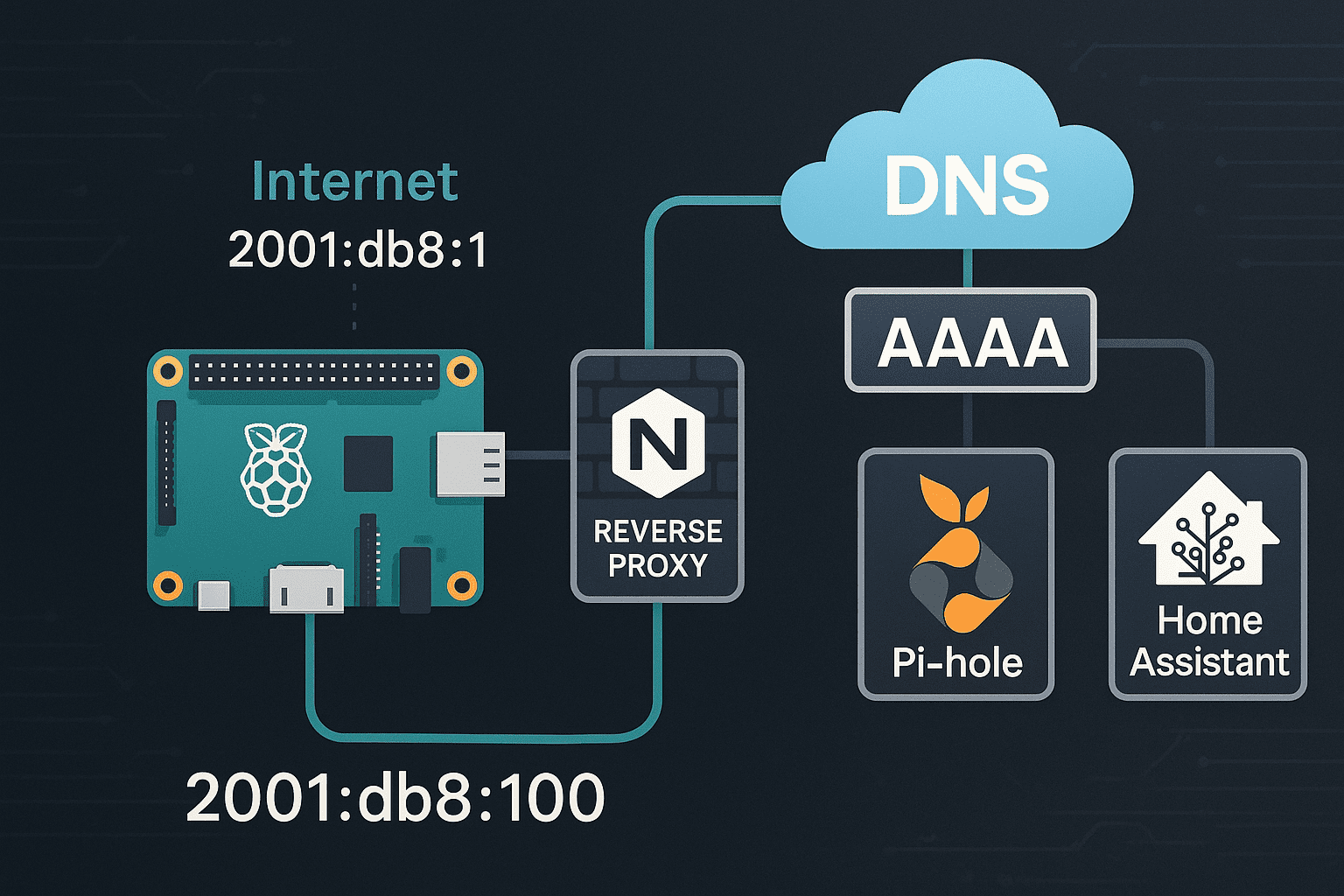
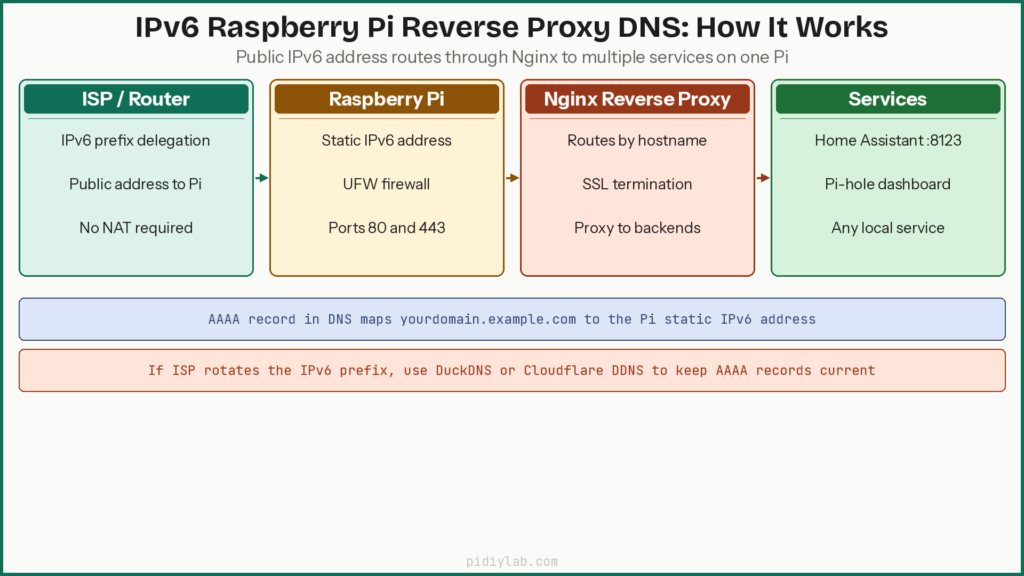
IPv6 Raspberry Pi reverse proxy DNS setup gives your Pi a publicly routable address without NAT, routes multiple services through Nginx on ports 80 and 443, and keeps DNS records pointing at the right address even when your ISP prefix changes. The pieces fit together, but each one has a failure mode that breaks the others. This guide covers static IPv6 addressing, Nginx reverse proxy configuration, AAAA record setup, firewall rules, and dynamic DNS for ISPs that rotate prefixes.
Key Takeaways
- IPv6 gives every device a public address with no NAT, which simplifies inbound connections but requires careful firewall configuration.
- Static IPv6 addressing prevents service downtime when SLAAC or DHCPv6 rotates the address.
- Nginx handles multiple services on one IPv6 address using virtual hosts on ports 80 and 443.
- AAAA records must point to the correct global unicast address. Link-local and temporary addresses do not belong in DNS.
- If your ISP rotates the IPv6 prefix, dynamic DNS via DuckDNS or Cloudflare API keeps AAAA records current.
- On Raspberry Pi OS Bookworm,
dhcpcdis deprecated. Use NetworkManager for static IPv6 configuration.
Hardware and OS Requirements
Raspberry Pi 4 or Pi 5 is the right choice for running a reverse proxy alongside other services. The Pi 3B+ handles light setups but shows memory pressure when Nginx, a DNS service, and one or two backend services all run simultaneously. Raspberry Pi OS Bookworm 64-bit is the recommended OS. Ubuntu Server works too and uses netplan for network configuration. Both support IPv6 out of the box.
Confirm IPv6 is enabled
cat /proc/sys/net/ipv6/conf/all/disable_ipv6A return value of 0 means IPv6 is enabled. If it returns 1, create a sysctl config file to enable it:
sudo nano /etc/sysctl.d/99-ipv6.confnet.ipv6.conf.all.disable_ipv6 = 0
net.ipv6.conf.default.disable_ipv6 = 0sudo sysctl -p /etc/sysctl.d/99-ipv6.confAssigning a Static IPv6 Address
SLAAC and DHCPv6 addresses can change when the router reboots or the ISP rotates the prefix. A static address keeps DNS records and Nginx configuration valid regardless of what the router does. Get your IPv6 prefix from your router’s IPv6 status page or by running ip -6 route and identifying the routed prefix.
Static IPv6 on Raspberry Pi OS Bookworm with NetworkManager
On Raspberry Pi OS Bookworm, dhcpcd is deprecated in favour of NetworkManager. Use nmcli to set a static IPv6 address:
# Find your connection name
nmcli connection show

# Set static IPv6 address (replace values with your prefix and gateway)
nmcli connection modify "Wired connection 1"
  ipv6.method manual
  ipv6.addresses "2001:db8:abcd:1234::100/64"
  ipv6.gateway "2001:db8:abcd:1234::1"
  ipv6.dns "2001:4860:4860::8888 2001:4860:4860::8844"

# Apply
nmcli connection up "Wired connection 1"
Static IPv6 on Ubuntu with netplan
For Ubuntu Server or other netplan-based systems, edit /etc/netplan/01-netcfg.yaml. Note that gateway6 is deprecated in newer netplan versions. Use routes instead:
network:
  version: 2
  ethernets:
    eth0:
      dhcp6: no
      addresses:
        - 2001:db8:abcd:1234::100/64
      routes:
        - to: ::/0
          via: 2001:db8:abcd:1234::1
      nameservers:
        addresses:
          - 2001:4860:4860::8888
          - 2001:4860:4860::8844
sudo netplan applyVerify the address and routes
ip -6 addr show dev eth0
ip -6 route
Confirm your assigned address appears with scope global and no tentative or dadfailed flags. A dadfailed flag means Duplicate Address Detection found a conflict. Another device on the network is using the same address.
Testing IPv6 Connectivity
Basic reachability checks
# Ping a known IPv6 address directly
ping6 2001:4860:4860::8888

# Ping a hostname to test DNS resolution over IPv6
ping6 google.com

# Check your public IPv6 address
curl -6 https://icanhazip.com
If pinging the address works but pinging the hostname fails, DNS is the problem, not routing. If both fail, check the gateway and routing table.
Test inbound connectivity
To confirm the Pi is reachable from outside the LAN, use a device on a different network (a phone on mobile data works well) and ping the Pi’s global IPv6 address. Alternatively use an online IPv6 reachability checker. If the Pi is unreachable from outside but reachable internally, the router or ISP is blocking inbound IPv6 traffic.
Diagnostic commands
# Confirm routing table
ip -6 route show

# Test DNS resolution
dig AAAA google.com

# Check which services are listening on IPv6
ss -tulnp | grep LISTEN
IPv6 Raspberry Pi Reverse Proxy with Nginx
Why use a reverse proxy
Running multiple services on one Pi without a reverse proxy means opening a separate port for each one, managing SSL on each service individually, and maintaining a different URL or port number for every tool. Nginx handles all inbound traffic on ports 80 and 443 and routes each request to the correct backend service by hostname. SSL terminates at Nginx, so backend services only need to handle plain HTTP internally.
Install Nginx
sudo apt update
sudo apt install nginx -y
sudo systemctl enable nginx
sudo systemctl start nginx
Configure Nginx to listen on IPv6
By default Nginx may only listen on IPv4. Edit the default site config or create a new one in /etc/nginx/sites-available/ and confirm the listen directives include IPv6:
listen [::]:80 default_server;
listen [::]:443 ssl default_server;
Reverse proxy configuration for a service
This example proxies traffic for a service running on port 8123 (such as Home Assistant) through Nginx with SSL:
server {
    listen [::]:443 ssl;
    server_name yourdomain.example.com;

    ssl_certificate /etc/letsencrypt/live/yourdomain.example.com/fullchain.pem;
    ssl_certificate_key /etc/letsencrypt/live/yourdomain.example.com/privkey.pem;

    location / {
        proxy_pass http://[::1]:8123;
        proxy_set_header Host $host;
        proxy_set_header X-Real-IP $remote_addr;
        proxy_set_header X-Forwarded-For $proxy_add_x_forwarded_for;
        proxy_set_header X-Forwarded-Proto $scheme;
    }
}

server {
    listen [::]:80;
    server_name yourdomain.example.com;
    return 301 https://$host$request_uri;
}
Add a separate server block for each service you want to expose. Each block gets its own server_name pointing to a different subdomain. The proxy_pass target uses [::1] for the IPv6 loopback address when the backend service runs on the same Pi.
Test and reload Nginx
# Always test config before reloading
sudo nginx -t

# Reload if test passes
sudo systemctl reload nginx
DNS Configuration with AAAA Records
An AAAA record maps a domain name to an IPv6 address, the same role an A record plays for IPv4. Without a correct AAAA record, external clients cannot find the Pi by hostname over IPv6. Use only the global unicast address in DNS. The link-local address (which starts with fe80::) and not temporary privacy addresses.
Adding AAAA records
The process differs by DNS provider but the record type and content are the same everywhere:
- Cloudflare: DNS tab, Add Record, Type AAAA, Name is your subdomain or @, Content is the full IPv6 address
- Namecheap: Advanced DNS panel, Add New Record, type AAAA
- DuckDNS: set via the web dashboard or update script
# Example zone file format
ipv6.mypi.example.com.  IN  AAAA  2001:db8:abcd:1234::100
Verify DNS resolution
dig AAAA yourdomain.example.comThe answer section should return your IPv6 address. If it is empty, the record has not propagated yet or there is a typo in the address. IPv6 addresses are long and easy to mistype. Copy and paste rather than typing them manually. Set the TTL to 300 seconds while testing so changes propagate quickly.
Firewall Configuration for IPv6
Without NAT, every device including the Pi has a publicly routable address. UFW needs explicit rules to control inbound IPv6 traffic. Confirm UFW is configured to manage IPv6 by checking /etc/ufw/ufw.conf:
IPV6=yes# Allow SSH, HTTP, and HTTPS
sudo ufw allow 22/tcp
sudo ufw allow 80/tcp
sudo ufw allow 443/tcp
sudo ufw enable
# Verify IPv6 rules are active
sudo ufw status verboseThe status output should show rules applying to both Anywhere and Anywhere (v6). If only IPv4 rules appear, confirm IPV6=yes is set and reload UFW with sudo ufw reload.
Router IPv6 firewall settings
Many routers have a separate IPv6 firewall that blocks inbound connections by default. Log into the router admin panel and look for IPv6 Firewall or IPv6 Filtering settings. Create rules allowing inbound TCP on ports 80 and 443 to the Pi’s IPv6 address. Some ISPs also block inbound IPv6 at the network edge. If the Pi is unreachable from outside despite correct router and firewall settings, contact the ISP to confirm inbound IPv6 is permitted on the account.
Dynamic DNS for IPv6
Some ISPs assign a static IPv6 prefix. Others rotate the prefix on reconnect or on a schedule. If the prefix changes, AAAA records become stale and the services stop responding to external requests. Dynamic DNS updates the DNS records automatically when the address changes.
DuckDNS with IPv6
DuckDNS supports IPv6 updates via a simple curl request. Create an account and subdomain at duckdns.org, then create an update script:
#!/bin/bash
IPV6=$(ip -6 addr show eth0 | grep 'scope global' | awk '{print $2}' | cut -d/ -f1 | head -1)
curl -s "https://www.duckdns.org/update?domains=yourdomain&token=YOUR_TOKEN&ipv6=${IPV6}"
chmod +x ~/update_duckdns_ipv6.shAdd a cron job to run it hourly:
crontab -e0 * * * * /home/pi/update_duckdns_ipv6.sh >/dev/null 2>&1Cloudflare DDNS via API
Cloudflare’s API allows direct AAAA record updates from a script. Several open-source Cloudflare DDNS scripts on GitHub handle this automatically. They use the Cloudflare API token to find the zone, identify the AAAA record, and update it with the current IPv6 address. This approach works well if your domain is already on Cloudflare since it combines DNS, DDNS, and optional proxying in one place.
Securing Services with SSL
Install Certbot and obtain a certificate
sudo apt install certbot python3-certbot-nginx -y
sudo certbot --nginx -d yourdomain.example.com
Certbot obtains the certificate, configures Nginx for HTTPS, and sets up automatic renewal. The HTTP challenge requires the domain’s AAAA or A record to point at the Pi and port 80 to be reachable from the internet. If using a DDNS subdomain from a provider that does not support Let’s Encrypt’s HTTP challenge, use the DNS challenge instead with your DNS provider’s API credentials.
Confirm automatic renewal
# Check renewal timer
sudo systemctl list-timers | grep certbot

# Test renewal without making changes
sudo certbot renew --dry-run
Let’s Encrypt certificates expire after 90 days. The Certbot timer runs twice daily and renews certificates within 30 days of expiry. Run the dry-run test monthly to confirm renewal will succeed before the certificate actually expires.
Monitoring IPv6 Services
Check service status
sudo systemctl status nginx
sudo ufw status verbose
dig AAAA yourdomain.example.com
Monitor network traffic
sudo apt install iftop -y
sudo iftop -i eth0
For long-term bandwidth statistics, vnstat tracks usage per interface over days, weeks, and months without consuming significant resources. For systems running Pi-hole alongside the reverse proxy, see Pi-hole on Raspberry Pi for keeping the DNS service healthy alongside Nginx. For reducing write pressure on the SD card from log files generated by Nginx and other services, see Setting Up zram on Raspberry Pi.
Backup configuration files
# Backup Nginx config and SSL certs
sudo rsync -av /etc/nginx/ /mnt/backup/nginx/
sudo rsync -av /etc/letsencrypt/ /mnt/backup/letsencrypt/
Back up after any configuration change and before any system update. Nginx config files and Let’s Encrypt certificates are the two things most painful to reconstruct from scratch after a failed update or corrupted SD card. For SD card reliability, see Preventing SD Card Corruption on Raspberry Pi. For moving the whole setup to a more reliable storage medium, see Booting Raspberry Pi from USB SSD.
FAQ
Why does my Raspberry Pi have multiple IPv6 addresses?
IPv6 assigns multiple addresses to each interface by design. The link-local address (fe80::) is used only on the local network segment and never appears in DNS. Temporary privacy addresses rotate periodically for outbound connections to avoid tracking. The global unicast address is the stable, publicly routable one that belongs in AAAA records and Nginx configuration.
Do I need a reverse proxy to use IPv6?
No. Individual services can listen directly on IPv6 without Nginx. But once you run more than one service, managing separate ports and SSL certificates for each becomes cumbersome. A reverse proxy centralises SSL termination and lets you use clean hostnames instead of port numbers for every service.
Do I still need dynamic DNS with IPv6?
Only if your ISP changes the IPv6 prefix assigned to your network. Some ISPs provide a stable prefix indefinitely. Others rotate it on reconnect or periodically. Check whether your prefix changes by noting it on different days. If it stays the same, a static AAAA record is sufficient. If it changes, DDNS is necessary.
Why are my AAAA records not resolving?
The most common causes are a typo in the IPv6 address (one wrong character in 32 hex digits is easy to miss), DNS propagation not yet complete (wait a few minutes and recheck), or a CNAME record on the same name conflicting with the AAAA record. Use dig AAAA yourdomain.example.com to confirm the record exists. If the answer section is empty, the record is missing or not yet propagated.
Is my ISP blocking inbound IPv6?
Some ISPs block inbound IPv6 by default and require you to request public IPv6 access or enable it in the account settings. Test from a device on a different network with a tool like ping6 or an online IPv6 checker. If the Pi is reachable from within the LAN over IPv6 but not from outside, the ISP or router firewall is the likely cause.
Can I run Pi-hole and Nginx on the same Pi?
Yes. Pi-hole listens on port 53 for DNS and does not conflict with Nginx on ports 80 and 443 as long as Pi-hole’s built-in web interface is moved off port 80. Configure Pi-hole’s web interface to use a different port and proxy it through Nginx with its own server block if you want it accessible from outside the LAN.
References
- https://www.raspberrypi.com/documentation/computers/configuration.html
- https://nginx.org/en/docs/
- https://wiki.archlinux.org/title/IPv6
- https://certbot.eff.org/instructions
- https://www.duckdns.org/
About the Author
Chuck Wilson has been programming and building with computers since the Tandy 1000 era. His professional background includes CAD drafting, manufacturing line programming, and custom computer design. He runs PidiyLab in retirement, documenting Raspberry Pi and homelab projects that he actually deploys and maintains on real hardware. Every article on this site reflects hands-on testing on specific hardware and OS versions, not theoretical walkthroughs.
Last tested hardware: Raspberry Pi 4 Model B (4GB). Last tested OS: Raspberry Pi OS Bookworm 64-bit.