
The best Raspberry Pi projects solve real problems or serve real purposes: blocking ads for every device on the network, running a home automation hub, hosting a personal media server, or providing a private VPN. This guide covers 10 proven builds ranked from beginner to advanced, each with honest hardware requirements, expected difficulty, and a link to the full setup guide. Pi 4 (4GB) is the recommended starting point for most projects. It handles the majority of homelab workloads and costs less secondhand than a Pi 5. Pi 5 is worth the premium for storage-intensive builds (NAS, Frigate NVR) and for anything that benefits from faster CPU and NVMe support.
Last reviewed: May 2026 | All projects tested on Raspberry Pi 4 Model B (4GB) or Raspberry Pi 5 (8GB) on Raspberry Pi OS Bookworm unless noted
Key Takeaways
- Pi-hole, retro gaming (RetroPie), and a media server (Jellyfin/Plex) are the three most approachable starting projects. Each requires no soldering, no GPIO wiring, and works from a single microSD image. Pi-hole and Jellyfin can coexist on a single Pi 4 with capacity to spare.
- Home Assistant and Docker homelab are the two projects with the steepest learning curve but the highest long-term payoff. Home Assistant connects and automates all smart home devices from a single local dashboard. A Docker homelab on Pi 5 with NVMe runs a dozen self-hosted services simultaneously on hardware that fits in a pocket.
- Store recordings, media, and databases on a USB SSD or NVMe drive, not on the microSD card. Any project that writes data continuously (NAS, security camera, Home Assistant, Nextcloud) will corrupt or wear out an SD card within months. A USB SSD costs $25-40 and eliminates that failure mode entirely.
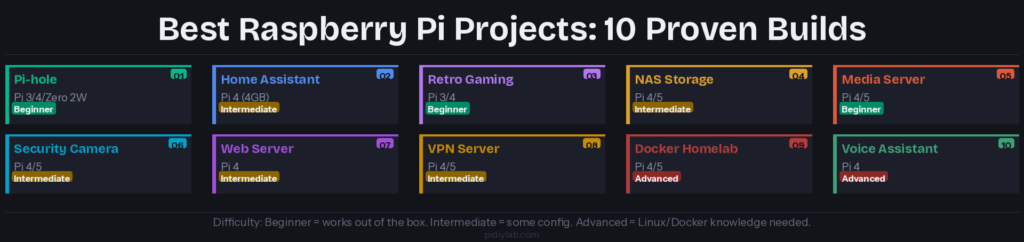
1. Pi-hole: Network-Wide Ad Blocker
Hardware: Pi Zero 2W, Pi 3, or Pi 4. Ethernet preferred. Difficulty: Beginner. Time: 30 minutes.
Pi-hole installs on any Pi with a one-line curl command and blocks ads, trackers, and malware domains for every device on the network at the DNS level. Smart TVs, phones, gaming consoles, and IoT devices all benefit without any per-device configuration. A typical household blocks 15-25% of all DNS queries after setup. Pi-hole runs on Pi Zero 2W at a single-household scale and uses under 100MB RAM at idle.
Full setup guide: Raspberry Pi Pi-hole: Complete Setup and Configuration Guide
2. Home Assistant: Smart Home Hub
Hardware: Pi 4 (4GB) minimum, Pi 5 with NVMe recommended. Difficulty: Intermediate. Time: 1-2 hours initial setup, ongoing configuration.
Home Assistant connects over 3,000 smart devices into a single local dashboard with no cloud subscription required. Lights, thermostats, door locks, cameras, energy monitors, and sensors from Zigbee, Z-Wave, WiFi, and Matter all integrate natively. Automations run locally with no latency. Pi 5 with NVMe is the best platform for a busy Home Assistant instance because the database writes continuously and NVMe eliminates the I/O bottleneck that causes SD card corruption.
Full setup guide: Home Assistant Raspberry Pi 5: Complete Supervised Install with NVMe Guide
3. Retro Gaming Console
Hardware: Pi 3B+ or Pi 4 (2GB+), USB or Bluetooth controller, HDMI display. Difficulty: Beginner. Time: 45 minutes.
RetroPie or Batocera flashed to a microSD card turns a Pi 3 or Pi 4 into a multi-system emulation console. Pi 4 handles NES, SNES, Sega Genesis, N64, and PlayStation 1 at full speed. Batocera is the more plug-and-play option with OTA updates and automatic game metadata scraping. ROMs must be legally obtained from games you own. A basic USB SNES-style controller costs $8-12 and maps correctly without configuration.
Full setup guide: Raspberry Pi Retro Gaming: RetroPie, Batocera, and Lakka Setup Guide
4. NAS: Network-Attached Storage
Hardware: Pi 4 or Pi 5, USB SSD or NVMe via M.2 HAT+, Ethernet. Difficulty: Intermediate. Time: 1-2 hours.
OpenMediaVault on Pi 4 or Pi 5 provides a web-managed NAS with Samba shares, user management, RAID support via USB drives, and plugin support for Plex, Transmission, and other services. Pi 5 with NVMe via the M.2 HAT+ is the best Pi NAS platform. NVMe delivers sustained read/write speeds that USB storage cannot match. A Pi NAS is appropriate for home file sharing, Time Machine backups, and media storage. It is not a substitute for enterprise NAS hardware on a business network.
Full setup guide: Raspberry Pi NAS with OpenMediaVault: Complete Setup Guide
5. Media Server: Jellyfin or Plex
Hardware: Pi 4 (4GB) or Pi 5, USB SSD for media library. Difficulty: Beginner. Time: 30-45 minutes.
Jellyfin on Pi 4 serves a personal media library to any device on the network. Pi 4 handles hardware-accelerated H.264 decoding for direct play streams. Transcoding (converting formats on the fly) is limited on Pi 4. Direct play from compatible files works well, and most modern devices support H.264 natively. Jellyfin is free and open-source. Plex is the commercial alternative with a better mobile app at the cost of a Plex Pass subscription for some features. Both work on Pi 4.
Full setup guide: Jellyfin Raspberry Pi 5: Complete Hardware Decode and Network Shares Setup Guide
6. Security Camera System
Hardware: Pi 4 or Pi 5, Camera Module 3 or USB webcam, USB SSD for recordings. Difficulty: Intermediate. Time: 1 hour.
MotionEye on Pi 4 provides a browser-based security camera interface with motion-triggered recording. Frigate NVR with a Coral TPU USB accelerator adds AI object detection (person, car, pet, face classification) and integrates directly with Home Assistant. Camera Module 3 (12MP, autofocus) is the current official camera for CSI builds. Record to a USB SSD rather than microSD to avoid card failure from continuous writes.
Full setup guide: Raspberry Pi Security Camera: MotionEye, Frigate, and RTSP Setup Guide
7. Personal Web Server
Hardware: Pi 4 (2GB+), USB SSD recommended. Difficulty: Intermediate. Time: 1-2 hours.
Nginx with PHP-FPM and MariaDB on Pi 4 hosts a WordPress site or personal web application on the local network or exposed via Tailscale. Pi 4 serves a low-traffic WordPress site at 15-30 uncached requests per second. With an opcode cache and a WordPress caching plugin, static pages serve from disk cache and throughput increases substantially. Use a USB SSD for the web root and database to avoid SD card I/O limits under database write load.
Full setup guide: Raspberry Pi Webserver: Complete Nginx and WordPress Setup
8. WireGuard VPN Server
Hardware: Pi 4 or Pi 5, Ethernet, static public IP or DDNS. Difficulty: Intermediate. Time: 1 hour.
A WireGuard VPN server on Pi 4 gives remote devices a secure encrypted tunnel back to the home network. Connect a laptop from a coffee shop and access the NAS, Home Assistant, and other local services as if on the home network. WireGuard is faster and simpler to configure than OpenVPN. Pi 4 handles WireGuard encryption at Gigabit speeds without measurable CPU overhead. Tailscale is the simpler alternative when configuring port forwarding and dynamic DNS is not desirable.
Full setup guide: WireGuard Raspberry Pi 5: Complete Phone and Laptop Client Setup Guide
9. Docker Homelab
Hardware: Pi 4 (4GB) or Pi 5, NVMe via M.2 HAT+ strongly recommended. Difficulty: Advanced. Time: 2-4 hours initial, ongoing.
Docker on Pi 5 with NVMe runs a full self-hosted homelab: Nextcloud for file sync, Vaultwarden for password management, Immich for photo backup, Grafana + InfluxDB for monitoring, FreshRSS for news, and more. All from a single Pi 5 with a Portainer UI for container management. The NVMe is essential: Docker container I/O on an SD card is too slow for multi-service builds. Pi 5 with an NVMe SSD handles 10-15 simultaneous containers without contention.
Full setup guide: Docker on Raspberry Pi 5: Complete Beginner Stack with Portainer Guide
10. Local Voice Assistant
Hardware: Pi 4 (4GB), USB microphone, speaker. Difficulty: Advanced. Time: 2-3 hours.
OpenWakeWord for wake word detection, Vosk for offline speech-to-text, and Piper for text-to-speech create a fully local voice assistant on Pi 4 with no cloud account required. Google Assistant SDK was shut down in 2022. The local stack described runs entirely on-device with under 400MB RAM at idle and responds to commands within 1-2 seconds. GPIO dispatch controls LEDs, relays, or other hardware; Home Assistant REST API calls extend control to any smart home device.
Full setup guide: Raspberry Pi Voice Assistant: Local Speech Recognition and TTS Build
FAQ
What is the best Raspberry Pi project for beginners?
Pi-hole is the best first Raspberry Pi project. It installs with a single command, requires no GPIO wiring or soldering, runs on any Pi including the $15 Pi Zero 2W, and immediately provides visible benefit to every device on the network. The second best beginner project is retro gaming with RetroPie or Batocera. Flash an image, insert a microSD card, and plug in a USB controller. Both projects work reliably on Pi 3 or Pi 4 with no Linux experience required beyond following a step-by-step guide.
Which Raspberry Pi should I buy for projects?
Pi 4 (4GB) for most projects. It handles Pi-hole, Home Assistant, Jellyfin, RetroPie, a web server, and WireGuard VPN individually or several simultaneously. Pi 5 (8GB) for storage-intensive projects: NAS with NVMe, a Docker homelab running 10+ containers, Frigate NVR with AI detection, or Home Assistant with many devices and long history retention. Pi Zero 2W ($15) for Pi-hole only or basic sensor builds where size and cost are the primary constraints.
Can I run multiple Raspberry Pi projects on one Pi?
Yes. Pi-hole and a web server, Pi-hole and WireGuard, or Pi-hole and a lightweight media server all coexist on Pi 4 (4GB) without resource contention. Home Assistant is best on a dedicated Pi because it benefits from the full 4GB RAM and NVMe storage. For running many services simultaneously, Docker on Pi 5 with NVMe is the most efficient approach. Each service runs in its own container, resource limits are configurable, and updates do not interfere with other services.
Should I use a microSD card or SSD for Raspberry Pi projects?
SSD for any project that writes data continuously. Pi-hole, Home Assistant, NAS, security camera recording, Nextcloud, and any database-backed service all write data frequently. MicroSD cards fail under sustained write loads, typically within 6-18 months of continuous use. A USB SSD ($25-40) or NVMe via M.2 HAT+ on Pi 5 eliminates that failure mode. Use microSD only for projects that are mostly read-only: retro gaming, a media player, or a static web server where the database is on external storage.
What do I need to get started with Raspberry Pi projects?
At minimum: a Raspberry Pi 4 (4GB), a USB-C 5V/3A power supply, a 32GB+ microSD card (Class 10 or A1), and a micro-HDMI to HDMI cable for initial setup. For headless projects (Pi-hole, web server, VPN), a monitor is only needed briefly for initial troubleshooting. Most setup runs over SSH. For media and gaming projects, an HDMI display and controller are needed. A USB SSD is recommended for any project that writes data. For GPIO projects, a breadboard, jumper wires, and the relevant sensors or modules are needed per project.
Official project resources:
- Pi-hole: pi-hole.net
- Home Assistant: home-assistant.io
- RetroPie: retropie.org.uk
- Jellyfin: jellyfin.org
- OpenMediaVault: openmediavault.org
- WireGuard: wireguard.com
More project guides on PidiyLab:
- Raspberry Pi Projects for Beginners Without Coding: Six Proven Builds
- https://pidiylab.com/killer-apps-for-raspberry-pi-youll-actually-use/
- Raspberry Pi IoT Projects: Sensors, MQTT, and Real Builds
- Raspberry Pi Cluster: Build, Configure, and Run Distributed Workloads
About the Author
Chuck Wilson has been programming and building with computers since the Tandy 1000 era. His professional background includes CAD drafting, manufacturing line programming, and custom computer design. He runs PidiyLab in retirement, documenting Raspberry Pi and homelab projects that he actually deploys and maintains on real hardware. Every article on this site reflects hands-on testing on specific hardware and OS versions, not theoretical walkthroughs.
All projects reviewed May 2026 on Raspberry Pi 4 Model B (4GB) and Raspberry Pi 5 (8GB).