
As an Amazon Associate I earn from qualifying purchases. Some links in this guide are affiliate links.
Ollama on a Raspberry Pi 5 runs small language models entirely on the board, with no cloud and no API keys. You install it with one command, pull a model like Gemma 3 1B, and chat from the terminal. Add Open WebUI in a Docker container and you get a private, ChatGPT-style browser interface pointed at your own models. The catch is honest expectations: the Pi 5 runs Ollama on its CPU, so 1B to 3B models are the sweet spot, not the large models you use in the cloud.
This guide installs Ollama, picks a model that fits, and adds Open WebUI. Ollama is the friendly layer over the same engine covered in the llama.cpp guide; for hardware-accelerated models instead of CPU, see the AI HAT+ 2 guide.
Last tested: Raspberry Pi OS Trixie 64-bit | July 2026 | Raspberry Pi 5 (8GB) with Active Cooler | Ollama with Gemma 3 1B | Open WebUI via Docker
Key Takeaways
- Ollama runs on the Pi 5’s CPU, not a GPU or an AI accelerator. That makes 1B to 3B models the realistic range. An 8GB Pi 5 gives the most room; 4GB works for the smaller 1B to 2B models. A model has to fit in RAM or it will fail to load.
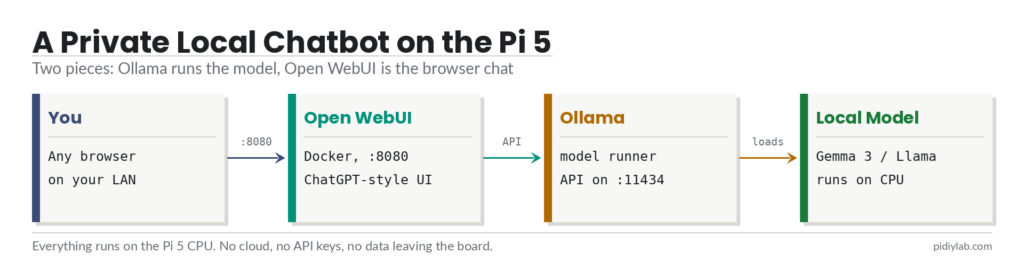
- Ollama and Open WebUI are two separate pieces. Ollama is the model runner and serves a local API on port 11434. Open WebUI is a separate web app, run here in Docker, that connects to that API and gives you a browser chat. You can use Ollama alone from the terminal and add the UI later.
- Set expectations by model size. A 1B model answers quickly (roughly 10 to 20 tokens per second on the Pi 5 CPU); a 3B to 4B model is noticeably slower but higher quality. This is great for a private, offline assistant, not a replacement for a large cloud model.
What Ollama and Open WebUI Are
Ollama is a tool that downloads, manages, and runs open language models with a single command, wrapping the same llama.cpp engine in a friendlier interface and a background service. Open WebUI is a self-hosted web front end that looks and feels like a commercial chat assistant, talking to Ollama’s local API so your conversations never leave the Pi. On a Raspberry Pi both run comfortably; the limiting factor is never the web server, it is how large a model the Pi’s CPU and RAM can handle. If you want the accelerator route instead, the AI HAT+ 2 runs a different, hardware-optimised set of models; Ollama here is the pure-CPU path that works on any Pi 5.
What You Need
- Raspberry Pi 5, 8GB recommended (4GB is fine for 1B to 2B models)
- Active Cooler, since sustained inference keeps the CPU busy
- Fast storage: an NVMe SSD or a good microSD, so multi-gigabyte models load quickly
- A current, updated Raspberry Pi OS (Bookworm or Trixie), 64-bit
- Docker, only for the Open WebUI step (see the Docker on Raspberry Pi 5 guide)
Install Ollama on a Raspberry Pi 5
Install Ollama with the official script, which detects the 64-bit ARM platform and sets up a background service:
curl -fsSL https://ollama.com/install.sh | shPull and run a small model to confirm it works. Gemma 3 1B is a good first choice, around 800MB to download:
ollama run gemma3:1bThe first run downloads the model, then drops you at a prompt. Type a question and you have a language model answering locally on the Pi. Use /bye to exit the chat, and ollama list to see installed models. Ollama is now running as a service and will be there after a reboot.
Pick a Model That Fits
Model choice is the whole game on a Pi. Bigger models are smarter but slower and hungrier for RAM. The figures below are rough guidance for the Pi 5 CPU; your exact speed depends on quantisation and cooling, so treat them as ballpark, not promises.
| Model | Size | Approx RAM | Approx speed (Pi 5 CPU) | Good for |
|---|---|---|---|---|
gemma3:1b | 1B | ~1.2GB | ~10-20 tok/s | Fast general chat |
llama3.2:1b | 1B | ~1.3GB | ~10-18 tok/s | Fast chat, summaries |
qwen2.5:1.5b | 1.5B | ~1.6GB | ~8-14 tok/s | Multilingual, coding |
llama3.2:3b | 3B | ~3GB | ~4-7 tok/s | Better quality answers |
gemma3:4b | 4B | ~3.3GB | ~3-6 tok/s | Best quality that fits 8GB |
Pull any of them with ollama pull <name> and run with ollama run <name>. On an 8GB Pi 5, a 4B model is about the ceiling once you leave room for the OS. On 4GB, stay at 1B to 2B. If a model is killed on load, it did not fit; drop to a smaller one.
Add Open WebUI for a Browser Chat
Open WebUI runs as a Docker container. With Docker installed, start it on the host network so it can reach Ollama’s API on localhost:11434 automatically:
docker run -d --network=host -v open-webui:/app/backend/data --name open-webui --restart always ghcr.io/open-webui/open-webui:mainWith host networking the interface listens on port 8080. Open a browser on another device and go to http://your-pi-ip:8080, create the first account (it becomes the admin), and your installed Ollama models appear in the model picker. The --restart always flag brings it back after a reboot. You now have a private chat interface, served from the Pi, backed by local models.
If you would rather map a specific port than use host networking, run it with -p 3000:8080 and point it at Ollama by setting OLLAMA_BASE_URL to http://host.docker.internal:11434 (adding --add-host host.docker.internal:host-gateway). Host networking is simpler on a single Pi.
Performance and Tuning
A few things make the experience noticeably better. Keep models small: a snappy 1B model you actually use beats a 4B model that crawls. Put models on NVMe rather than a slow card, since load time is dominated by reading gigabytes off storage. Keep the Active Cooler fitted so the CPU does not throttle during long replies. And remember the first response after loading a model is always slower, because the model is being read into RAM; later replies in the same session are quicker. For heavier local AI, hardware acceleration on the AI HAT+ 2 is the next step up.
Verify the Setup
ollama listshows your downloaded models.ollama run gemma3:1banswers a prompt from the terminal.- Open WebUI loads at
http://your-pi-ip:8080and you created the admin account. - Your models appear in the Open WebUI model picker and respond in the browser.
- Both Ollama and Open WebUI come back on their own after a reboot.
Troubleshooting
The model is killed while loading. It did not fit in RAM. Use a smaller model or a more aggressively quantised tag, and close other memory-heavy apps. Check usage with free -h while it loads.
Open WebUI shows no models. It is not reaching Ollama. With --network=host it should find localhost:11434 automatically; confirm Ollama is running with ollama list on the Pi, and if you used port mapping instead, check that OLLAMA_BASE_URL points at the host.
Very slow responses. This is usually the model size against the CPU. Drop to a 1B model, make sure the Active Cooler is on so the Pi is not throttling, and move models to NVMe. Expect single-digit tokens per second on 3B to 4B models regardless.
ollama: command not found. The install script did not finish. Re-run it, and confirm you are on 64-bit Raspberry Pi OS with dpkg --print-architecture reporting arm64.
Hardware for This Build
- A Raspberry Pi 5 (8GB) gives the most room for larger models; 4GB is fine for 1B to 2B.
- The Raspberry Pi 5 Active Cooler keeps the CPU from throttling during long replies.
- An official M.2 HAT+ with an NVMe SSD loads multi-gigabyte models far faster than a microSD card.
- An official Pi 5 case and the official 27W USB-C supply round out the build.


FAQ
Can a Raspberry Pi 5 run ChatGPT locally?
It can run small open models locally that work like a chat assistant, but not the large model behind ChatGPT. On a Pi 5 the practical range is 1B to 4B models such as Gemma 3, Llama 3.2, and Qwen 2.5. They are genuinely useful for private, offline questions, drafting, and summaries, at a smaller scale than a cloud model.
Which model is best for a Raspberry Pi 5?
For speed, a 1B model like Gemma 3 1B or Llama 3.2 1B. For better answers when you can accept slower replies, a 3B model like Llama 3.2 3B, or Gemma 3 4B as the ceiling on an 8GB Pi 5. Start at 1B, then move up only if the quality is not enough and you can tolerate the slowdown.
Do I need the AI HAT+ for Ollama?
No. Ollama runs on the Pi 5 CPU and needs no extra hardware. The AI HAT+ 2 accelerates a different, hardware-optimised set of models and is a separate path. If you already have one, use its own tooling; if not, Ollama gives you local models on a plain Pi 5.
Is 4GB of RAM enough?
For 1B to 2B models, yes. A 4GB Pi 5 runs Gemma 3 1B and similar comfortably. For 3B to 4B models you want the 8GB board so the model and the operating system both have room.
Does Ollama use the Raspberry Pi GPU?
No. On the Raspberry Pi, Ollama runs on the CPU. The Pi’s GPU is not used for inference, which is why model size and CPU speed set the pace, and why cooling matters for sustained use.
References:
- Ollama: ollama.com and model library ollama.com/library
- Open WebUI documentation: docs.openwebui.com
- Raspberry Pi AI software documentation: raspberrypi.com/documentation/computers/ai.html
About the Author
Chuck Wilson has been programming and building with computers since the Tandy 1000 era. His professional background includes CAD drafting, manufacturing line programming, and custom computer design. He runs PidiyLab in retirement, documenting Raspberry Pi and homelab projects that he actually deploys and maintains on real hardware. Every article on this site reflects hands-on testing on specific hardware and OS versions, not theoretical walkthroughs.
Tested on the hardware and OS noted at the top of this article. July 2026.