
As an Amazon Associate I earn from qualifying purchases. Some links in this guide are affiliate links.
Raspberry Pi Connect is a free, official service that gives you remote access to your Pi’s desktop and terminal from any web browser, with nothing to install on the device you connect from and no ports to open on your router. You install one package, sign in with a free Raspberry Pi ID, and reach the Pi from connect.raspberrypi.com. It works from behind home routers and even carrier-grade NAT, where port forwarding is not possible. This guide sets it up in four steps, explains the desktop-versus-shell difference, and shows how it compares to VNC and Tailscale. For a full private network instead of browser access, see the Tailscale guide; for command-line-only access, the SSH guide.
Last tested: Raspberry Pi OS Trixie 64-bit | July 2026 | Raspberry Pi 5 (8GB) and Raspberry Pi 4 Model B | rpi-connect (desktop) and rpi-connect-lite (headless)
Key Takeaways
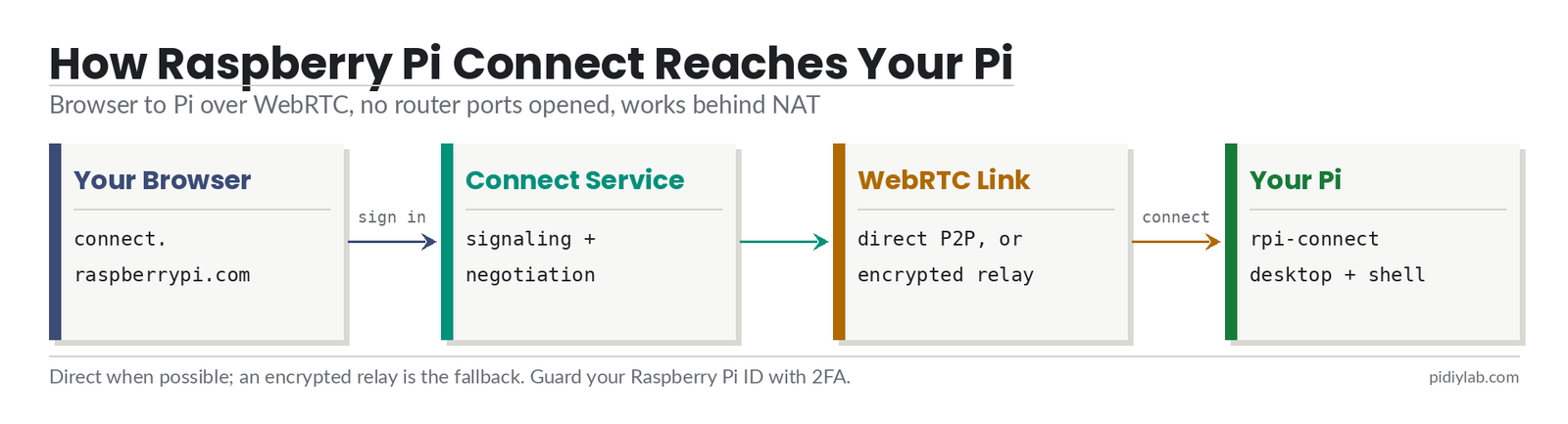
- Raspberry Pi Connect needs no port forwarding and no VPN. It builds a direct, encrypted connection between your browser and the Pi using WebRTC, and falls back to an encrypted relay when a direct link is not possible, so it works behind NAT and CGNAT.
- There are two levels. Full screen sharing (the graphical desktop) needs a Pi 4, 5, 400, or 500 running 64-bit Raspberry Pi OS on Wayland. Remote shell, the terminal, works far more widely, including headless and older boards, using the
rpi-connect-litepackage. - It is free for individual makers and hosted by Raspberry Pi, but the relay never sees your data in the clear, and you should protect the Raspberry Pi ID account with a strong password and two-factor authentication, since that account is now the key to your Pi.
What Raspberry Pi Connect Is
Raspberry Pi Connect is Raspberry Pi’s own remote-access service, run from the browser at connect.raspberrypi.com. A small daemon on the Pi links it to your account, and when you click Connect the browser opens either the Pi’s desktop or a terminal. Unlike traditional remote desktop, there is no viewer app to install on the machine you are sitting at and no router configuration, which is what makes it the easiest official option for reaching a Pi that lives somewhere else. The trade-off is that it does desktop and shell access specifically, rather than exposing every service on the Pi the way a VPN would.
What You Need
- A Raspberry Pi on 64-bit Raspberry Pi OS Bookworm or Trixie, fully updated
- A free Raspberry Pi ID account (create one during sign-in), ideally with two-factor authentication
- For the graphical desktop: a Pi 4, 5, 400, or 500 running Wayland (the default on those boards)
- For remote shell only: almost any Pi, including headless Lite installs, using
rpi-connect-lite
Set Up Raspberry Pi Connect in 4 Steps
The whole setup takes a few minutes. Start by updating the system, then work through the four steps.
1. Install the package
On a desktop Pi, install the full package, which includes screen sharing and shell. On a headless or Lite system, install the lite package for shell-only access instead.
sudo apt update
sudo apt full-upgrade
# Desktop (screen sharing + shell):
sudo apt install rpi-connect
# Or headless / Lite (shell only):
sudo apt install rpi-connect-lite
2. Turn it on
Enable Connect for your user. On the desktop you can also toggle it from the Connect icon in the menu bar.
rpi-connect on3. Sign in and link the device
Start sign-in, which prints a one-time link. This works over SSH too, so a headless Pi is no problem.
rpi-connect signinOpen the printed URL (something like https://connect.raspberrypi.com/verify/XXXX-XXXX) in a browser, sign in with your Raspberry Pi ID, and give the device a name. Check it linked with rpi-connect status.
4. Connect from your browser
Go to connect.raspberrypi.com on any device, sign in, and your Pi appears in the device list. Choose screen sharing for the desktop or shell for a terminal. The first connection may take a few seconds to negotiate. Once it is up, you have your Pi’s desktop or terminal in a browser tab, from anywhere, with no ports opened.
Desktop Screen Sharing vs Remote Shell
The two modes have different requirements. Screen sharing streams the graphical desktop and needs the modern graphics stack, so it is supported on the Pi 4, 5, 400, and 500 running 64-bit Raspberry Pi OS on the Wayland display server, which is the default on those boards. If your Pi is still on the older Xorg server, the screen-sharing option will not appear until you switch to Wayland. Remote shell has no such limit: it gives you a terminal on nearly any Pi, including headless Lite installs and older models, which is why the rpi-connect-lite package exists for servers that never run a desktop.
How the Connection Stays Private
When you connect, Raspberry Pi Connect tries to build a direct peer-to-peer link between your browser and the Pi using WebRTC. When a direct link is not possible, for example behind strict NAT, it relays the traffic through Raspberry Pi’s servers instead, encrypted so that Raspberry Pi cannot read it and does not log or store it. Either way you are not opening a port to the public internet, which is the core security benefit: there is no exposed service for the internet to scan and attack. The account is the thing to guard, so use a strong Raspberry Pi ID password and turn on two-factor authentication.
Raspberry Pi Connect vs VNC vs Tailscale
| Tool | What you get | Client on your device | Open ports | Best for |
|---|---|---|---|---|
| Raspberry Pi Connect | Desktop and shell in a browser | None, just a browser | None | The simplest official remote access |
| VNC | Full desktop control | Usually a viewer app | Local, or via a VNC cloud account | Feature-rich desktop sessions |
| Tailscale | Every service and port over a private network | Yes, on both ends | None | SSH, web apps, and anything else on the Pi |
They are not mutually exclusive. Many people run Connect for quick browser access and Tailscale for full network reach, since Connect handles desktop and shell while Tailscale reaches the other services covered in guides like the media stack or a web server.
Verify the Setup
rpi-connect statusreports signed in and enabled.- The device appears in the list at
connect.raspberrypi.com. - Remote shell opens a working terminal on the Pi.
- On a supported desktop Pi, screen sharing opens the graphical desktop.
- The Raspberry Pi ID account has two-factor authentication turned on.
Troubleshooting Raspberry Pi Connect
No screen-sharing option. The Pi is not on Wayland, or the model does not support the graphical mode. Confirm you are on a Pi 4, 5, 400, or 500 with 64-bit Raspberry Pi OS, and switch the display server to Wayland if it is on Xorg. Remote shell still works regardless.
The device shows offline. Connect is not enabled or not signed in on the Pi. Run rpi-connect status, then rpi-connect on and rpi-connect signin if needed, and confirm the Pi has a working internet connection.
The connection is slow. You are probably on the encrypted relay rather than a direct link, which can happen behind strict NAT. It still works; it is just routed further. A more open network path, or reaching the Pi over a private network like Tailscale for heavy sessions, improves it.
Sign-in link does not work. The one-time URL expires; re-run rpi-connect signin for a fresh one, and make sure you are signing in to the same Raspberry Pi ID in the browser.
Hardware for This Build
- A Raspberry Pi 5 (8GB) or Raspberry Pi 4 (4GB) supports the full desktop screen-sharing mode; remote shell works on almost any Pi.
- An Active Cooler and an official Pi 5 case keep a always-on Pi tidy and cool.
- You will also need the official 27W USB-C supply and a microSD or NVMe drive for the OS.
FAQ
Is Raspberry Pi Connect free?
Yes, it is free for individual makers and hosted by Raspberry Pi. You sign in with a free Raspberry Pi ID. Heavy or commercial use may fall under different terms, so check the current documentation if you plan to run it at scale.
Does Raspberry Pi Connect need port forwarding?
No. That is the main appeal. It builds a connection outward from the Pi using WebRTC, with an encrypted relay fallback, so you never open a port on your router. It works behind ordinary home NAT and even carrier-grade NAT, where port forwarding is not available at all.
Which Raspberry Pi and OS does it need?
Remote shell works on nearly any Pi with 64-bit Raspberry Pi OS Bookworm or newer, including headless Lite. The graphical desktop (screen sharing) needs a Pi 4, 5, 400, or 500 running Wayland. Use rpi-connect on a desktop and rpi-connect-lite on a headless server.
Raspberry Pi Connect vs VNC: which should I use?
Connect is simpler for remote access because it needs no viewer app and no open ports, and it works from anywhere through the browser. VNC gives a more full-featured desktop session and can run purely on your local network. For quick access to a Pi that is elsewhere, Connect is usually the easier choice.
Is Raspberry Pi Connect secure and private?
Connections are encrypted, and when traffic is relayed, Raspberry Pi cannot read it and does not log or store it. Because no port is opened, there is no public service to attack. The main thing to protect is the Raspberry Pi ID account, so use a strong password and two-factor authentication.
References:
- Raspberry Pi Connect documentation: raspberrypi.com/documentation/services/connect.html
- Raspberry Pi Connect announcement: raspberrypi.com/news/raspberry-pi-connect
- Raspberry Pi Connect service: connect.raspberrypi.com
About the Author
Chuck Wilson has been programming and building with computers since the Tandy 1000 era. His professional background includes CAD drafting, manufacturing line programming, and custom computer design. He runs PidiyLab in retirement, documenting Raspberry Pi and homelab projects that he actually deploys and maintains on real hardware. Every article on this site reflects hands-on testing on specific hardware and OS versions, not theoretical walkthroughs.
Tested on the hardware and OS noted at the top of this article. July 2026.