
Last Last tested: Raspberry Pi OS Lite 64-bit – April 11, 2026 — Raspberry Pi 4 Model B and Raspberry Pi Zero W
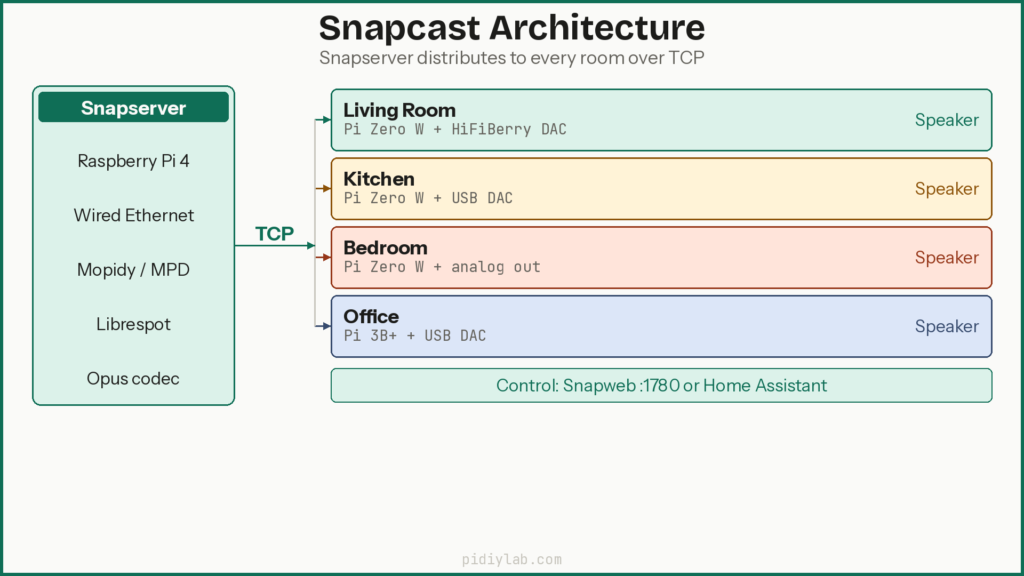
Multi-room audio with Snapcast on Raspberry Pi turns cheap boards into a whole-house music system that actually stays in sync. I run snapserver on a Raspberry Pi 4 with wired Ethernet, then place Raspberry Pi Zero W clients near speakers in each room. Snapserver takes a stream from Mopidy and Librespot, encodes it with the Opus codec, and sends a TCP stream across the home network. Each snapclient keeps a buffer, follows shared timestamps, and plays in sync so drums and vocals line up from kitchen to office. Home Assistant exposes every client as a media player entity, so tapping a card on a phone brings the living room, bedroom, and patio speakers all in together.
Key Takeaways
- Snapserver runs on one central Pi, snapclient runs on every room Pi. That is the whole architecture.
- Raspberry Pi 4 suits snapserver. Pi 3 and Zero W boards handle snapclient work without breaking a sweat.
- Opus codec at a moderate bitrate balances quality and network load for most home Wi-Fi setups.
- Mopidy, MPD, and Librespot feed local files, radio, and Spotify into Snapcast. Snapcast handles distribution only.
- Home Assistant and Snapweb give room-by-room volume and mute control without touching config files.
- SD card longevity matters on a 24/7 audio server. Running snapserver on USB SSD rather than microSD is worth the setup time.
How Snapcast Works
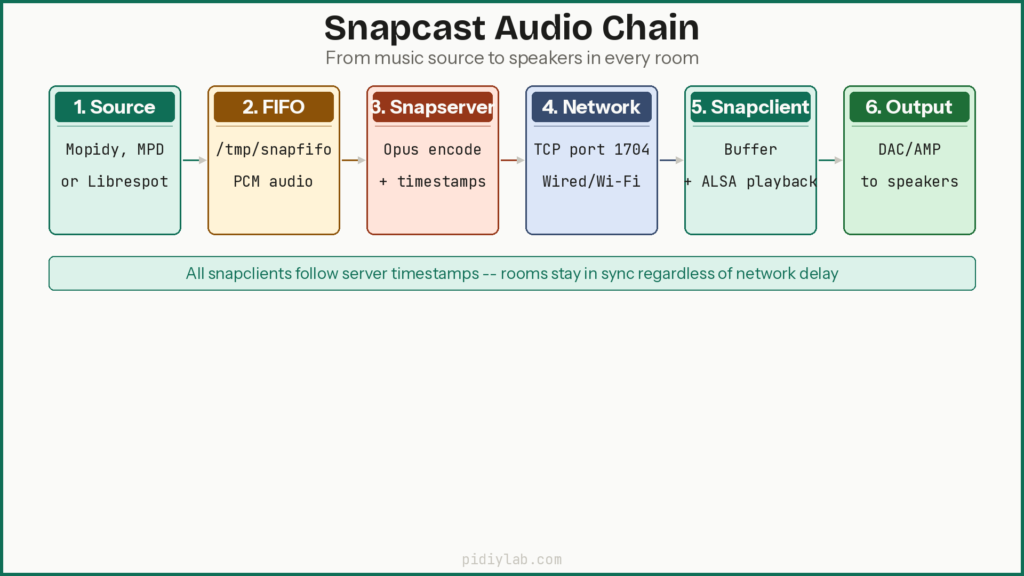
Snapcast splits into two processes: snapserver and snapclient. Snapserver sits on one Pi, reads audio input from a FIFO file or ALSA loopback, encodes it as Opus or FLAC, stamps each packet with timing data, and distributes it over TCP to every connected client. Snapclient sits on each room Pi, receives those packets, stores them in a local buffer, and plays them using ALSA to whatever DAC or amplifier is wired up. Because every client follows the same timestamps from the server, playback stays synchronized even when clients have different network delays.
The Linux audio stack underneath Snapcast is usually ALSA at the base, with PulseAudio or PipeWire on top for mixing. On Raspberry Pi OS Bookworm, PipeWire is the default. Snapclient on a Bookworm client may need to target PipeWire explicitly or use the ALSA compatibility layer. On simpler client boards running a lightweight OS, snapclient writes directly to ALSA with no mixer layer involved, which keeps overhead minimal.
Component summary
| Component | Host device | Main function |
|---|---|---|
| snapserver | Central Raspberry Pi | Reads inputs and streams audio to clients |
| snapclient | Each room’s Raspberry Pi | Receives, buffers, and plays audio |
| ALSA | All Raspberry Pi boards | Low-level sound device interface |
| Mopidy or MPD | Usually snapserver host | Music library, playlists, and radio sources |
Hardware Planning
Server and client Pi choices
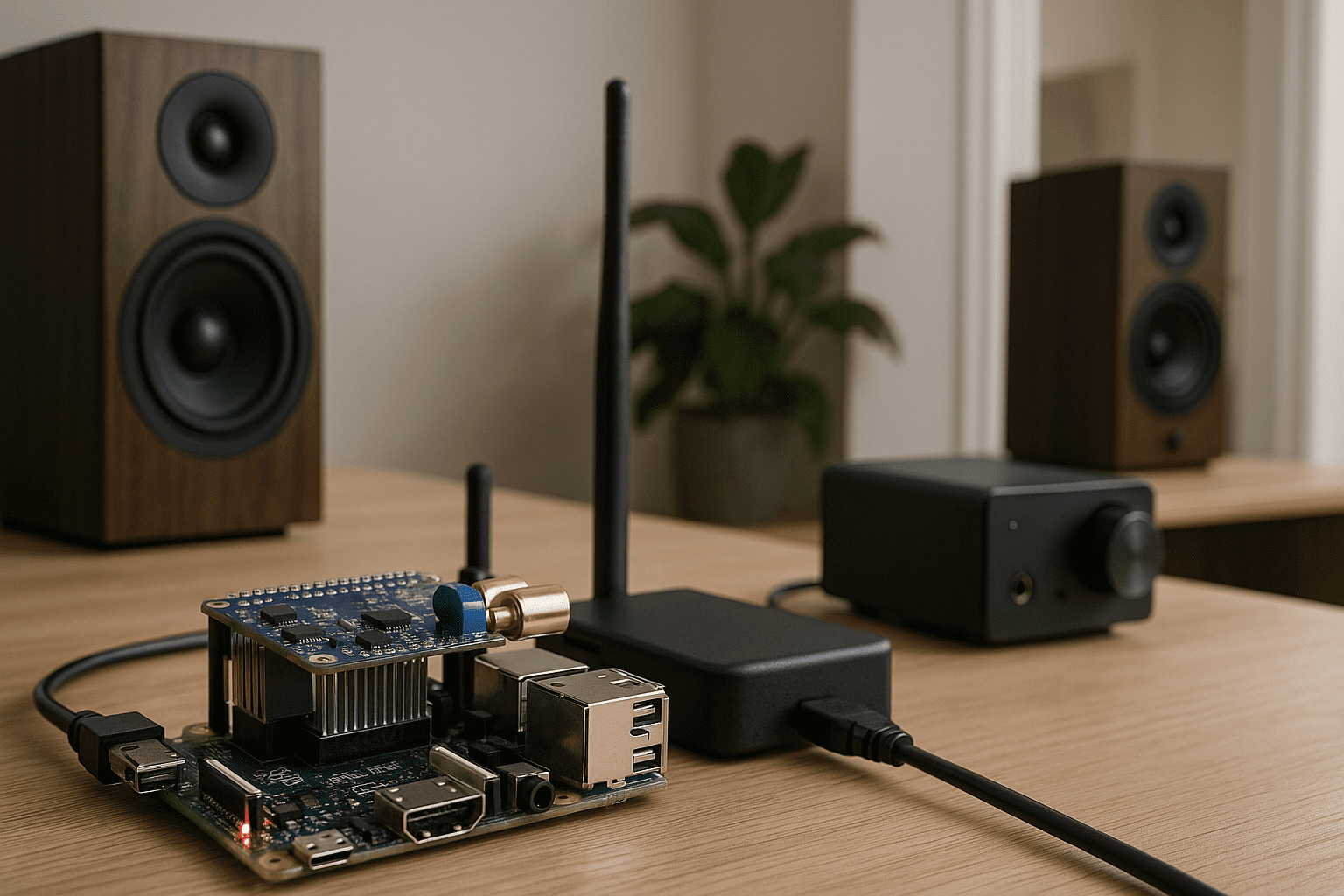
A Raspberry Pi 4 with at least 2GB RAM and wired Ethernet is the right choice for snapserver, particularly when it also runs Mopidy and Librespot on the same board. The stronger CPU and full-speed Gigabit port handle Opus encoding and multiple simultaneous clients without visible load. Raspberry Pi 3 or Zero W boards handle snapclient work well since decoding one Opus stream and driving a DAC uses modest CPU.
DACs, HATs, and amplifiers
HiFiBerry DAC and AMP HATs connect over I2S and offer cleaner output than the built-in analog jack on older boards. USB DACs are a simpler plug-and-play option. For passive speakers, a Class D amplifier module or an AMP HAT provides enough power for bedrooms and kitchens. Active speakers only need a line-level DAC output.
Power, storage, and reliability
Each Pi needs a stable 5V supply with enough current for the board and HAT. The server Pi in particular runs continuously, so a quality microSD card matters, or better, boot from USB SSD to remove the most common failure point on a 24/7 build. See Booting Raspberry Pi from USB SSD for the setup. For reducing write pressure on whatever storage the server uses, see Setting Up zram on Raspberry Pi and Preventing SD Card Corruption on Raspberry Pi.
Network and Synchronization
Snapserver sends audio over TCP, so packet loss or high latency disrupts delivery. Wired Ethernet gives the most stable result. Wi-Fi clients work well when signal strength is good and the access point is not overloaded, but any instability shows up as dropouts or sync slippage before it would affect other traffic.
Synchronization works through timestamps and buffers. Snapserver stamps each audio chunk with timing data. Clients store chunks, then schedule playback using the shared time base. If a packet arrives late, the buffer covers the gap. If a client consistently lags relative to others, a per-client offset in the Snapcast control interface corrects it without touching config files.
Codec, bitrate, and buffer trade-offs
- Opus at 128 to 192 kbps gives good quality over Wi-Fi with modest CPU overhead
- FLAC preserves lossless quality but needs more bandwidth and CPU on the server
- Larger buffers smooth jitter but add delay between pressing play and hearing sound
- Smaller buffers react faster but demand a cleaner network path
For most homes, Opus at 192 kbps with a medium buffer (around 1000ms) is a reliable starting point. Adjust from there based on your network and how sensitive you are to initial playback delay.
Preparing Raspberry Pi OS
Flash Raspberry Pi OS Lite 64-bit using Raspberry Pi Imager. Configure hostname, SSH, and Wi-Fi credentials in the Imager settings before writing the image. After first boot, update everything:
sudo apt update && sudo apt full-upgrade -y
sudo reboot
Assign static IP addresses or DHCP reservations to both the server and every client Pi. Use hostnames that match room labels, such as pi-livingroom and pi-kitchen. These names appear in Snapcast controllers and Home Assistant entities, so consistent naming pays off as the system grows.
Audio device setup
If using a HiFiBerry or similar I2S HAT, add the appropriate overlay to /boot/firmware/config.txt (the Bookworm path). Then list and test available devices:
# List available ALSA playback devices
aplay -l

# Quick speaker test on default device
speaker-test -c 2 -t sine

# Test a specific device by card and device number
speaker-test -D plughw:1,0 -c 2 -t sine
Confirm audio output works before installing Snapcast. Debugging a silent room after Snapcast is running is harder than confirming the hardware path first.
Installing and Configuring Snapserver
sudo apt update
sudo apt install snapcast -y
sudo systemctl enable snapserver
sudo systemctl start snapserver
sudo systemctl status snapserver
The main configuration file is /etc/snapserver.conf. The most important section is the stream definition, which tells snapserver where to read audio from:
[stream]
stream = pipe:///tmp/snapfifo?name=Music&codec=opus&bitrate=192
Create the FIFO that Mopidy or MPD will write to:
sudo mkfifo /tmp/snapfifo
sudo chown mopidy:mopidy /tmp/snapfifo   # adjust user to match your music source
After any config change, check logs for errors:
# Recent log lines
sudo journalctl -u snapserver -n 50

# Follow logs in real time while testing
sudo journalctl -u snapserver -f
Installing and Configuring Snapclient
Install snapclient on each room Pi using the same package:
sudo apt update
sudo apt install snapcast -y
sudo systemctl enable snapclient
sudo systemctl start snapclient
sudo systemctl status snapclient
Tell the client where the server lives and what to call itself. Edit /etc/default/snapclient:
sudo nano /etc/default/snapclientAdd or update the options line:
SNAPCLIENT_OPTS="--host 192.168.1.50 --port 1704 --hostid kitchen"Replace 192.168.1.50 with your server’s IP and kitchen with the room name. The --hostid flag (lowercase) sets the name that appears in Snapcast controllers and Home Assistant. Restart the client after editing:
sudo systemctl restart snapclientIf you need to target a specific ALSA device on the client:
SNAPCLIENT_OPTS="--host 192.168.1.50 --hostid kitchen --soundcard plughw:1,0"Adding Music Sources
MPD for local files and radio
MPD handles local file playback and internet radio. Install it on the server Pi:
sudo apt install mpd mpc -yAdd a FIFO audio output to /etc/mpd.conf so MPD feeds snapserver:
audio_output {
    type        "fifo"
    name        "snapcast"
    path        "/tmp/snapfifo"
    format      "44100:16:2"
}
Restart MPD after editing:
sudo systemctl restart mpdMopidy for extended sources
Mopidy adds Python-based extensions for Spotify, SoundCloud, and other services. Install it on the server Pi:
sudo apt install mopidy -yConfigure the audio output in mopidy.conf to write to the Snapcast FIFO:
[audio]
output = audioresample ! audioconvert ! audio/x-raw,channels=2,rate=48000,format=S16LE ! filesink location=/tmp/snapfifo
sudo systemctl restart mopidyLibrespot for Spotify Connect
Librespot makes the server Pi appear as a Spotify Connect device. Install it from the librespot GitHub releases for your architecture. Create a systemd service so it runs at boot and writes PCM audio to the FIFO or an ALSA loopback that snapserver reads:
librespot \
  --name "Snapcast Spotify" \
  --backend pipe \
  --device /tmp/snapfifo \
  --bitrate 320 \
  --format S16
With this in place, selecting “Snapcast Spotify” in the Spotify app on a phone sends audio through Librespot into snapserver and out to every room.
Audio chain summary
| Stage | Software | Output target |
|---|---|---|
| Library or app | MPD, Mopidy, or Librespot | FIFO or ALSA loopback |
| Distributor | Snapserver | TCP stream to clients |
| Listener | Snapclient | ALSA to DAC or amplifier |
Control Options
Snapweb
Snapweb is a small web app bundled with Snapcast that lists streams, rooms, and volume levels. From a browser on the LAN, you can mute rooms, change streams, and move a client from a radio feed to a music playlist. Access it at http://YOUR_SERVER_IP:1780.
Home Assistant integration
The Home Assistant Snapcast integration reads data from snapserver and exposes each snapclient as a media player entity with volume, mute, and stream controls. Automations can lower bedroom volume at night, pause playback when the front door locks, or start a morning playlist when the alarm fires. This is where the system starts feeling like a product rather than a project.
Mopidy and MPD web interfaces
Mopidy Iris and other MPD web clients handle library browsing, queue management, and playback control. They work alongside Snapcast rather than replacing it. Snapcast handles only distribution. Any MPD-compatible client on the same network can browse the library and queue tracks without touching the Snapcast configuration.
Tuning and Troubleshooting
Choppy playback and buffer tuning
Choppy playback usually means the buffer is too small for the network conditions. Increase the buffer size in snapserver.conf and restart. A common starting adjustment is moving from the default 1000ms to 2000ms on Wi-Fi clients. If two rooms sound slightly out of sync, use the per-client latency offset in Snapweb or Home Assistant to nudge one room forward or back in time.
Wi-Fi dropouts
- Place access points close to rooms with Wi-Fi clients
- Use 5GHz where signal is strong, 2.4GHz for longer range
- Lower Opus bitrate (try 96 kbps) to reduce bandwidth demand on weaker links
- For persistent trouble, run a short Ethernet cable rather than fighting the radio path
Reading logs
# Server logs
sudo journalctl -u snapserver -n 50

# Client logs on a room Pi
sudo journalctl -u snapclient -n 50
Buffer underruns, lost connections, and codec errors all appear in the journal. If CPU load on the server is high, check whether a blocklist update, a gravity rebuild, or another background process is competing with Snapcast. Use top or htop to confirm which process is eating cycles.
Example Setups and Upgrade Paths
Starter two-room layout
- One Raspberry Pi 4 as snapserver, Mopidy, and Librespot host
- One Raspberry Pi Zero W with a small DAC HAT as snapclient in the kitchen
- Two pairs of bookshelf speakers, one per room
This layout teaches the full flow from music source to snapserver to snapclient without the complexity of a larger network. Get two rooms working reliably before adding more.
Scaling to more rooms
Each new room adds one Pi, one DAC or amplifier, and a network connection. Some rooms can use Ethernet, others Wi-Fi, and all still follow the same Opus stream from snapserver. A managed switch helps once the room count grows past four or five, since it gives visibility into traffic patterns and lets you prioritize the audio stream over other LAN traffic.
Adding sources and automation
- Extra Mopidy backends for podcasts, SoundCloud, or YouTube Music
- Multiple Librespot instances for separate Spotify accounts
- Home Assistant automations that tie audio to presence, time of day, or other sensors
FAQ
How does Snapcast keep multiple rooms in sync?
Snapserver attaches timestamps to every audio chunk. Each snapclient buffers incoming chunks and schedules playback using those timestamps rather than local clock timing. This means two rooms with different network delays still start each chunk at the same moment. Per-client offsets let you trim any remaining gap you can hear when standing between two rooms.
Which Raspberry Pi is best for snapserver?
Raspberry Pi 4 with 2GB or 4GB RAM and wired Ethernet. The stronger CPU handles Opus encoding plus Mopidy and Librespot on the same board without visible load. Raspberry Pi 5 is overkill for this workload unless you are running additional services alongside it.
Can all clients run on Wi-Fi?
Yes, and many setups do. Results depend on signal strength and access point load. With a good Wi-Fi setup, moderate Opus bitrate, and a generous buffer, most users report clean playback. Wired Ethernet on at least the server Pi is strongly recommended. Client Pis can be Wi-Fi without issue if the signal is solid.
What is the role of Mopidy versus MPD in a Snapcast setup?
Both are music sources that feed audio into Snapcast through a FIFO or loopback. MPD is simpler: local files and internet radio, managed via command line or any MPD client. Mopidy is more extensible: it has backends for Spotify (via Librespot), SoundCloud, and other services, and works with web frontends like Iris. Snapcast does not care which one you use. It just reads the audio from the FIFO.
Can Home Assistant control Snapcast volume and rooms?
Yes. The Home Assistant Snapcast integration exposes each snapclient as a media player entity with volume, mute, and stream controls. You can group rooms, set per-room volumes from the UI, and build automations that change audio based on presence, time of day, or any other Home Assistant trigger.
Does Snapcast work with Spotify?
Yes, via Librespot. Librespot implements the Spotify Connect protocol and makes the server Pi appear as a Spotify device. Select it from the Spotify app on any phone or laptop and audio routes through Librespot into snapserver and out to every room. You need a Spotify Premium account for Spotify Connect to work.
References
- https://github.com/badaix/snapcast
- https://github.com/badaix/snapcast/blob/develop/doc/configuration.md
- https://docs.mopidy.com/
- https://www.home-assistant.io/integrations/snapcast/
- https://www.raspberrypi.com/documentation/accessories/audio.html
About the Author
Chuck Wilson has been programming and building with computers since the Tandy 1000 era. His professional background includes CAD drafting, manufacturing line programming, and custom computer design. He runs PidiyLab in retirement, documenting Raspberry Pi and homelab projects that he actually deploys and maintains on real hardware. Every article on this site reflects hands-on testing on specific hardware and OS versions, not theoretical walkthroughs.