
Last tested: Raspberry Pi OS Bookworm 64-bit | April 11, 2026 | Raspberry Pi 5 (8GB)
Raspberry Pi 5 GPU acceleration puts the VideoCore VII to work on rendering, video decoding, and compositing tasks that would otherwise fall entirely on the CPU. The Pi 5’s GPU supports OpenGL ES 3.1 and Vulkan 1.2, which is a meaningful step forward from the Pi 4. The practical result is smoother desktop performance, usable video playback at 1080p and above, and a desktop experience that no longer feels like it is fighting the hardware. This guide covers what is actually supported, how to verify it is working, and where it makes a real difference.
Key Takeaways
- Raspberry Pi 5 supports OpenGL ES 3.1 and Vulkan 1.2 via the VideoCore VII GPU and Mesa driver stack
- Wayland is the default display server on Raspberry Pi OS Bookworm and performs better than X11 for GPU-accelerated workloads
- The vc4-kms-v3d overlay is already active by default on Bookworm. Do not add a duplicate entry to config.txt.
- VAAPI hardware video decoding works in VLC and MPV and makes a noticeable difference for 1080p and 4K playback
- Active cooling is required for sustained GPU workloads. Temperatures above 80 degrees C trigger throttling.
- Not every application benefits. Terminal apps, text editors, and headless setups see no gain from GPU acceleration.
Hardware Overview
VideoCore VII GPU
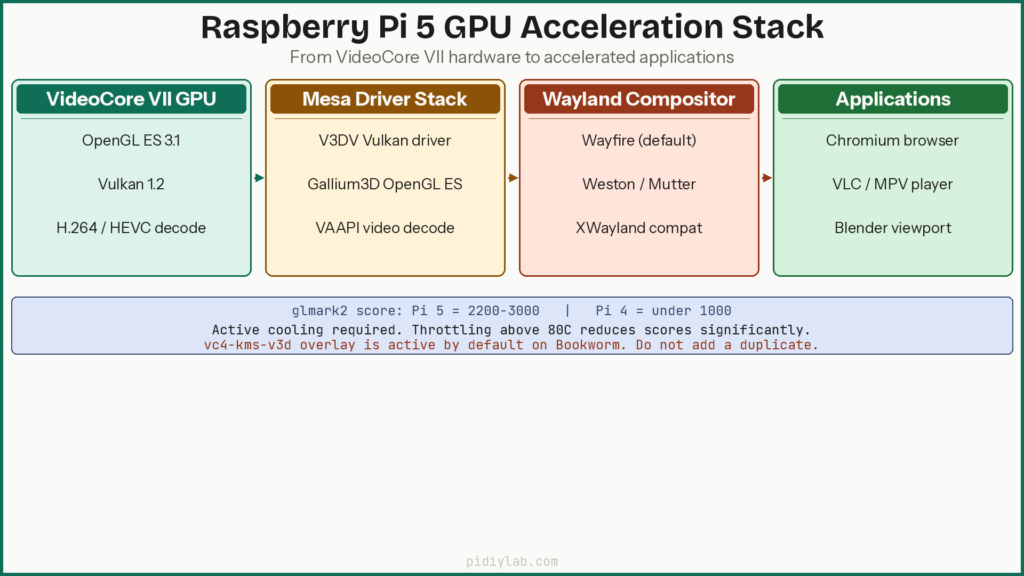
The Pi 5 uses the Broadcom BCM2712 SoC, which includes a VideoCore VII GPU. This is the first significant GPU upgrade since the Pi 4’s VideoCore VI. The VideoCore VII supports OpenGL ES 3.1, Vulkan 1.2, and hardware video decoding for H.264 and HEVC. Compared to the Pi 4, it handles more complex shaders, produces smoother compositing, and can decode higher resolution video without dropping frames.
Memory and bandwidth
The Pi 5 uses LPDDR4X RAM with higher memory bandwidth than the Pi 4. The GPU and CPU share this memory. More bandwidth means the GPU can pull texture and frame data faster, which matters for anything involving large textures, high-resolution video, or compositing multiple layers simultaneously. The Pi 5 comes in 4GB and 8GB configurations. For GPU-accelerated desktop use, 4GB is the practical minimum. 8GB gives comfortable headroom when running a browser, a media player, and background services simultaneously.
What GPU Acceleration Actually Covers
GPU acceleration on the Pi 5 applies to three distinct areas. Desktop compositing handles window animations, workspace switching, and transparency effects. Video decoding offloads H.264 and HEVC decode from the CPU to dedicated hardware, which reduces CPU load and prevents frame drops during playback. 3D rendering covers OpenGL ES and Vulkan workloads including game engines, 3D modeling previews, and graphics benchmarks.
Tasks that do not benefit include terminal sessions, text editing, file management, and any application that does not use hardware graphics APIs. Running a headless Pi as a server sees zero benefit from GPU acceleration. The gains are real but specific. Expecting GPU acceleration to make the Pi 5 feel like a desktop workstation sets the wrong expectations. Expecting it to make 1080p video smooth and browser scrolling fast sets the right ones.
Recommended Hardware


Verifying GPU Acceleration is Active
Check OS version
cat /etc/os-releaseRaspberry Pi OS Bookworm is required. Bullseye and earlier lack the Mesa driver versions and kernel support needed for Vulkan and full OpenGL ES 3.1 functionality on Pi 5.
Check Vulkan support
sudo apt install vulkan-tools -y
vulkaninfo | head -30
Note: the package is vulkan-tools, not vulkan-utils. The latter does not exist as a separate package on Bookworm. If vulkaninfo returns an error about no Vulkan devices, check the next section on the KMS overlay.
Check OpenGL ES support
On a pure Wayland session without XWayland, glxinfo will not work. Use eglinfo instead:
sudo apt install mesa-utils-extra -y
eglinfo | grep -i "opengl es"
If you have XWayland running or are on an X11 session, you can also use:
glxinfo | grep "OpenGL ES"You want to see OpenGL ES 3.1 Mesa in the output. If you see software rasterizer or llvmpipe instead of the VideoCore VII driver, the KMS overlay is not active or the Mesa packages need updating.
Confirm the KMS overlay
On Raspberry Pi OS Bookworm, the vc4-kms-v3d overlay is already active by default. Check that it is present rather than adding it, since a duplicate entry in config.txt can cause boot issues:
grep "vc4-kms-v3d" /boot/firmware/config.txtYou should see dtoverlay=vc4-kms-v3d in the output. If it is absent on a fresh Bookworm install, something went wrong during imaging. Re-flash rather than adding the line manually, since other related settings may also be missing.
Wayland vs X11
Wayland is the default display server on Raspberry Pi OS Bookworm when using the desktop. It handles compositing more efficiently than X11 and works better with the Mesa Gallium3D driver stack on the Pi 5. Tearing is reduced, frame rates are more consistent, and the compositor does not have to fight the same overhead that X11 carries from decades of legacy protocol support.
X11 still works and GPU acceleration still applies under X11, but performance will be somewhat lower. Some older applications that do not support Wayland run under XWayland, which provides X11 compatibility on top of Wayland. Most modern applications on Raspberry Pi OS Bookworm either support Wayland natively or run acceptably under XWayland.
If you need to switch between Wayland and X11, use raspi-config:
sudo raspi-config
# Advanced Options -> Wayland -> choose W1 (Wayfire) or W2 (X11)
Application-Level Acceleration
Chromium
Chromium on Pi 5 benefits noticeably from GPU acceleration for page rendering, scrolling, and video playback. Hardware acceleration is enabled by default in recent Chromium builds on Bookworm. Verify it is active by navigating to chrome://gpu in the browser. Look for “Hardware accelerated” next to Graphics Feature Status entries. If you see “Software only” on several entries, hardware acceleration may have been disabled.
To re-enable it, go to chrome://flags and search for “Override software rendering list.” Enable it and relaunch. Note that flag names and availability vary between Chromium versions. Some flags present in one build may not exist in another, particularly on ARM builds. Check chrome://gpu rather than assuming a flag worked.
VLC and video playback
VLC with VAAPI hardware decoding offloads video decode from the CPU to the VideoCore VII. This makes a meaningful difference for 1080p and especially 4K content. Without hardware decoding, the CPU handles all decode work and will drop frames on demanding content.
In VLC, go to Tools, then Preferences, then Input and Codecs. Under Hardware-accelerated decoding, select VAAPI or Automatic. For MPV:
mpv --hwdec=vaapi video.mp4Watch CPU usage during playback to confirm the difference. With VAAPI active, CPU usage during 1080p H.264 playback should sit well below 50 percent on Pi 5. Without it, the CPU works considerably harder and frame drops are common on demanding content.
Blender
Blender runs on Pi 5 for basic 3D modeling and scene work. Viewport rendering uses OpenGL ES via the Mesa driver. Render times for full renders are long on any Pi hardware, but viewport interaction is usable for simple scenes. Vulkan support in Blender is experimental and not recommended for production use on Pi 5. For anything beyond basic modeling and animation preview, a dedicated GPU workstation remains the practical choice.
GIMP and image editing
GIMP uses the GEGL backend which can use OpenCL for some operations. OpenCL support on the VideoCore VII is limited and not fully functional at the time of writing. GPU acceleration in GIMP on Pi 5 mainly shows up as smoother UI rendering and canvas redraws rather than GPU-accelerated filters. For most image editing tasks on Pi 5, GIMP is usable but not fast.
VS Code and development tools
VS Code benefits from GPU acceleration for text rendering, scrolling, and UI redraws. It is not a dramatic difference but the editor feels more responsive with GPU compositing active. This applies to other Electron-based applications as well. Code compilation speed is entirely CPU-bound and unaffected by GPU acceleration.
Benchmarks
glmark2
sudo apt install glmark2 -y
glmark2
On Raspberry Pi 5 running Bookworm with Wayland and the vc4-kms-v3d driver active, glmark2 scores typically land between 2200 and 3000 depending on cooling, the desktop environment in use, and background load. The Pi 4 rarely exceeded 1000 on the same benchmark. This is a meaningful jump for a single-board computer and reflects real improvements in the VideoCore VII over the VI.
Score variance is significant. A well-cooled Pi 5 with minimal background processes on Wayfire will score higher than the same board running GNOME with several open applications and thermal throttling in play. Do not compare scores across different desktop environments or cooling setups without controlling those variables.
Temperature under GPU load
# Monitor temperature during a benchmark or GPU workload
watch -n 1 vcgencmd measure_temp

# Check for throttle events after a session
vcgencmd get_throttled
GPU-heavy tasks push temperatures above 75 degrees C on a passively cooled Pi 5 in a typical room. Throttling begins above 80 degrees C and will depress benchmark scores and cause frame drops during sustained workloads. An active cooling case is not optional for any regular GPU-accelerated use. A passive aluminum case helps but is not sufficient for sustained rendering or video decode sessions. See Raspberry Pi Randomly Reboots Under Load for a full breakdown of throttle flag values from get_throttled.
Troubleshooting
vulkaninfo returns no devices
Confirm the KMS overlay is active with grep "vc4-kms-v3d" /boot/firmware/config.txt. If it is missing, re-flash the OS image rather than manually editing config.txt, since other required settings may also be absent. If the overlay is present and Vulkan still fails, update the system fully and reboot:
sudo apt update && sudo apt full-upgrade -y
sudo reboot
glmark2 or apps show software rendering
If eglinfo shows llvmpipe or softpipe as the renderer rather than the VideoCore VII driver, the Mesa drivers may not be correctly linked to the KMS device. Confirm the correct Mesa packages are installed:
sudo apt install mesa-vulkan-drivers libgl1-mesa-dri -yVLC or MPV drops frames with VAAPI
Not all video formats are supported by the VAAPI driver on Pi 5. H.264 and HEVC work well. VP9 and AV1 hardware decode support is limited or absent. If a specific file drops frames with VAAPI enabled, try switching to a different codec in VLC settings or converting the file to H.264. Also confirm the Pi is not thermally throttling during playback.
Compositor crashes on Wayland
Intermittent compositor crashes during GPU-accelerated workloads are more common with GNOME’s Mutter compositor than with Wayfire or Weston on Pi 5. If you are experiencing crashes, try switching to Wayfire via raspi-config. If crashes persist, fall back to X11 temporarily and check whether the issue follows the application or the compositor. Open compositor bugs for Pi-specific GPU quirks are tracked in the Raspberry Pi GitHub repositories.
When GPU acceleration is not worth enabling
- Headless systems running as servers. There is no display stack to accelerate.
- Legacy X11-only applications that crash or perform worse on Wayland
- Systems without active cooling where sustained GPU load causes throttling that erases any performance gain
- Terminal-only workflows where no GPU-accelerated APIs are in use
Current State and What Is Still Improving
Vulkan 1.2 support on Pi 5 is functional but not complete for all extensions that applications expect. The Mesa V3DV driver continues to receive updates that improve compliance and fix application-specific bugs. If a Vulkan application fails to run or produces incorrect output, a Mesa update may resolve it. Run sudo apt full-upgrade -y periodically and retest.
OpenCL support on the VideoCore VII is not production-ready at the time of writing. Applications that rely on OpenCL for GPU compute (including some GIMP filters and video processing tools) fall back to CPU execution on Pi 5. This may improve as open-source driver work continues. Checking the Mesa release notes and Raspberry Pi Foundation blog for driver updates is the best way to track progress on specific features.
For storage-intensive GPU workflows, moving to USB SSD boot removes microSD as a bottleneck when large textures or video files are being streamed from disk. See Booting Raspberry Pi from USB SSD for the setup. For reducing overall system write pressure on any storage, see Setting Up zram on Raspberry Pi.
FAQ
Does Raspberry Pi 5 support Vulkan out of the box?
Yes, on Raspberry Pi OS Bookworm. The vc4-kms-v3d overlay and Mesa V3DV Vulkan driver are included in the default OS image. Install vulkan-tools and run vulkaninfo to confirm. You do not need to add anything to config.txt on a fresh Bookworm install.
Is Wayland required for GPU acceleration?
No, but it performs better. GPU acceleration works under X11 as well, but Wayland’s compositor handles rendering more efficiently with the Mesa driver stack on Pi 5. Wayland is the default on Bookworm and the recommended choice for GPU-accelerated desktop use.
Can Blender use the GPU on Raspberry Pi 5?
For viewport rendering, yes. Blender uses OpenGL ES via Mesa for the 3D viewport and it works on Pi 5. Full render via Vulkan is experimental and not stable. For full renders, Blender falls back to CPU, which is slow on any Pi hardware. Blender on Pi 5 is practical for basic modeling and animation work, not production rendering.
Does a fan make a real difference for GPU tasks?
Yes, significantly. Without active cooling, the Pi 5 throttles above 80 degrees C during sustained GPU workloads such as video decoding, glmark2, or Blender viewport work. Throttling reduces both CPU and GPU clock speeds and directly degrades performance. An active fan case keeps temperatures in a range where the board runs at full speed throughout a session.
Does Pi 5 support AV1 hardware decoding?
No. The VideoCore VII hardware decoder supports H.264 and HEVC. AV1 hardware decode is not available. AV1 content plays via software decode, which is CPU-bound and will drop frames on demanding content. Stick to H.264 or HEVC for hardware-accelerated video playback on Pi 5.
What is the glmark2 score on Raspberry Pi 5?
Typically 2200 to 3000 on Bookworm with Wayland and active cooling, depending on the desktop environment and background load. This compares to under 1000 on Raspberry Pi 4. Score variation between runs on the same hardware is normal and reflects background CPU/GPU load, thermal state, and compositor overhead.
References
- https://www.raspberrypi.com/documentation/computers/raspberry-pi.html
- https://docs.mesa3d.org/
- https://github.com/raspberrypi/linux
- https://forums.raspberrypi.com/
About the Author
Chuck Wilson has been programming and building with computers since the Tandy 1000 era. His professional background includes CAD drafting, manufacturing line programming, and custom computer design. He runs PidiyLab in retirement, documenting Raspberry Pi and homelab projects that he actually deploys and maintains on real hardware. Every article on this site reflects hands-on testing on specific hardware and OS versions, not theoretical walkthroughs.
Last tested hardware: Raspberry Pi 5 (8GB). Last tested OS: Raspberry Pi OS Bookworm 64-bit.