
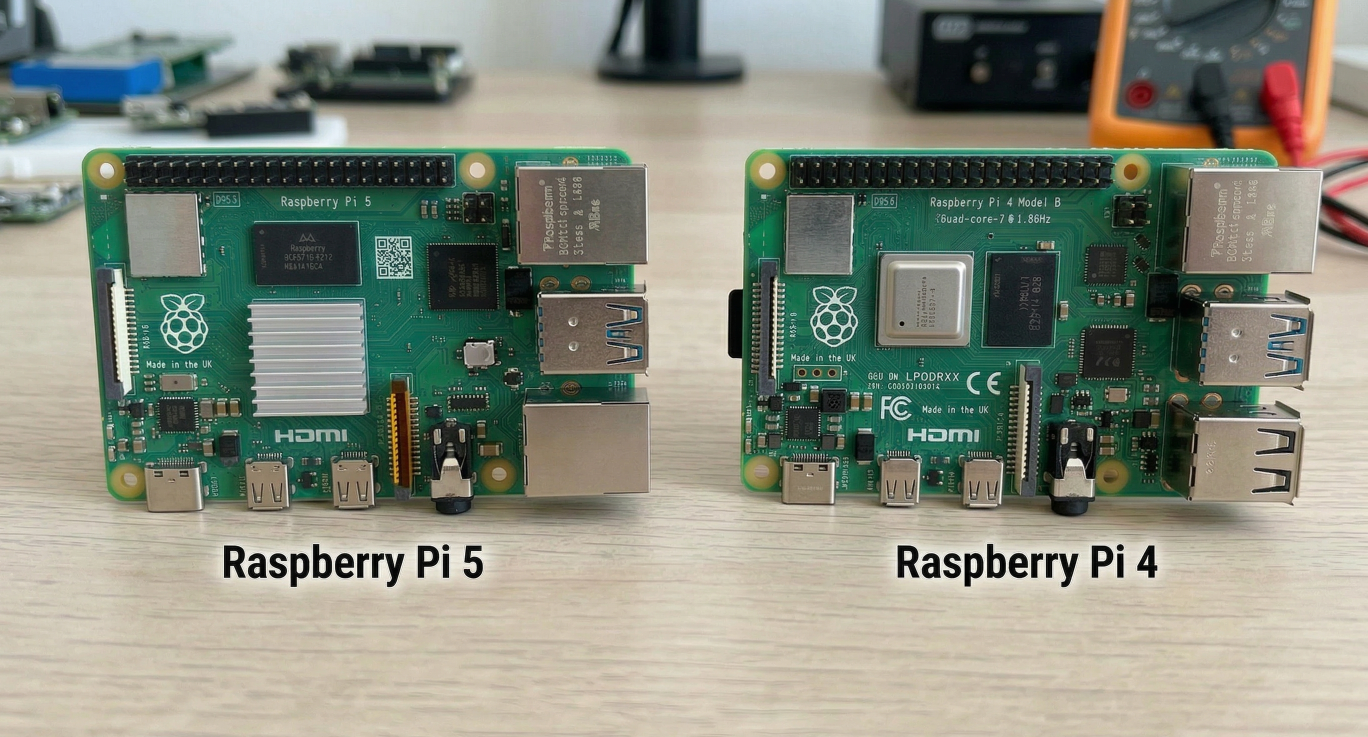
All right, let’s just get this out of the way up front. In the Raspberry Pi 5 vs Raspberry Pi 4 debate, the 5 wins. I know, groundbreaking stuff. Newer thing is better than older thing. Hold your applause.
But here’s what nobody actually tells you: “better” is doing a lot of heavy lifting in that sentence. Better at some things, sure. Overkill for others. And right now, with memory prices doing their best impression of your grocery bill circa 2022, the price gap between these two boards has widened in ways that actually matter for your decision.
So let’s talk about what you’re really asking, which is: “Should I spend the extra money?” And the honest answer is: it depends on what you’re building. Obviously. But stick with me, because I’m going to break it down by actual use case so you’re not stuck reading specs and pretending you know what they mean.
The Quick Specs, Because You’re Going to Ask
I’m sure a lot of you are going, “Just tell me the numbers.” Fine.
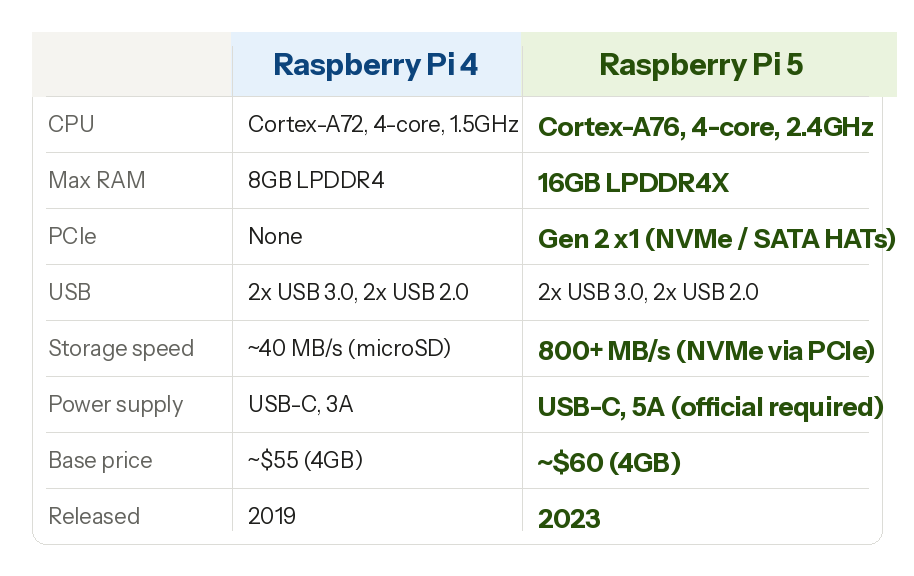
The Raspberry Pi 4 shipped in 2019 with a quad-core Cortex-A72 processor running at 1.5GHz, up to 8GB of RAM, two USB 3.0 ports, Gigabit Ethernet, and dual micro-HDMI outputs. No PCIe. No real expansion beyond what USB could handle. It was, for its time, a legitimate little powerhouse.
The Raspberry Pi 5 landed in late 2023 with a quad-core Cortex-A76 at 2.4GHz, up to 16GB of RAM, two USB 3.0 ports, Gigabit Ethernet, dual HDMI outputs, and — this is the big one — a PCIe Gen 2 x1 connector. That connector is what changed everything about what this board can actually do.
Real-world performance difference? The Pi 5 is roughly two to three times faster at CPU-bound tasks. Not a rounding error. That’s a meaningful jump.
The price difference is less clean. The Pi 4 in 4GB configuration used to sit at $55. With the current RAM shortage driving costs up across the whole single-board computer market, availability and pricing vary more than they used to. The Pi 5 with 4GB starts at $60. Eight bucks more for dramatically more performance sounds like an obvious call. Except nothing is obvious once you factor in accessories, and we’ll get there.
The Use Case Breakdown (This Is the Part That Actually Matters)
Home Server and Self-Hosting
Now, this is where you’re running things like Nextcloud, Vaultwarden, Jellyfin, Home Assistant, Pi-hole — the classic homelab stack. I’m sure you’ve been down this road.
The Pi 4 handles light home server work without complaint. If you’re running Pi-hole and Vaultwarden and not much else, it’s fine. You won’t notice the speed difference because neither of those apps is hammering the CPU.
But if you’re running Jellyfin and you want hardware transcoding, or you’re running multiple Docker containers and actually switching between them, or you want to throw an NVMe drive at the thing for real storage speed — the Pi 5 pulls ahead in ways you’ll actually feel.
The PCIe slot on the Pi 5 is the real differentiator here. Attach an NVMe HAT and you’re pulling 800-plus MB/s read speeds instead of the 40-ish MB/s you get from a microSD card. For anything writing to disk constantly — like a NAS, a security camera recorder, or a database-backed app — that’s not a nice-to-have. That’s night and day.
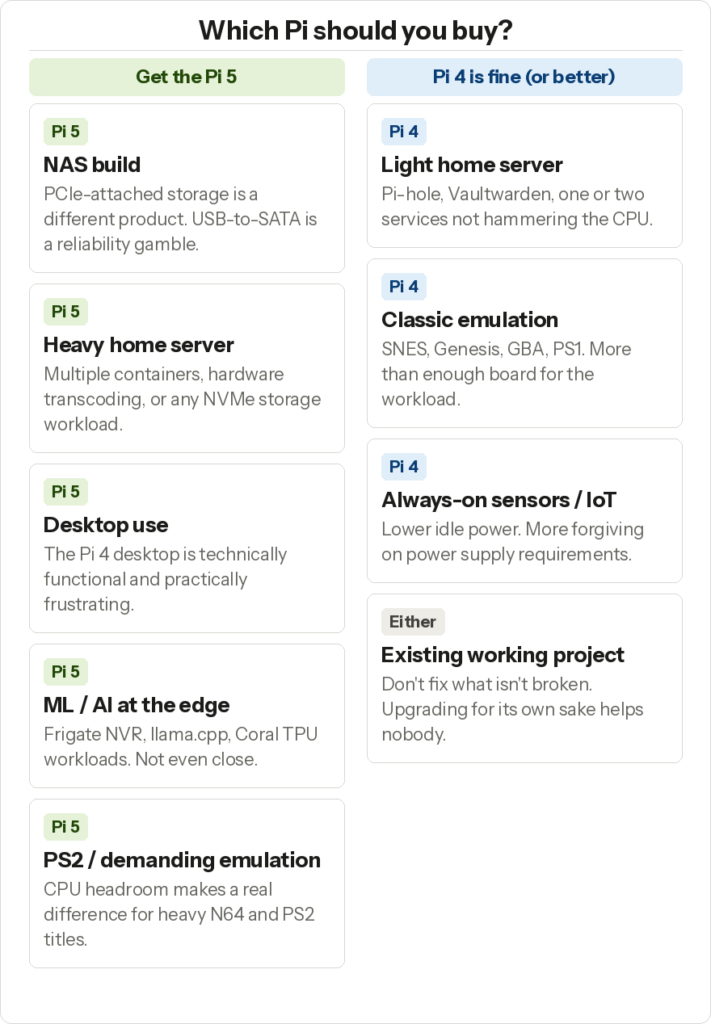
Verdict: Pi 5 if you’re serious about self-hosting. Pi 4 if you’re running one or two lightweight services and already own one.
NAS (Network Attached Storage)
All right, this one’s pretty clear-cut. Build a NAS on a Pi 4 and you’re running drives over USB 3.0 with adapters, which works until it doesn’t. I’ve talked to enough people who’ve had drives randomly disconnect at 2am to know that USB-to-SATA is not a fun reliability story.
The Pi 5 with the Radxa Penta SATA HAT or a similar PCIe-attached SATA solution is a fundamentally different product. You get proper drive connections. You get faster throughput. You get a platform that can actually handle the write load of a real NAS without throttling.
If you’re building a NAS from scratch right now, there’s really no reason to pick the Pi 4. The Pi 5 NAS build is cheaper than a commercial Synology once you run the numbers, and you get hardware you actually control.
Verdict: Pi 5, no contest.
Retro Gaming and Emulation
I got a few regrets in my life, and one of them is not getting into RetroPie earlier. Anyway.
The Pi 4 runs everything up through PlayStation 1 and Nintendo 64 without drama. It struggles with PlayStation 2 emulation and anything more demanding than that. The Pi 5 handles PS2 noticeably better, and some N64 titles that had frame rate issues on the Pi 4 run clean.
That said, if your goal is SNES, Genesis, Game Boy Advance, and similar 8 and 16-bit systems, the Pi 4 is genuinely more than enough. You’d be buying Pi 5 performance for a workload that doesn’t need it.
I’m sure a lot of you are going to ask about Dreamcast. Both boards handle it about the same — which is to say, it depends heavily on the game. Some titles are great. Some are painful. Manage your expectations accordingly.
Verdict: Pi 4 is fine for classic emulation. Pi 5 if you want PS2 or better N64 performance.
Always-On Low-Power Projects
Here’s where people get this wrong pretty consistently. If you’re running a Pi as a sensor hub, a simple web scraper, a basic MQTT broker, a door sensor, a weather station, something that just sits there doing one small thing — the Pi 4 is actually the better call.
Why? Power consumption. The Pi 5 idles around 3-4 watts and can spike to 12 or more under load. The Pi 4 idles closer to 3 watts and rarely spikes above 7-8 watts even under load. That sounds close, but at scale or over months of always-on operation, it adds up. Not like, quit-your-job levels. But worth thinking about if you’re running on a battery backup or you’re genuinely watching the electricity bill.
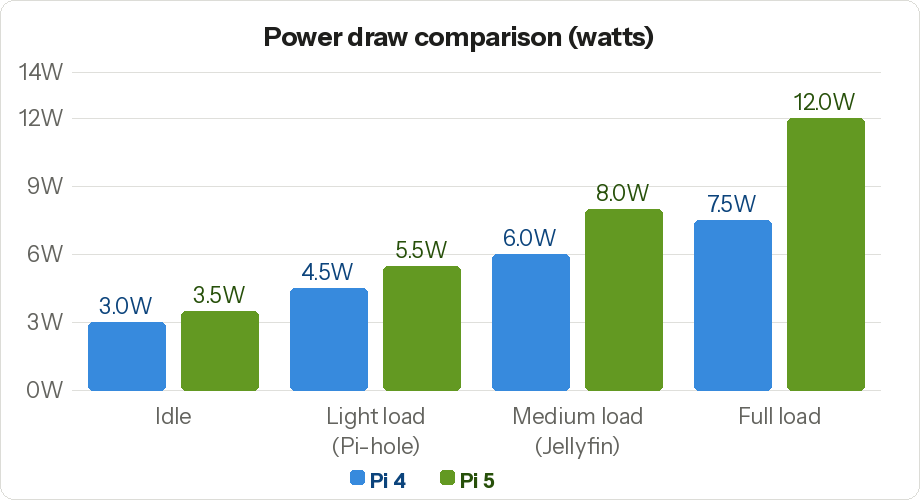
The Pi 5 also requires its official USB-C power supply rated at 5A, or very close to it. Underpowering the Pi 5 causes throttling and weird instability that’s annoying to diagnose. The Pi 4 is more forgiving.
Verdict: Pi 4 for simple always-on, low-demand projects. Pi 5 if the project ever needs real processing power.
Desktop Computer Replacement
Now, before we get going here — I want to set expectations. Neither of these is going to replace your daily driver for real work. But the Pi 5 comes close enough to be legitimately useful as a light desktop, which is more than I’d say about the Pi 4.
The Pi 4 as a desktop is functional for web browsing if you’re patient and don’t open too many tabs. It’s adequate for writing. It’ll run LibreOffice. It will not make you happy doing anything beyond that.
The Pi 5 as a desktop is a different conversation. GPU acceleration on the desktop actually works now. Web browsing feels responsive at a level the Pi 4 never achieved. Video playback with hardware decoding is genuinely smooth. If you need a low-cost Linux box for light productivity, SSH work, or as a kiosk machine, the Pi 5 delivers.
The Pi 500 and Pi 500+ (the keyboard-integrated versions) make this more practical by bundling everything into a cleaner package. The Pi 500+ with 16GB RAM and an NVMe drive is a different animal entirely.
Verdict: Pi 5 if desktop use is part of your plan. The Pi 4 desktop experience is technically functional and practically frustrating.
Machine Learning and AI at the Edge
If you’re trying to run a full LLM on either of these, you’re in for a slow afternoon. But smaller models and specific inference tasks are actually workable on the Pi 5 in ways the Pi 4 never really was.
Running llama.cpp with a quantized 7B model on the Pi 5 gets you usable tokens-per-second numbers. Slow by any normal standard, but it works. Running Frigate NVR with a Coral TPU attached, the Pi 5 handles more camera streams with lower CPU load than the Pi 4 did in the same configuration.
For computer vision, object detection, or running small local models, the Pi 5 is the board you want. The Pi 4 technically runs these things. It just does it with significantly more pain.
Verdict: Pi 5 for anything ML-adjacent.
The Accessory Problem Nobody Talks About
Here’s what the benchmark articles don’t tell you. The Pi 5 is $5 more than the Pi 4. Great. But the Pi 5 pulls more power, so you need the official 5A USB-C power supply, which is another $12. The Pi 5 runs hotter, so you probably want active cooling, which is another $5 to $25 depending on what you buy. If you want to use the PCIe slot (which is the whole point), you need a HAT, which starts around $20 and goes up from there.
By the time you’ve actually configured a Pi 5 to take advantage of what makes it better than a Pi 4, you’ve spent real money. Not a lot, but real. The Pi 4 in many cases already has the accessories you might own, and it runs fine on power supplies you probably already have.
None of this means don’t buy the Pi 5. It means go in with accurate expectations about total cost.
The RAM Shortage Wrinkle
Worth mentioning: memory prices are up significantly right now. Contract prices for DRAM jumped hard in early 2026, and that’s hitting low-cost computing boards across the board — including Raspberry Pi. Raspberry Pi manufactures in the UK and uses soldered memory, which limits their flexibility when costs spike.
What this means for you practically: Pi 4 stock at discount is harder to find than it used to be. The price advantage of the Pi 4 over the Pi 5 has narrowed. If you were waiting for a fire-sale Pi 4 deal to make the economics obvious, that window is smaller right now. Check current pricing before you assume.
So Which One?
Here’s the honest version.
Buy the Pi 5 if you’re starting fresh and you’re building anything that involves an NVMe drive, a NAS, hardware transcoding, a usable desktop, or anything ML-related. The performance gap is real and the PCIe connector genuinely changes what’s possible. At a $5-8 price difference on the base board, the Pi 5 is the better buy for most new projects in 2026.
Buy the Pi 4 if you already own one and it’s doing the job. There’s no reason to upgrade a working Pi-hole or a running Home Assistant instance. If you’re doing a new simple automation project, a sensor hub, or an emulation build focused on classic systems, the Pi 4 is genuinely good enough and easier on power.
Don’t buy a Pi 4 for a new NAS build. That’s the clearest call I can make. The Pi 4 NAS works until it doesn’t, and the Pi 5 with proper PCIe-attached storage is just a better platform.
I mean, at the end of the day you’re probably going to buy the Pi 5 because it’s newer and you’re already reading a comparison article on a website about Raspberry Pi projects. I’ve seen how this goes. Just make sure you budget for a decent power supply.
Frequently Asked Questions
Is the Raspberry Pi 5 worth upgrading from a Pi 4?
If your Pi 4 is running fine and doing the job you bought it for, honestly, no. There’s no upgrade path anyway — you’re not swapping chips, you’re buying a whole new board and probably new accessories to go with it. If you’re starting fresh or your current build is hitting a wall, then yes, the Pi 5 is worth it without a lot of debate. The performance gap is real and the PCIe slot changes what’s possible. But don’t let anyone pressure you into upgrading a working setup just because the number went up.
Can I use my Raspberry Pi 4 power supply with the Pi 5?
No, and this is the one that catches people. The Pi 4 runs on a 5V/3A USB-C supply. The Pi 5 needs 5V/5A, and it will tell you about it constantly if you use the wrong one — you’ll get a low voltage warning in the corner of your screen, and the board will throttle itself to compensate. Use the official Raspberry Pi 27W USB-C supply or a third-party supply that explicitly supports 5V at 5A. Don’t try to cheap out here. It causes exactly the kind of mysterious instability that takes an hour to diagnose.
Does the Raspberry Pi 5 need active cooling?
For light use, you can get away without it. For anything pushing the CPU — Jellyfin transcoding, compiling, gaming, running multiple containers — yes, you need active cooling. The Pi 5 thermal throttles around 80 degrees Celsius, and it will hit that surprisingly fast under load without a fan. The Pi 4 could get away with a passive heatsink in most cases. The Pi 5 is less forgiving. The official active cooler costs around $5 and is worth every penny. Budget for it when you buy the board.
Is the Raspberry Pi 4 still worth buying in 2026?
For specific use cases, yes. Simple always-on projects, classic emulation, light single-service home servers, anything battery-powered — the Pi 4 does these well and uses less power doing it. The problem is finding a Pi 4 at a discount right now is harder than it used to be, with memory prices up across the board. If the price gap has narrowed to a few dollars, just buy the Pi 5. The Pi 4 makes sense if you find it significantly cheaper, already own accessories for it, or specifically need lower power draw.
What did the Raspberry Pi 5 lose compared to the Pi 4?
Two things worth knowing. The 3.5mm audio jack is gone on the Pi 5 — if you’re running analog audio out to a speaker or stereo receiver, you’ll need a USB audio adapter or HDMI audio extraction. Also, the camera connector changed. If you have a Pi camera module from a Pi 4 build, you’ll need a new cable (they’re cheap, but worth knowing before your parts arrive). Everything else is either the same or better.
How much faster is the Raspberry Pi 5 than the Pi 4?
At CPU-bound tasks, two to three times faster in real-world use. Synthetic benchmarks put it closer to three times in multi-core performance. For everyday tasks — web browsing, file operations, loading apps — you’ll notice it clearly. For simple scripted tasks that aren’t hammering the CPU, you probably won’t notice much difference day to day. The bigger practical jump isn’t just the CPU speed, it’s the NVMe storage option through PCIe — going from 40 MB/s on a microSD card to 800-plus MB/s on an NVMe drive is a bigger felt difference than the CPU bump for most server workloads.
Can the Raspberry Pi 5 run as a daily driver desktop?
For light use, genuinely yes. Web browsing, document editing, SSH work, coding in a lightweight editor, video playback — the Pi 5 handles all of it without constant frustration. It’s not going to replace a modern laptop for anything demanding. But as a cheap Linux box for a specific task, a kiosk, a kid’s computer, or a secondary machine, it holds up in a way the Pi 4 never quite did. The Pi 500 and Pi 500+ versions make the desktop use case even more practical by bundling a keyboard and, in the 500+ case, an NVMe drive.