
Last tested: Raspberry Pi OS Bookworm 64-bit | February 9, 2026 | Raspberry Pi 4 Model B (4GB)
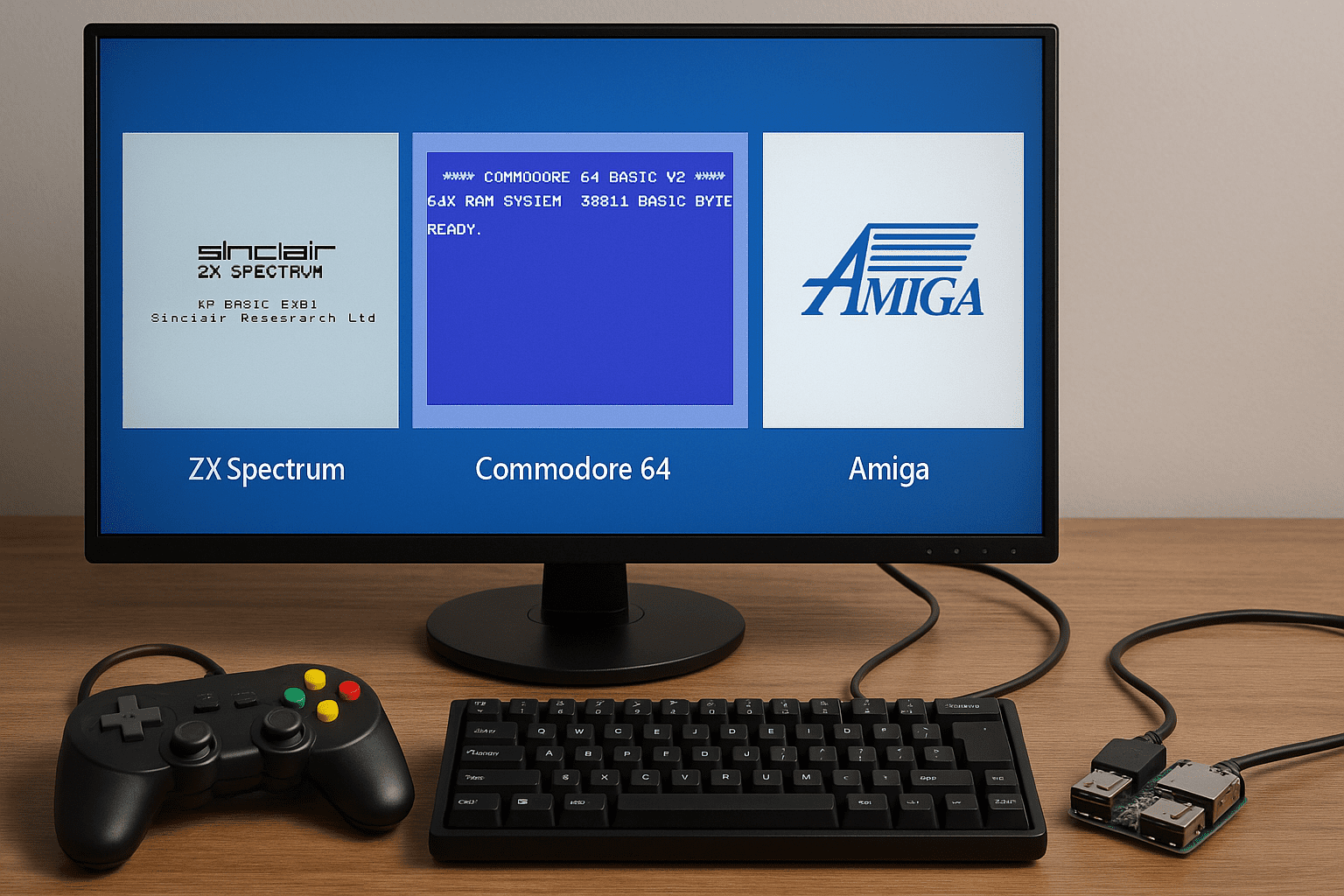
ZX Spectrum, C64, and Amiga emulation on Raspberry Pi gave me a reason to plug that little board back in. I started with a Pi 4, loaded Raspberry Pi OS, and added EmulationStation to get all three systems running. A cheap USB gamepad worked fine for old C64 joystick controls. Amiberry needed Kickstart ROMs, so I used ones from my Amiga Forever set. For the Spectrum, I went straight to ZXBaremulator. It boots fast and loads .tzx files like a charm. Every setup step felt like solving a puzzle with real payoffs: working graphics, familiar sounds, and games I had not seen since the 90s.
Key Takeaways
- Use Fuse or ZXBaremulator for ZX Spectrum, VICE for C64, and Amiberry for Amiga. Each is the best-supported option for its platform on Pi.
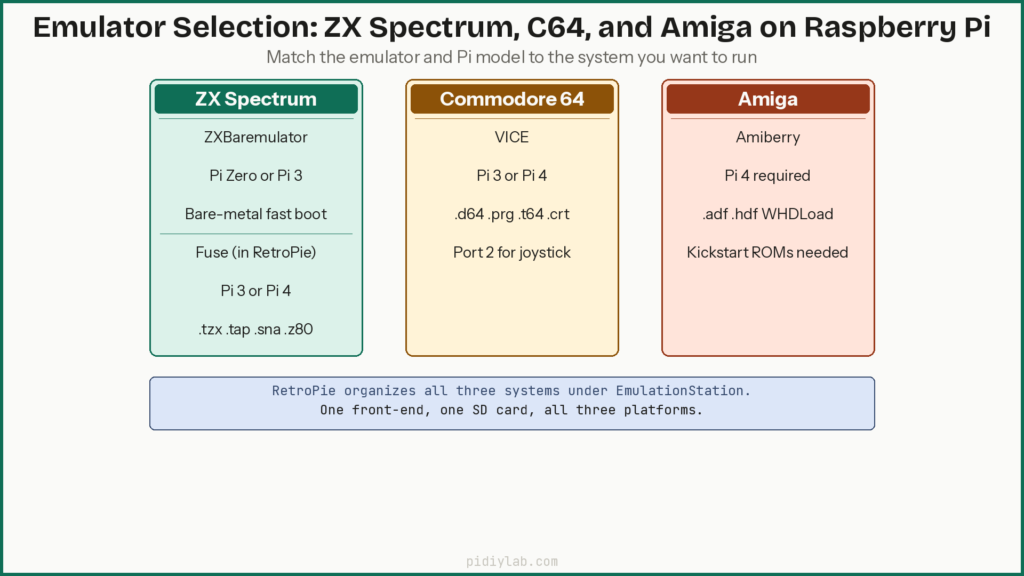
- Raspberry Pi 4 handles all three systems comfortably. Pi Zero works for ZXBaremulator only. Pi 3 handles Fuse and VICE but struggles with Amiga.
- Kickstart ROMs are required for Amiga emulation and are not included with Amiberry. Use Amiga Forever for a legal source.
- RetroPie organizes all three systems under one front-end and simplifies ROM management. Vanilla Raspberry Pi OS works too if you prefer manual control.
- Many C64 games expect joystick input on port 2, not port 1. Change this in VICE settings before blaming the gamepad.
- Boot config paths changed in Bookworm. Use
/boot/firmware/config.txt, not/boot/config.txt.
Choosing Your Raspberry Pi Model
Which Pi for which emulator
| Emulator | System | Recommended Pi |
|---|---|---|
| ZXBaremulator | ZX Spectrum | Pi Zero or Pi 3 |
| Fuse | ZX Spectrum | Pi 3 or Pi 4 |
| VICE | C64 | Pi 3 or Pi 4 |
| Amiberry | Amiga | Pi 4 (required for WHDLoad) |
| UAE4ARM | Amiga | Pi 4 |
The Pi 4 is the practical choice for anyone who wants all three systems working without compromises. It handles Amiberry and WHDLoad games without noticeable lag, runs VICE and Fuse comfortably, and has enough USB ports for a keyboard, gamepad, and mouse simultaneously. The Pi Zero is viable only for ZXBaremulator. The Pi 3 handles Spectrum and C64 but will struggle with Amiga titles, particularly AGA games or anything WHDLoad-heavy.
The Pi 4 also provides USB 3 ports for faster access to external drives holding larger disk image collections, and better HDMI output with improved audio sync. If you are running into SD card wear from frequent ROM access, see Booting Raspberry Pi from USB SSD for moving your setup to a more durable storage solution.
Installing the Operating System
RetroPie vs vanilla Raspberry Pi OS
RetroPie gives you a menu-driven front end via EmulationStation with Fuse, VICE, and Amiberry all installable from its optional packages menu. It runs on top of Raspberry Pi OS and works best on Pi 3 or Pi 4. Vanilla Raspberry Pi OS lets you install each emulator directly and gives more control over configuration, at the cost of setting up the front-end yourself. PiMiga is a dedicated Amiga-focused image with Kickstart support and WHDLoad tools preloaded, but it is heavier and runs best on Pi 4.
Flash the SD card
Use Raspberry Pi Imager to flash Raspberry Pi OS or the RetroPie image. Use at least a 32GB card to give room for ADF collections, .d64 libraries, and Spectrum tape files. A2-rated cards handle the random read patterns of ROM loading better than cheaper cards. For an always-on build, moving the OS to USB SSD removes the most common long-term failure point. See Preventing SD Card Corruption on Raspberry Pi if staying on SD.
RetroPie folder layout
RetroPie creates organized ROM directories automatically:
/home/pi/RetroPie/roms/zxspectrum/home/pi/RetroPie/roms/c64/home/pi/RetroPie/roms/amiga/home/pi/RetroPie/BIOS/(Kickstart ROMs go here)
ZX Spectrum Emulation
Fuse vs ZXBaremulator
Fuse runs inside RetroPie or Raspberry Pi OS and supports .tzx, .tap, and snapshot files. It gives you model selection, joystick remapping, and save states. ZXBaremulator skips the OS entirely and boots directly into emulation from a bare-metal image. That means faster load times, no menu overhead, and better performance on a Pi Zero. For a clean dedicated Spectrum setup, ZXBaremulator is hard to beat. For a multi-system setup under RetroPie, Fuse is the practical choice.
ZXBaremulator setup
Flash ZXBaremulator like an OS image directly to the SD card. Drop your .tzx or .tap files into the tape/ folder on the card. Connect a USB keyboard or mapped gamepad, power on, and the board boots directly to the Spectrum menu. It mimics the 48K or 128K startup screen accurately and handles tape files without additional configuration.
Fuse in RetroPie
Install Fuse from the RetroPie optional packages menu. Drop .tzx or .tap files into /roms/zxspectrum. Inside Fuse you can select the machine model (48K, 128K, Pentagon), configure sound, set display type, and remap the joystick. For games requiring typed commands like LOAD "", a USB keyboard is easier than remapping a gamepad.
Spectrum file formats
| Format | Use |
|---|---|
| .tzx | Full game tape with timing data |
| .tap | Simplified tape image |
| .sna | 48K snapshot |
| .z80 | Snapshot supporting multiple models |
Commodore 64 Emulation with VICE
Installing and configuring VICE
VICE is available in RetroPie under optional packages or installable directly on Raspberry Pi OS. It emulates the C64, C128, VIC-20, and other Commodore systems. For most setups, the C64 mode is what you need. After installation, drop disk and tape images into /roms/c64.
Joystick port configuration
This trips up most beginners. The keyboard maps to port 1 by default in VICE, but the vast majority of C64 games expect joystick input on port 2. If your gamepad is doing nothing in a game, change joystick ports in the VICE settings menu before debugging anything else. USB gamepads are detected automatically. You can map specific buttons to simulate joystick directions or the fire button from within VICE.
C64 file formats
| Format | Description |
|---|---|
| .d64 | Disk image (most common) |
| .prg | Program file, autoloads quickly |
| .t64 | Tape image |
| .crt | Cartridge ROM |
Sound and graphics settings
SID chip emulation can be set to fast, accurate, or reSID depending on how much CPU headroom you have. reSID is the most accurate but heaviest. On Pi 4, reSID works fine. On Pi 3, stick to fast or accurate to avoid audio stutter. Use HDMI audio for cleaner output. For video, enable true aspect ratio and the optional CRT scanline filter if you want the original look, or leave it off for a cleaner pixel image.
Amiga Emulation with Amiberry
Amiberry vs UAE4ARM
Amiberry is the better-optimized option for Raspberry Pi. It supports WHDLoad, ADF images, and Kickstart ROMs with a clean configuration GUI. UAE4ARM is more flexible with older ECS and OCS configurations but requires more manual setup. On Pi 4, Amiberry gets you to a working Amiga setup faster and handles the widest range of games reliably.
Kickstart ROMs
Amiberry will not boot without Kickstart ROMs. These are not included due to licensing. The legal source is the Amiga Forever package from Cloanto. Drop the ROM files into /home/pi/RetroPie/BIOS/ using the filenames Amiberry expects:
| ROM file | System |
|---|---|
| kick13.rom | Amiga 500 (Kickstart 1.3) |
| kick20.rom | Amiga 600 (Kickstart 2.0) |
| kick31.rom | Amiga 1200 (Kickstart 3.1) |
If Amiberry refuses to boot, the ROM filename is the first thing to check. Mismatched names cause silent failures.
ADF and WHDLoad games
ADF files are virtual floppy disk images. Insert them via the Amiberry GUI or set them as defaults in the configuration. WHDLoad images install games to a virtual hard disk and skip floppy loading times entirely. WHDLoad setups require more RAM and a Pi 4 for smooth operation. Enable CPU JIT (Just-In-Time compiler) in Amiberry for better performance. Match the chipset setting (OCS, ECS, AGA) to the game. Older titles usually need OCS. AGA titles need an Amiga 1200 configuration.
Managing ROMs and Disk Images
File formats by system
| System | Common formats |
|---|---|
| ZX Spectrum | .tzx, .tap, .sna, .z80 |
| Commodore 64 | .d64, .t64, .prg, .crt |
| Amiga | .adf, .hdf, .lha |
Transferring files to the Pi
SFTP is the cleanest method. Connect with FileZilla or WinSCP using the Pi’s IP address and your SSH credentials, then drag files into the appropriate RetroPie ROM folders. A USB stick also works: plug it in, mount it, copy files, and unmount. If you have Samba configured on the Pi, the ROM folders appear as a network share accessible from Windows or macOS.
Legal note on ROMs
Only use game files you own or that have been released as freeware by the rights holder. Commercial ROM and ADF files shared online are legally problematic unless you hold a copy of the original media. Kickstart ROMs are licensed software. Amiga Forever is the proper route for Kickstart. Several Spectrum and C64 games have been released as freeware by their original authors and are available legally.
HDMI Output and Display Settings
Resolution and scaling
Most emulators default to scaling the output to fill the connected display. For a cleaner pixel image, configure the emulator to output at native retro resolution (320×240 or 640×480) and let the TV or monitor handle scaling. This reduces input lag and keeps pixel art sharp rather than blurry. Fuse, VICE, and Amiberry all have resolution settings in their configuration menus.
Fixing overscan and border cropping
If borders or text are being cut off by the display, disable overscan in the boot config. On Raspberry Pi OS Bookworm the config file is at /boot/firmware/config.txt:
disable_overscan=1Fine-tune with overscan_left, overscan_right, overscan_top, and overscan_bottom if needed. Note that on Raspberry Pi OS Bookworm the path is /boot/firmware/config.txt, not the older /boot/config.txt.
Audio sync
HDMI audio is the most reliable option. Set ALSA output to HDMI in the emulator settings. VICE has a delay adjustment slider for fine-tuning audio timing. USB audio adapters introduce additional latency and are worth avoiding unless HDMI audio is unavailable on your display. For Amiberry, confirm the audio output device is set to the HDMI interface rather than analog in the Amiberry configuration.
EmulationStation Front-End
RetroPie bundles EmulationStation as its graphical launcher. It scans the /roms/ directory and creates system menus based on the subfolders it finds. Add Spectrum files to zxspectrum/, C64 files to c64/, and Amiga files to amiga/. On first boot it prompts you to map your gamepad buttons. Individual emulators manage their own input separately from EmulationStation navigation.
Skyscraper and the built-in metadata scraper tools add box art and descriptions to the game lists. Results for region-specific titles or homebrew can be wrong. Edit the gamelist.xml files manually to correct bad entries. EmulationStation picks up new systems automatically when you add ROMs to a new folder and restart it.
Input Devices
Gamepads
Most USB gamepads work out of the box under RetroPie. SNES-style controllers are popular and inexpensive. Remember the port 2 issue in VICE. Amiberry supports gamepad and mouse simultaneously, which matters for point-and-click Amiga titles.
Keyboards and mice
A USB keyboard is worth having for Spectrum games that require typed input. Fuse maps keys directly to Spectrum equivalents. For Amiga, many titles were built around keyboard controls and others need mouse input for menus and point-and-click gameplay. USB mice work without extra drivers in Amiberry.
Original joystick adapters
Adapters exist for using original Commodore or Atari joysticks via USB converters. The Pi’s GPIO pins can also be mapped to digital joystick signals with appropriate scripting, but this is not a beginner setup. USB adapters are the more practical route for most people. Check the RetroPie forums for adapter compatibility before buying.
USB hubs and power draw
The Pi 4 can struggle to power a keyboard, gamepad, mouse, and storage drive simultaneously from its onboard USB ports. A powered USB hub prevents devices from initializing unreliably under load. Use a hub rated for at least 2.4A output to cover all connected devices.
Troubleshooting
Emulator crashing or freezing
Check the power supply first. Inconsistent voltage causes random crashes that look like software bugs. Use a 5V/3A supply for Pi 4. If a specific game crashes, try a different ROM source or switch between Amiberry and UAE4ARM. Game-specific crashes are often ROM quality issues rather than emulator problems.
No audio or audio stuttering
Run raspi-config and confirm the audio output is set to HDMI. In VICE or Amiberry, verify the audio driver is set to ALSA. If audio stutters, lower the sample rate or disable SID filters in VICE. On Pi 3, switching from reSID to the fast SID emulation usually resolves stutter without affecting most games noticeably.
Wrong resolution or video lag
Set a fixed HDMI mode in /boot/firmware/config.txt to prevent the Pi from negotiating a resolution at boot that the emulator then has to work around. Disable smoothing and shader filters in emulator settings if video feels sluggish. Shaders add GPU overhead that shows up as input lag on older Pi models.
ROMs not loading
Confirm file extensions match what the emulator expects. Amiberry will not load .lha archives unless WHDLoad is configured. Spectrum and C64 emulators expect .tzx, .tap, or .d64. Other formats fail silently without an error message. Double-check folder paths, particularly if you manually created ROM directories outside the RetroPie structure.
Controller not responding in emulator
EmulationStation and individual emulators use separate input configurations. A pad mapped correctly for navigation may need separate mapping inside VICE or Amiberry. For RetroPie setups, edit retroarch.cfg in the system-specific folder to override input settings per emulator.
Community Resources
The RetroPie Forum covers setup issues across all three systems and is the fastest way to find solutions to Pi-specific emulation problems. The English Amiga Board (EAB) is the go-to resource for Amiga compatibility questions, WHDLoad issues, and ROM sourcing advice. Lemon64 covers the C64 side. World of Spectrum handles Spectrum-specific queries.
For emulator updates, check the GitHub repositories for Amiberry, VICE, and ZXBaremulator directly. Active projects receive fixes that resolve compatibility issues with specific titles. Always read the changelog before updating since some releases change configuration file formats and can break existing setups. Back up your SD card before any emulator update.
FAQ
Do I need a Raspberry Pi 4 for Amiga emulation?
For smooth performance, yes. WHDLoad games and AGA titles in particular need the Pi 4’s processing power. A Pi 3 can run some Amiga titles but will struggle with anything demanding. If all you want is basic OCS games from ADF images, a Pi 3 may be sufficient, but Pi 4 is the safe recommendation.
Can one SD card run all three systems?
Yes. RetroPie handles multi-system setups and EmulationStation organizes everything under one front-end. A 32GB card gives comfortable space for all three ROM collections plus the OS. Use a 64GB card if you plan to build a large ADF library.
Are Kickstart ROMs included with Amiberry?
No. Kickstart ROMs are licensed software and cannot be distributed with Amiberry. The legal source is Amiga Forever from Cloanto. Drop the ROM files into the BIOS folder using the exact filenames Amiberry expects or the emulator will not boot.
My joystick does nothing in VICE. What is wrong?
Almost certainly a joystick port issue. Most C64 games use port 2, but VICE defaults joystick input to port 1. Go into the VICE joystick settings and switch to port 2. This is the single most common VICE problem for newcomers.
Is it legal to download ROMs for classic games?
Only if the rights holder has explicitly released them as freeware, or you own the original physical media. Many classic games remain under copyright. Some publishers have released specific titles freely. Check the World of Spectrum, Lemon64, and Hall of Light databases for confirmed freeware releases. Kickstart ROMs are not freeware. Use Amiga Forever.
References
- https://retropie.org.uk/docs/
- https://vice-emu.sourceforge.io/
- https://github.com/midwan/amiberry
- https://www.amigaforever.com/
- https://fuse-emulator.sourceforge.net/
About the Author
Chuck Wilson has been programming and building with computers since the Tandy 1000 era. His professional background includes CAD drafting, manufacturing line programming, and custom computer design. He runs PidiyLab in retirement, documenting Raspberry Pi and homelab projects that he actually deploys and maintains on real hardware. Every article on this site reflects hands-on testing on specific hardware and OS versions, not theoretical walkthroughs.
Last tested hardware: Raspberry Pi 4 Model B (4GB). Last tested OS: Raspberry Pi OS Bookworm 64-bit.