


Introduction
The Raspberry Pi 5 cooling guide is the one thing you didn’t know you needed until your board started throttling like it just ran a marathon. Right out of the box, this board runs hotter than previous models. If you’re thinking, “It’s just a tiny computer, how bad can it get?”—well, try running a build script on it inside a closed plastic case and you’ll get your answer in Celsius. Spoiler: it’s not great.
What’s changed? More power under the hood. And just like any overworked engine, it needs better cooling. That means active fans, tuned fan curves, thermal pads that actually make contact (novel idea, I know), and cases that do more than just look pretty.
In this guide, we’ll look at real-world setups, proper fan curve settings, and thermal test results. We’re not just tossing numbers—we’re breaking down what actually keeps your Pi 5 cool, quiet, and fast.
Key Takeaways
- The Pi 5 runs hotter than older models and benefits from active cooling.
- Passive cases work for light tasks but can’t handle sustained loads.
- Fan curves let you manage noise and temperature more precisely.
- Testing your own setup is the only way to dial in the right cooling profile.
- Environmental factors like room temp and dust buildup impact cooling performance over time.
Raspberry Pi 5 Thermal Behavior
Heat sources on the Pi 5
The Raspberry Pi 5 isn’t just slightly warmer than its older siblings—it’s basically a mini furnace when under load. You’ve got heat coming from the SoC, the PMU, and any add-ons like an NVMe SSD. That SoC alone can get you past 80 °C if you’re not paying attention.
Idle vs load temperatures
At idle, you’re looking at around 45 °C with a passive cooler, and closer to 60–65 °C with light use in a vented case. Throw stress-ng into the mix, and that number jumps fast—well past 80 °C in a sealed plastic case, which is where thermal throttling kicks in.
Thermal comparison with Pi 4
Compared to the Pi 4, the Pi 5’s higher core count and clock speeds demand better heat dissipation. The Pi 4 could coast along passively for a lot of workloads. The Pi 5 needs a plan.
What throttling looks like
It’s not just a dip in performance. You’ll see sustained clock reductions, fan speeds kicking in hard (if they’re configured), and sometimes, system instability. So if you’re wondering why your compile time suddenly doubled, now you know.
Passive Cooling Options
Why passive still works sometimes
If your Raspberry Pi 5 is just running a home automation script or serving up static files, passive cooling might be all you need. Especially if you’re living somewhere that’s not constantly boiling, like inside a data closet or near a sunny window.
Heatsink materials and design
Aluminium’s cheap and light. Copper conducts better but costs more and weighs more. If your heatsink is more decorative than functional, you’re probably using the wrong one. Finned designs with more surface area help, but only if they’ve got airflow—even passive ones rely on convection.
Flirc and other metal cases
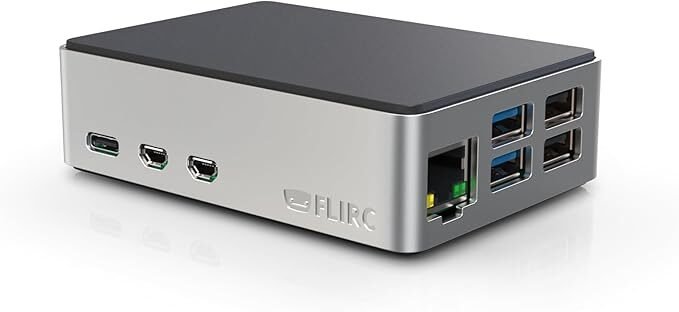
The Flirc case is an all-time favorite for passive setups. It doubles as a heatsink, meaning your whole case helps pull heat away from the SoC. Other options like EDATEC or DIY CNC aluminium blocks do the same thing but vary wildly in thermal contact quality.
Case ventilation matters
Having a passive heatsink trapped inside a case with no vent holes? That’s like wearing a wool sweater in a sauna. Vented lids, side cutouts, or even just raising the case slightly can help improve convection.
When passive isn’t enough
If you’re doing anything heavy like video encoding or running Home Assistant with a bunch of plugins, passive cooling becomes a suggestion, not a solution. In those cases, either throw in a fan or prepare to throttle.
Active Cooling Solutions
The case for fans
Sometimes a fan isn’t optional. The Pi 5 under load behaves like a space heater in a shoebox. Active cooling gives you that extra headroom to avoid throttling and maintain performance for extended workloads.
Blower vs axial fans
Blower fans push air laterally—great for small cases or when directing air across a heatsink. Axial fans push air downward and work best when placed directly above a component. Which one you pick depends on your case layout. The official Active Cooler uses a compact blower that punches above its size.
52Pi ICE Tower and similar rigs
It looks ridiculous on a Pi, but the ICE Tower performs like a champ. Tower-style coolers with vertical airflow and copper heatpipes keep temps low even under sustained load. Just make sure you’ve got the space—and maybe a sense of humor about your mini PC looking like it’s mining crypto.
Low-noise options
If fan noise drives you nuts, look at fans like the Noctua 40mm. It’s quiet, reliable, and overbuilt. Just don’t expect RGB or fancy mounts. That’s gamer territory, and your Pi doesn’t care how cool it looks—just how cool it runs.
Power and control
The Pi 5 now has a 4-pin header for fan control (PWM and tach). This lets you control speed via firmware settings and read RPM for diagnostics. No more wild fan noise at idle—unless you mess up the curve.
Configuring Fan Curves
Why fan curves matter
If your fan’s either screaming at idle or kicking in too late, you’ve got a fan curve problem. Setting custom thresholds keeps your Pi 5 cooler without sounding like a jet engine every time you open Chromium.
How the config.txt handles it
The Pi 5 firmware lets you control fan behavior using dtparam=fan_temp0, fan_temp1, and fan_temp2. Each one sets a trigger temperature. You also get hysteresis options to avoid the fan bouncing on and off every five seconds.
Default behavior vs custom settings
By default, the fan kicks in at 60 °C, ramps at 65 °C, and goes full blast at 70 °C. That works for casual use. But if you’re gaming or compiling code, those settings might be too late to avoid throttling. Custom curves give you more control.
Reading and writing fan state
Want to know what your fan’s doing? Look in /sys/class/thermal/cooling_device0/cur_state. A value of 0 means it’s off; higher numbers correspond to the fan curve levels. You can write to this manually or script it—just don’t override the firmware unless you know what you’re doing.
Setting it and forgetting it
Once dialed in, you probably won’t touch the fan curve again. But don’t just copy settings from Reddit and hope they fit your setup. Test your own thermal behavior and adjust accordingly. Your fan—and ears—will thank you.
Case Compatibility and Cooling Design
Not all cases are created equal
That sleek plastic shell might look good on your desk, but if it doesn’t breathe, it’s basically a toaster. A case that traps heat turns your passive heatsink into a tiny oven.
Metal enclosures with passive roles
Some cases like the Flirc double as heatsinks. The whole structure draws heat away from the SoC. Others, like Argon Neo, have built-in metal top plates that make decent thermal contact—if you mount it right and don’t crush the board.
Ventilation makes or breaks it
Mesh panels, vent holes, and side cutouts aren’t just for style—they’re survival. If your case has none of these, you’re relying entirely on conduction and natural convection, which works… until it doesn’t.
Clearance for accessories
Don’t forget the Pi 5 has an NVMe slot underneath, GPIO on top, and possibly a fan somewhere in the mix. If your case doesn’t allow clearance for those, you’ll either block airflow or overheat components that aren’t even part of the CPU.
Stackable or rack mount issues
Running multiple Pi 5 boards in a tight cluster? Better plan for directional airflow. Rack-style enclosures look cool but often need forced air just to avoid turning into a collective thermal disaster.
Thermal Testing Methodology
Start with a baseline
Before throwing coolers at the problem, figure out what your Pi 5 does out of the box. Boot it up with no fan or heatsink and run a quick idle test. You’ll probably see 50+ °C even doing nothing. That’s your baseline.
Tools that tell the truth
Use stress or stress-ng to simulate real workloads. Then monitor temps with vcgencmd measure_temp or cat /sys/class/thermal/thermal_zone0/temp. For better logging, dump that data into a CSV and graph it later.
Test conditions matter
Ambient room temp, airflow around the board, and what peripherals you’ve plugged in all affect your numbers. Try to keep those constant or at least document them so your test results mean something.
Load profiles
Run short bursts, long sustained loads, and multi-threaded tasks. Each of these stresses the board differently. For example, a kernel compile heats things differently than playing 1080p video on repeat.
Watch for throttling
Throttling isn’t always obvious. Watch your clock speed, monitor for frequency capped or thermal throttling flags in logs, and look for sudden drops in performance even while temps are climbing.
Testing Results: Passive vs Active Cooling
Idle comparisons
With no cooling, the Pi 5 idles around 50–55 °C in a room at 22 °C. Toss on a metal passive case like the Flirc and you’ll shave off 5–8 °C. Add a low-RPM fan and you’re cruising in the low 40s.
Load performance under stress
Running stress-ng with passive cooling pushed the board into the 75–80 °C zone quickly. Thermal throttling started around 82–84 °C. With the official Active Cooler, temps stabilized under load around 60–65 °C—plenty of headroom for performance.
Hybrid setups shine
Passive case with a quiet fan? That’s the sweet spot. You get silence at idle and decent airflow when things heat up. Temps stayed in the low 50s even under full load with this setup.
Ambient temperature effects
Testing in a warm room (~28 °C) caused temps to jump 5–7 °C across the board. It’s not just about your cooler—it’s about where you’re running it. Don’t expect miracles in a stuffy cabinet.
Overclocking impact
Push the Pi 5 to 2.8+ GHz and you’ll see thermal stress fast. Passive setups couldn’t hold the line. Active cooling, especially tower-style rigs like the ICE Tower, kept temps under 70 °C with no throttling during a 30-minute stress test.
Noise vs Temperature Trade-Offs
What your ears can handle
Not all fans are whisper-quiet. Some cheap 30mm fans sound like a hair dryer with anger issues. If your setup is in a quiet room, you’ll notice every decibel. Choose wisely.
RPMs and fan curve settings
Running fans at 100% all the time isn’t just noisy—it’s unnecessary. Set fan curves to kick in gradually. A gentle ramp-up from 60°C keeps noise down and still avoids throttling.
Noctua and the quiet crew
Fans like the Noctua NF-A4x10 are practically silent, even at high speed. You’ll pay a premium, but your sanity might thank you. They’re ideal for home theaters or quiet office builds.
Dampening and case acoustics
Soft mounts or rubber pads reduce vibration noise. Cases with thicker walls help, too. Some metal cases can amplify fan whine if there’s no vibration isolation.
Balance over brute force
The goal isn’t to make the Pi 5 arctic—it’s to keep it under the throttle threshold without driving yourself nuts. A well-tuned curve with a decent fan can do that without sounding like a wind tunnel.
Real-World Use Case Cooling Profiles
Gaming and emulation setups
Running RetroPie or PPSSPP at full speed will get the CPU and GPU cooking. Passive cooling won’t cut it for extended sessions. Active cooling or hybrid setups are practically required unless you’re cool with frame drops.
NAS and media servers
Serving files or streaming media over the network generates moderate but continuous load. A good passive case often handles this fine. If you’re writing a lot to SSDs or NVMe, add a small fan to move air over the storage.
Machine learning and edge inference
Inference workloads spike the CPU/GPU and burn through thermal headroom fast. Don’t even think about skipping active cooling. These tasks will throttle in minutes without airflow.
Home automation with lots of plugins
Home Assistant doesn’t seem heavy, but once you add MQTT, Zigbee bridges, dashboards, and camera integrations, your Pi 5 gets toasty. A quiet fan inside a vented case keeps things under control.
Headless GPIO project boxes
Low-power GPIO projects or sensor hubs typically idle. Passive cooling is more than enough, especially if the board isn’t stuck in a closed acrylic case on a windowsill.
Thermal Tuning Best Practices
Test first, tweak second
Always start by running your Pi 5 under real-world load. Watch your temps. See how the fan behaves. Only then should you start changing thresholds or buying new cooling parts.
Set realistic fan curves
Don’t set your fan to max at 50 °C unless you like jet noise. Most boards can sit comfortably in the 60s. Start low, test ramp-up points, and aim for stability, not overkill.
Log everything
Use scripts or tools like stress-ng alongside temp logging to CSV. Chart it. Look at how long it takes to hit thresholds. You’ll spot patterns—like if your fan kicks in too late or cools too slowly.
Clean it up occasionally
Dust will ruin a good setup over time. Every few months, blow out your fan, check for blocked vents, and make sure the thermal pads haven’t shifted.
Account for seasons and room temps
Summer temps push your whole system hotter. If your fan barely keeps up in spring, it’ll fail in July. Adjust your fan curve or add extra airflow when the seasons change.
Summary Recommendations
When passive cooling makes sense
If you’re doing low-power tasks like running scripts or serving up static content, a good passive case like the Flirc will do fine. Keep it in a ventilated space, and you’re golden.
Hybrid setups for the win
Pairing a metal case with a quiet fan gives you the best of both worlds. Low noise, good temps, and enough headroom for light overclocking or heavier multitasking.
Full active cooling for heavy use
If you’re compiling, gaming, or doing machine learning, you want something like the official Active Cooler or the ICE Tower. Anything less will throttle over time.
Match your setup to your environment
Hot room? Closed cabinet? Cluster with zero airflow? You need to upgrade your cooling. Fan curves, airflow paths, and ambient temps all matter more than you think.
Don’t set and forget forever
Even a perfect setup degrades. Fans wear out. Dust builds up. Keep an eye on your temps and be ready to swap out gear or re-tune curves down the line.
FAQ
Does the Raspberry Pi 5 need a fan?
If you’re doing more than idling—yes. Especially if you want consistent performance and no throttling.
What’s the best passive case?
The Flirc case is a top pick for passive cooling. It’s compact, solid, and uses the case itself as a heatsink.
Can I overclock with just a heatsink?
Not recommended. You’ll likely hit thermal limits fast. Use active cooling if you plan to push clocks.
How do I read the Pi 5 temperature?
Use the command: vcgencmd measure_temp. It gives you the current core temperature in degrees Celsius.
What’s the max safe temperature?
The Pi 5 starts throttling around 82–85 °C. Keep it below that for best performance and long-term health.
References
- Raspberry Pi Documentation – Thermal Management
- GitHub – Raspberry Pi Firmware
- Core Electronics Forum – Active Cooling Threads