

Klipper on Raspberry Pi with input shaping moves 3D printer motion planning from the printer’s microcontroller to the Pi, then uses an ADXL345 accelerometer to measure and compensate for the printer’s resonant frequencies. The result is faster print speeds without ringing or ghosting artefacts on printed surfaces. This guide covers installing the full Klipper stack via KIAUH, choosing between Fluidd and Mainsail, wiring the ADXL345, running resonance tests, and applying the calibrated shaper values to printer.cfg.
Last tested: Raspberry Pi OS Bookworm Lite 64-bit | February 14, 2026 | Raspberry Pi 4 Model B (4GB) | Klipper v0.12 | KIAUH v6 | Ender 3 with SKR Mini E3 v3
Key Takeaways
- Klipper runs on the Pi and sends low-level step timing to the printer’s microcontroller. The MCU only executes steps. All planning, input shaping, and pressure advance run on the Pi.
- Install the full stack (Klipper, Moonraker, Fluidd or Mainsail) via KIAUH. The current repo is
github.com/dw-0/kiauh. The oldth33xitus/kiauhURL redirects but use the current one. - Input shaping requires an ADXL345 accelerometer wired to the Pi via SPI. The ECHO/MISO/MOSI/SCLK wiring must be correct and secure. Loose connections produce noise that invalidates test results.
- Run
TEST_RESONANCES AXIS=XandTEST_RESONANCES AXIS=Yseparately. Process results withcalibrate_shaper.pyto get recommended shaper type and frequency values. - Recalibrate input shaping after any hardware change: new hotend, belt replacement, carriage swap, or moving the printer to a different surface.
- Back up
printer.cfgbefore every significant change. A syntax error in this file prevents Klipper from starting.
Why Klipper on Raspberry Pi with Input Shaping
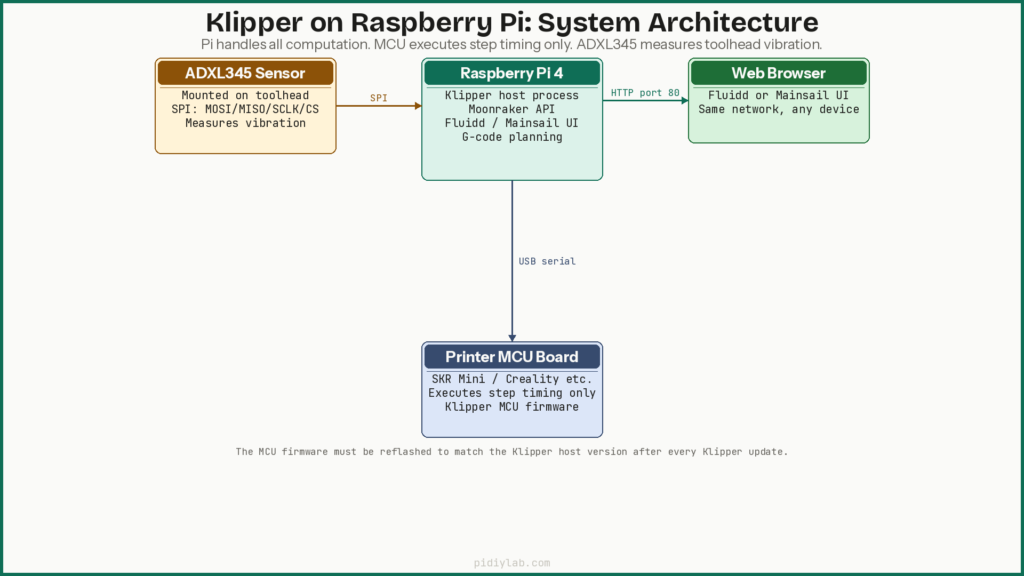
Most consumer 3D printer firmware runs on 8-bit or 32-bit microcontrollers with limited processing power. These controllers handle G-code parsing, motion planning, and step generation simultaneously, which constrains how fast and accurately they can move the toolhead. Klipper separates these responsibilities: the Pi handles all computation-heavy tasks (G-code parsing, input shaping calculations, pressure advance, kinematics) and sends pre-computed step timing to the MCU, which only executes those steps.
Input shaping addresses mechanical resonance. When a printer moves the toolhead quickly, the frame and belts flex slightly and oscillate at their natural frequencies. These oscillations appear as ringing or ghosting: rippled echo patterns on printed walls adjacent to sharp corners. By measuring the resonant frequencies with an accelerometer and applying a mathematical filter timed to cancel those oscillations, Klipper suppresses ringing at the source rather than just slowing down to avoid it.
Choosing the Right Raspberry Pi
| Model | Suitable for Klipper | Notes |
|---|---|---|
| Pi Zero 2 W | Basic use only | Struggles with webcam streaming and input shaping graphs simultaneously |
| Pi 3B+ | Passable | Works for single-printer setups without heavy concurrent workloads |
| Pi 4 (2GB+) | Recommended | Handles Klipper, Moonraker, web UI, webcam, and graphs without issue |
| Pi 5 | Best performance | Excellent headroom; requires proper cooling and official power supply |
Pi 4 with 2GB or more is the practical choice for most builds. It handles Klipper, Moonraker, Fluidd or Mainsail, and webcam streaming without resource contention. Pi 5 handles everything more comfortably and is worth using if you have one, but requires the official 5V/5A power supply and active cooling. Passive cooling is not sufficient under sustained load.
Step 1: Prepare Raspberry Pi OS
Flash Raspberry Pi OS Bookworm Lite 64-bit using Raspberry Pi Imager. In the advanced settings, configure hostname, enable SSH, set credentials, and add Wi-Fi if needed. After first boot, assign a static IP via your router’s DHCP reservation and update:
sudo apt update && sudo apt full-upgrade -y
sudo reboot
Running Klipper from a USB SSD rather than microSD reduces write wear from log files, G-code storage, and Moonraker’s database. See Booting Raspberry Pi from USB SSD. If using microSD, see Preventing SD Card Corruption on Raspberry Pi.
Expected result: SSH connects to a stable IP. uname -m returns aarch64.
Step 2: Install Klipper on Raspberry Pi with Input Shaping via KIAUH
KIAUH (Klipper Installation And Update Helper) is a menu-driven script that installs and manages Klipper, Moonraker, Fluidd, Mainsail, and related components. The current repository is dw-0/kiauh:
sudo apt install git -y
cd ~ && git clone https://github.com/dw-0/kiauh.git
cd kiauh && ./kiauh.sh
The KIAUH menu appears in the terminal. Install components in this order:
- Klipper (select Python 3)
- Moonraker (the API layer between Klipper and the web UI)
- Fluidd or Mainsail (choose one, or both (they use different ports))
When prompted about input shaping dependencies (NumPy, matplotlib), confirm installation. These are required for the calibrate_shaper.py script to generate resonance graphs.
Expected result: KIAUH reports all components installed successfully. Klipper and Moonraker services are running. The web UI is accessible in a browser at the Pi’s IP address.
Fluidd vs Mainsail
| Feature | Fluidd | Mainsail |
|---|---|---|
| Default port | 80 | 80 (or 81 if both installed) |
| Interface style | Dashboard-focused, card layout | Panel-focused, sidebar navigation |
| Macro buttons | Prominent on dashboard | In side panel |
| Timelapse support | Via plugin | Built-in (moonraker-timelapse) |
| Active development | Yes | Yes |
Both are capable and actively maintained. The difference is primarily layout preference. Fluidd displays temperature graphs, macro buttons, and print status prominently on a single dashboard. Mainsail uses a sidebar navigation model that some users find cleaner for managing multiple print queues. Both can be installed simultaneously via KIAUH and accessed on different ports.
Step 3: Flash Klipper Firmware to the Printer MCU
Klipper requires a small firmware image flashed to the printer’s microcontroller board (SKR Mini E3, Creality 4.2.x, BTT Octopus, etc.). This firmware handles only step execution. All logic runs on the Pi. From the Klipper directory:
cd ~/klipper
make menuconfig
In the menuconfig interface, select the processor and communication interface matching your printer board. The Klipper documentation has a dedicated page for each supported board. After configuring:
make clean && makeThis produces out/klipper.bin. Copy it to an SD card and flash it to the printer board following the board-specific procedure. Most boards flash automatically when the file is named correctly and the printer is powered on with the SD card inserted.
Expected result: The printer board boots with Klipper firmware and appears in ls /dev/serial/by-id/ on the Pi as a USB serial device.
Step 4: Configure printer.cfg
The printer.cfg file at ~/printer_data/config/printer.cfg is Klipper’s primary configuration. It defines the MCU connection, kinematics, stepper settings, heater PID values, and all other printer-specific parameters. Klipper’s GitHub repository has example configs for common boards and printers at config/. Use the closest matching example as a starting point and edit for your specific hardware.
Back up this file before every significant change:
cp ~/printer_data/config/printer.cfg ~/printer_data/config/printer.cfg.bakA single YAML syntax error or misconfigured parameter prevents Klipper from starting. Use the Fluidd or Mainsail console to check for errors after every edit.
Step 5: Wire the ADXL345 for Input Shaping
ADXL345 to Pi SPI wiring
| ADXL345 pin | Pi GPIO pin | Pi physical pin |
|---|---|---|
| VCC | 3.3V | Pin 1 |
| GND | GND | Pin 6 |
| CS | GPIO8 (SPI0 CE0) | Pin 24 |
| SDO/MISO | GPIO9 (SPI0 MISO) | Pin 21 |
| SDA/MOSI | GPIO10 (SPI0 MOSI) | Pin 19 |
| SCL/SCLK | GPIO11 (SPI0 SCLK) | Pin 23 |
Mount the ADXL345 rigidly to the toolhead. Any movement of the sensor relative to the toolhead introduces measurement error. Use M3 screws if the board has mounting holes. Keep wire lengths short. Enable SPI on the Pi:
sudo raspi-config
# Interface Options -> SPI -> Enable
printer.cfg sections for input shaping
[adxl345]
cs_pin: rpi:None

[resonance_tester]
accel_chip: adxl345
probe_points:
    100, 100, 20  # centre of your print bed

[input_shaper]
# Values filled in after calibration
Verify the accelerometer connection before running tests:
ACCELEROMETER_QUERYExpected result: The console returns X, Y, Z acceleration values in m/s². If it returns an error, check SPI wiring and confirm SPI is enabled on the Pi.
Step 6: Run and Interpret Resonance Tests
Running the tests
TEST_RESONANCES AXIS=X
TEST_RESONANCES AXIS=Y
Each command moves the toolhead rapidly along the specified axis to excite resonances. The ADXL345 records the vibration data. Test files are saved to /tmp/resonances_x_*.csv and /tmp/resonances_y_*.csv.
Processing results
~/klipper/scripts/calibrate_shaper.py /tmp/resonances_x_*.csv -o /tmp/shaper_calibrate_x.png
~/klipper/scripts/calibrate_shaper.py /tmp/resonances_y_*.csv -o /tmp/shaper_calibrate_y.png
The script outputs recommended shaper type and frequency values to the terminal and generates graphs. Copy the PNG files to your computer via SCP to view them:
scp pi@<pi-ip>:/tmp/shaper_calibrate_*.png ~/Desktop/Reading the graphs
The X axis of each graph shows frequency in Hz. The Y axis shows power spectral density. Peaks indicate resonant frequencies. The script identifies the dominant peak and recommends a shaper type and frequency that minimises the remaining vibration energy. Common shaper types in order of increasing aggressiveness: zv, mzv, ei, 2hump_ei. The script’s recommendation balances vibration suppression against smoothing of input signals. More aggressive shapers reduce ringing more but also reduce maximum acceleration.
Step 7: Apply Shaper Values to printer.cfg
Add the values output by calibrate_shaper.py to the [input_shaper] section. Example output:
[input_shaper]
shaper_type_x: mzv
shaper_freq_x: 38.2
shaper_type_y: mzv
shaper_freq_y: 42.6
Save the file and run SAVE_CONFIG in the Klipper console to write the values to the config and restart Klipper. Rerun the resonance tests after applying the shaper to confirm the peaks are suppressed in the second graph.
With input shaping active, max_accel can typically be increased significantly without introducing ringing. The calibrate_shaper.py output includes a suggested maximum acceleration value for each axis. Use the lower of the two as your max_accel value and increase in small increments while printing test pieces.
Expected result: A ringing tower print shows clean, sharp corners with no echo artefacts. The second resonance graph shows substantially reduced peaks compared to the first.
Fine-Tuning printer.cfg
Acceleration limits
Update max_accel and minimum_cruise_ratio (Klipper v0.12+, replaces the older max_accel_to_decel which is now deprecated) in the [printer] section. Increase max_accel gradually in 500 mm/s² increments and print a test piece at each step. Stop before layer shifts or audible step skipping occur.
Macros for re-testing
Create a macro in printer.cfg to re-run resonance tests from the Fluidd or Mainsail console without typing the full commands each time:
[gcode_macro TEST_INPUT_SHAPING]
gcode:
    TEST_RESONANCES AXIS=X
    TEST_RESONANCES AXIS=Y
    RUN_SHELL_COMMAND CMD=calibrate_shapers
Maintenance and Long-Term Stability
When to recalibrate
Resonant frequencies change with physical hardware changes. Recalibrate input shaping after replacing the hotend, swapping belts, changing the toolhead carriage, adding or removing mass from the toolhead, or moving the printer to a different surface. A loose belt or worn idler will also shift the resonant frequency, so periodic recalibration is useful even without deliberate hardware changes.
Updating Klipper
cd ~/kiauh && ./kiauh.sh
# Select Update from the menu
Review the Klipper changelog before updating. Klipper occasionally deprecates config parameters or changes behaviour. The max_accel_to_decel to minimum_cruise_ratio change in v0.12 is a recent example. After updating Klipper, the MCU firmware must also be reflashed to match the host version.
Backing up configuration
Back up the entire ~/printer_data/config/ directory regularly. Moonraker has a built-in backup feature accessible from the web UI. For automated backups, a cron job copying the config directory to a USB drive or network share provides a reliable recovery path. See Setting Up zram on Raspberry Pi for reducing overall write pressure on the storage medium.
Troubleshooting
No accelerometer data or ACCELEROMETER_QUERY fails
Check SPI wiring against the table above. Confirm SPI is enabled in raspi-config. Verify there are no loose connections. SPI is sensitive to intermittent contact. Check that the CS pin defined in [adxl345] matches the actual wired pin.
Noisy or unusable resonance graphs
A graph that looks like broadband noise rather than distinct peaks usually means the accelerometer is not mounted rigidly. Even slight movement of the sensor relative to the toolhead produces incoherent readings. Check that all mounting screws are tight and that wires do not pull on the sensor board during toolhead movement.
Klipper fails to start after printer.cfg edit
# Check Klipper service logs
sudo journalctl -u klipper -n 50
The error message usually identifies the specific line in printer.cfg causing the failure. Common causes: missing comma in a parameter list, indentation error in a gcode macro, or a deprecated parameter name. Restore from backup if the error is not immediately identifiable.
Input shaping not improving print quality
Input shaping compensates for frame and belt resonance but cannot correct mechanical problems. If ringing persists after calibration, check belt tension (both axes should have consistent tension and a similar pitch when plucked), frame rigidity, and whether the printer is on a stable surface. A resonance test on a wobbly bench will produce misleading results.
Layer shifts at high acceleration
Reduce max_accel in [printer] and check stepper motor current settings in the TMC driver configuration. Stepper current that is too low for the load will skip steps under high acceleration even with input shaping enabled. Increase current in small increments (50mA steps) while monitoring motor temperatures.
FAQ
Can I use a Pi Zero for Klipper with input shaping?
Pi Zero 2 W can run Klipper for basic printing. However, running input shaping tests, processing resonance data, and serving a web UI simultaneously pushes its limits. For a setup that includes input shaping and a webcam feed, Pi 4 is the practical minimum.
What is the best accelerometer for input shaping?
The ADXL345 is the most widely tested and documented accelerometer for Klipper input shaping. It is inexpensive, well-supported by the Klipper codebase, and available from most electronics suppliers. The LIS2DW and MPU-6050 are also supported but less commonly used in community documentation.
Do I need both Fluidd and Mainsail?
No. Choose one based on interface preference. Both provide the same core functionality: temperature control, print management, console access, and graph display. Installing both is possible via KIAUH and they run on different ports, but one is sufficient for normal use.
Do I need to recalibrate input shaping after every update?
No, not after software updates. Recalibrate after hardware changes that affect the mass or rigidity of the toolhead, gantry, or frame. Software updates to Klipper do not affect the resonant frequencies of the physical printer.
Can input shaping fix all print quality problems?
No. Input shaping specifically addresses ringing and ghosting caused by mechanical resonance. It does not fix under-extrusion, stringing, bed adhesion issues, or problems caused by loose belts or worn mechanical components. Diagnose and fix underlying mechanical issues before relying on input shaping to improve print quality.
References
- https://www.klipper3d.org/Measuring_Resonances.html
- https://www.klipper3d.org/Config_Reference.html
- https://github.com/dw-0/kiauh
- https://github.com/cadriel/fluidd
- https://github.com/mainsail-crew/mainsail
About the Author
Chuck Wilson has been programming and building with computers since the Tandy 1000 era. His professional background includes CAD drafting, manufacturing line programming, and custom computer design. He runs PidiyLab in retirement, documenting Raspberry Pi and homelab projects that he actually deploys and maintains on real hardware. Every article on this site reflects hands-on testing on specific hardware and OS versions, not theoretical walkthroughs.
Last tested hardware: Raspberry Pi 4 Model B (4GB), Ender 3 with SKR Mini E3 v3. Last tested OS: Raspberry Pi OS Bookworm Lite 64-bit. Klipper v0.12, KIAUH v6.