
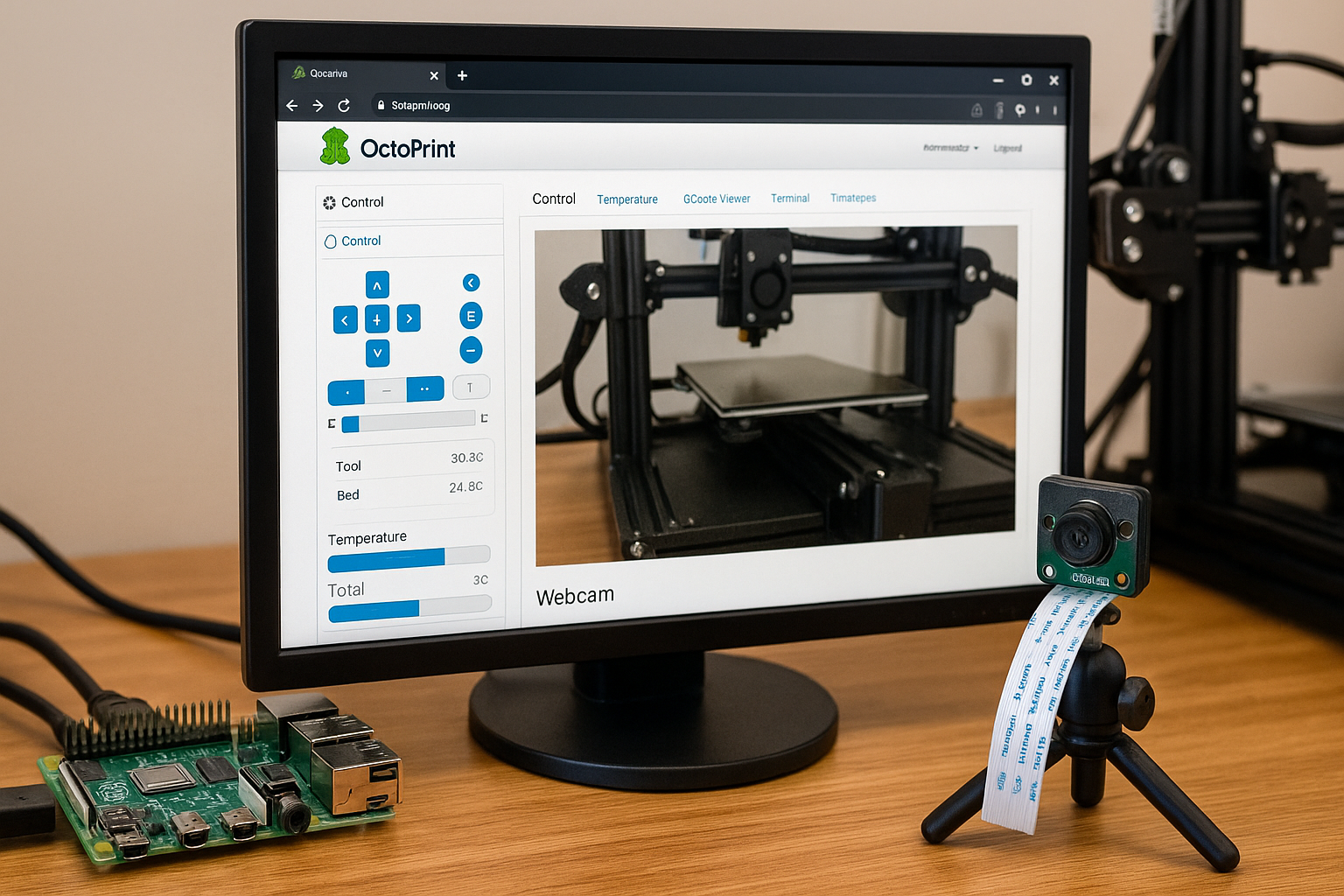
OctoPrint Raspberry Pi camera plugins give you live print monitoring, timelapse recording, and remote control from any browser on your network. Flash OctoPi to a microSD or USB SSD, connect a camera, and OctoPrint’s web interface handles the rest. This guide covers camera selection, OctoPi setup, the most useful plugins for print monitoring and automation, and fixes for the most common problems.
Last tested: OctoPi 1.0.0 (Bookworm-based) | January 22, 2026 | Raspberry Pi 4 Model B (2GB) | OctoPrint 1.10 | Logitech C270
Key Takeaways
- Raspberry Pi 4 or 3B+ is the practical choice for OctoPrint. Pi Zero 2 W works for basic use but struggles with simultaneous streaming and plugin workloads.
- Use MJPEG-compatible cameras for the best compatibility with OctoPrint’s built-in streaming. The Logitech C270 and Raspberry Pi Camera Module V2 are both reliable and well-documented choices.
- The live stream URL for most OctoPi setups is
http://<pi-ip>:8080/?action=stream. Set this under Settings > Webcam & Timelapse if the stream is not displaying. - Keep the plugin count low. Each plugin consumes RAM and CPU on the Pi. Install what you will actually use rather than experimenting with everything available.
- Use a proper 5V/3A power supply. Undervoltage is the most common cause of unexplained crashes, webcam failures, and USB disconnects on OctoPrint setups.
- Assign a static IP to the Pi via your router’s DHCP reservation. This keeps the OctoPrint URL consistent and prevents access failures after reboots.
OctoPrint Raspberry Pi Camera Plugins: Hardware Selection
Raspberry Pi model
| Model | OctoPrint suitability | Notes |
|---|---|---|
| Pi Zero 2 W | Basic use only | Works for single-camera, minimal plugins |
| Pi 3B+ | Good | Handles OctoPrint well; 100Mbps Ethernet |
| Pi 4 (2GB+) | Recommended | Comfortable headroom for streaming and plugins |
| Pi 5 | Overkill but fine | No advantage for OctoPrint specifically |
Camera selection
| Camera | Interface | MJPEG | Notes |
|---|---|---|---|
| Logitech C270 | USB | Yes | Widely tested, reliable, inexpensive |
| Pi Camera Module V2 | CSI ribbon | Via mjpg-streamer | Low CPU usage, fixed focus |
| Microsoft LifeCam HD-3000 | USB | Yes | 720p, good low-light |
| Arducam IMX519 | CSI ribbon | Via mjpg-streamer | Autofocus, higher resolution |
MJPEG is the preferred streaming format for OctoPrint. It is well-supported by mjpg-streamer (OctoPi’s built-in streaming daemon) and has lower latency than H.264 for live monitoring purposes. USB webcams that do not support MJPEG require software encoding on the Pi, which increases CPU load noticeably.
For resolution, 720p at 10 to 15 fps is sufficient for monitoring print quality and detecting failures. 1080p is usable on Pi 4 but increases CPU load from the streaming daemon. Check CPU usage with htop after setting your target resolution and frame rate.
Step 1: Flash OctoPi and First Boot
OctoPi is a Raspberry Pi OS image with OctoPrint, mjpg-streamer, and all dependencies pre-installed. Download the latest OctoPi image from octoprint.org/download and flash it using Raspberry Pi Imager. In the Imager’s advanced settings, configure your Wi-Fi credentials and enable SSH before writing.
After first boot, find the Pi’s IP address from your router and SSH in:
ssh pi@<pi-ip-address>Update the system before proceeding:
sudo apt update && sudo apt full-upgrade -y
sudo reboot
OctoPrint’s web interface is accessible at http://<pi-ip> or http://octopi.local on most networks. The setup wizard runs on first access and guides you through printer profile creation and basic configuration.
Expected result: OctoPrint’s web interface loads in the browser. The setup wizard completes without errors. The connection status shows the printer as connected if a USB cable is attached.
Step 2: Configure the Camera Stream
USB webcam
Plug the USB webcam in before booting. Confirm the Pi detects it:
lsusbOctoPi starts mjpg-streamer automatically at boot. The stream is available at:
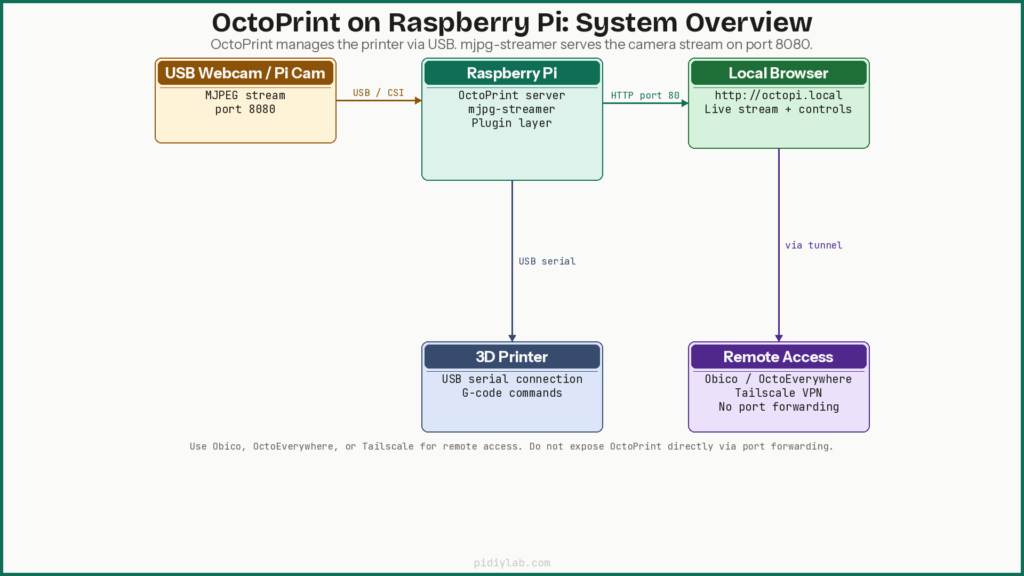
http://<pi-ip>:8080/?action=streamIn OctoPrint, go to Settings > Webcam & Timelapse and set the Stream URL to this address. Set the Snapshot URL to http://<pi-ip>:8080/?action=snapshot for timelapse and monitoring plugins that need individual frames.
Adjusting resolution and frame rate
Edit the mjpg-streamer configuration in /boot/octopi.txt (or /boot/firmware/octopi.txt on newer OctoPi images):
sudo nano /boot/firmware/octopi.txtFind and edit the relevant lines:
camera_usb_options="-r 1280x720 -f 10"The -r flag sets resolution, -f sets frame rate. Save and reboot. Check CPU usage at the target settings before leaving it running continuously.
Expected result: The stream URL loads in a browser and shows a live image from the camera. The OctoPrint webcam tab displays the feed without a loading spinner.
Step 3: Install Essential Plugins
Install plugins via Settings > Plugin Manager > Get More. Search for the plugin name, click Install, and restart OctoPrint when prompted. Keep installations to plugins you will actively use.
Recommended plugins
| Plugin | Purpose | Notes |
|---|---|---|
| Bed Visualizer | Display mesh bed leveling map | Essential with BLTouch or mesh leveling |
| PrintTimeGenius | Accurate print time estimates | Replaces OctoPrint’s default rough estimate |
| PSU Control | Power printer on/off remotely | Works with smart plugs and GPIO relays |
| OctoLapse | Layer-change timelapse | Produces smooth stabilized timelapses |
| DisplayLayerProgress | Layer info in progress bar | Useful for monitoring long prints |
| Obico (OctoEverywhere) | Secure remote access | Preferred over port forwarding |
OctoLapse timelapse setup
OctoLapse captures a frame at each layer change by moving the toolhead to a consistent position before taking the snapshot. This produces smooth, stabilised timelapses compared to OctoPrint’s default interval-based method. After installing, configure the snapshot position in the OctoLapse settings to a point that does not interfere with the print. Set the camera stabilisation delay (1 to 2 seconds) to allow the toolhead to stop moving before the snapshot is taken.
Expected result: Plugins appear in the OctoPrint sidebar after restart. Bed Visualizer shows the mesh map after running a bed leveling probe sequence. PrintTimeGenius shows updated time estimates during active prints.
Step 4: Configure Monitoring and Automation
PSU Control with smart plug
PSU Control integrates with TP-Link Kasa, Sonoff, or GPIO-connected relays to power the printer on and off from the OctoPrint UI. After installing, go to Settings > PSU Control and configure your plug type, IP address, and credentials. Enable the auto-off feature to cut power a set number of minutes after a print completes.
Filament runout sensor
A GPIO-connected filament runout sensor paired with the Filament Sensor Reloaded plugin pauses the print when the filament path is interrupted. Connect the sensor signal wire to a GPIO input pin and configure the pin number and active state in the plugin settings. Test it by manually interrupting the filament path during a non-critical print before relying on it.
G-code scripts for automation
Under Settings > G-code Scripts, add startup and completion sequences. Common additions: pre-heat the bed at print start, home all axes before printing, and run a cooling and park sequence at print end. These run automatically for every print without modifying individual slicer profiles.
Remote Access
Do not expose OctoPrint’s port directly to the internet. The web interface is not hardened for public access and has had security vulnerabilities in the past. Use one of these approaches instead:
- Obico (formerly The Spaghetti Detective): Free tier available, provides secure remote access and AI-based failure detection. Install the Obico plugin and link to the cloud service.
- Tailscale: Install on the Pi and on your phone or laptop. Access OctoPrint at the Pi’s Tailscale IP from anywhere without port forwarding.
- OctoEverywhere: Similar to Obico, provides secure tunnelled access with no router configuration required.
Camera Mounting
Camera placement determines the usefulness of the live feed and timelapses. A fixed mount looking down at the print bed from above gives the clearest view of layer quality. A side-angled mount is better for watching first layer adhesion and nozzle height. For OctoLapse timelapses, a fixed front-facing mount at bed height produces the most consistent results since the toolhead always returns to the same position for each snapshot.
3D-printed mounts for most common printers are available on Printables and Thingiverse. Secure mounting matters more than precise placement. A camera that moves between frames produces unusable timelapses. If your print area is poorly lit, a small LED ring light positioned behind or beside the camera significantly improves image clarity without adding complex lighting control.
Maintenance
Update OctoPrint and plugins
Update OctoPrint via Settings > Software Update. Plugin updates appear in the same location. Update plugins individually rather than all at once. A breaking change in one plugin is easier to identify and roll back this way. After any OctoPrint major version update, check the changelog for deprecated features or changed plugin APIs that may affect installed plugins.
Back up OctoPrint configuration
Use the built-in backup feature under Settings > Backup & Restore to export a .zip archive containing your OctoPrint configuration, printer profile, and plugin settings. Download this after any significant change. It can be restored to a fresh OctoPi installation, which simplifies recovery after SD card failure or Pi replacement.
For SD card longevity on a system running 24/7, see Preventing SD Card Corruption on Raspberry Pi and Setting Up zram on Raspberry Pi. Running OctoPrint from a USB SSD eliminates SD card write wear entirely. See Booting Raspberry Pi from USB SSD.
Troubleshooting
Webcam not detected or stream not loading
# Check if camera is detected
lsusb

# Check mjpg-streamer service status
sudo systemctl status webcamd

# View mjpg-streamer logs
sudo journalctl -u webcamd -n 50
Plug the camera in before booting. Some USB cameras are not detected when hot-plugged on OctoPi. If lsusb shows the camera but the stream does not load, confirm the stream URL in Settings > Webcam & Timelapse matches the actual mjpg-streamer address. Check that port 8080 is not blocked by a firewall rule.
OctoPrint interface not loading
Check the Pi’s power supply first. Undervoltage causes intermittent boot failures and USB disconnects that look like software problems. Confirm the Pi is on the network with ping octopi.local from another device. If the hostname does not resolve, use the IP address directly. Check the OctoPrint service status:
sudo systemctl status octoprintPlugin crash or OctoPrint won’t start after plugin install
# Start OctoPrint in safe mode (disables all plugins)
sudo systemctl stop octoprint
/home/pi/oprint/bin/octoprint safemode
Safe mode loads OctoPrint without any plugins. If it starts successfully, the problem is plugin-related. Check logs at ~/.octoprint/logs/octoprint.log to identify the offending plugin, then uninstall or disable it from the Plugin Manager.
Thermal throttling and performance issues
vcgencmd measure_temp
vcgencmd get_throttled
A Pi running above 80°C will throttle its CPU, causing lag in the OctoPrint interface and stuttering in the stream. Add a heatsink and ensure airflow around the Pi. Avoid enclosing the Pi in a tight case without ventilation when running continuously.
FAQ
Can I run OctoPrint on any Raspberry Pi model?
Technically yes, but Pi 3B+ or Pi 4 are the practical choices. Pi Zero 2 W handles basic printing but struggles when streaming video and running plugins simultaneously. Pi 4 with 2GB is the recommended starting point for a setup that includes live monitoring and more than two or three plugins.
Do I need a specific camera for OctoPrint?
No, but MJPEG-capable cameras work most reliably with OctoPi’s mjpg-streamer. The Logitech C270 and Raspberry Pi Camera Module V2 are the most commonly used and best-documented options. Cameras that require proprietary drivers or do not support MJPEG will require additional configuration and may increase CPU load.
What is the best plugin to install first?
Bed Visualizer and PrintTimeGenius provide the most immediate practical value. Bed Visualizer makes mesh bed leveling data visible and actionable. PrintTimeGenius replaces OctoPrint’s default time estimate, which is often significantly inaccurate, with a model trained on actual print data.
Can I access OctoPrint from outside my home network?
Yes, but not by opening a port on your router. Use Obico, OctoEverywhere, or Tailscale for secure remote access. Direct port forwarding exposes OctoPrint’s web interface to the public internet, which is not recommended given its security history.
Is it safe to leave OctoPrint running continuously?
Yes, with caveats. Use a quality power supply, ensure adequate cooling, and run from USB SSD rather than microSD for long-term reliability. Unattended 3D printing carries its own fire risk independent of the Pi. Use a smoke detector and do not leave prints running overnight without some form of monitoring.
References
- https://octoprint.org/download/
- https://plugins.octoprint.org/
- https://github.com/guysoft/OctoPi
- https://github.com/FormerLurker/Octolapse
About the Author
Chuck Wilson has been programming and building with computers since the Tandy 1000 era. His professional background includes CAD drafting, manufacturing line programming, and custom computer design. He runs PidiyLab in retirement, documenting Raspberry Pi and homelab projects that he actually deploys and maintains on real hardware. Every article on this site reflects hands-on testing on specific hardware and OS versions, not theoretical walkthroughs.
Last tested hardware: Raspberry Pi 4 Model B (2GB), Logitech C270. Last tested OS: OctoPi 1.0.0 (Bookworm-based). OctoPrint 1.10.