


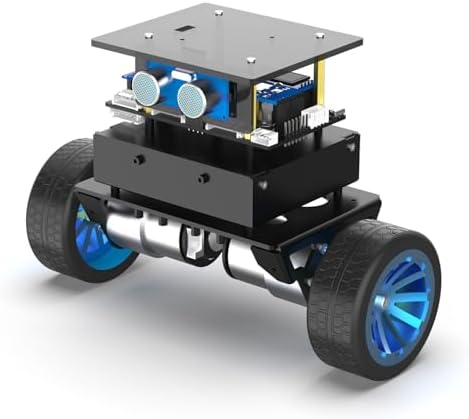
Raspberry Pi robot basics covers everything needed to build a two-wheeled mobile robot from scratch: a Pi board, an L298N motor driver, two DC motors, a chassis, and a battery pack. You control the motors through GPIO pins using Python and the gpiozero library, which is pre-installed on Raspberry Pi OS Bookworm. This guide builds three progressively capable robots: a manually programmed buggy, an obstacle-avoiding autonomous robot using an HC-SR04 ultrasonic sensor, and a Wi-Fi remote-controlled vehicle using Flask.
Last tested: Raspberry Pi OS Bookworm 64-bit | February 14, 2026 | Raspberry Pi 4 Model B (4GB) | Python 3.11 | gpiozero 2.0
Key Takeaways
- Use gpiozero instead of RPi.GPIO. RPi.GPIO is deprecated on Raspberry Pi OS Bookworm. gpiozero is pre-installed and designed for beginners.
- The L298N motor driver is required between the Pi and the motors. The Pi’s GPIO pins cannot supply enough current to drive DC motors directly.
- The HC-SR04 ultrasonic sensor’s ECHO pin outputs 5V. The Pi’s GPIO pins are 3.3V tolerant only. Use a voltage divider before connecting ECHO to the Pi or you will damage the GPIO pin.
- Power the Pi and the motors from separate supplies. Motor current spikes cause voltage dips that crash the Pi if both share a power source.
- Always power down before changing wiring. A short circuit on GPIO pins can permanently damage the Pi.
- Pi 3 or newer is required. Pi Zero handles light single-motor setups only. Pi 4 is the recommended platform for all three projects in this guide.

Hardware You Need
Choosing the right Pi model
| Model | Suitable for | Notes |
|---|---|---|
| Pi Zero W / 2W | Single-motor, lightweight builds | Limited GPIO current, slow for real-time sensing |
| Pi 3B+ | Basic buggy and obstacle avoidance | Works fine, less headroom for additional sensors |
| Pi 4 (2GB+) | All three projects in this guide | Recommended. USB 3.0, faster GPIO response |
| Pi 5 | Advanced builds with camera vision | Fastest, but more expensive for beginner robot |
Core component list
| Component | Purpose | Notes |
|---|---|---|
| Robot chassis kit | Frame, wheels, motor mounts | Two-wheeled kits with caster are simplest |
| 2x DC gear motors | Drive the wheels | Usually included in chassis kits |
| L298N motor driver | Interface between Pi and motors | Handles motor current the Pi GPIO cannot |
| Battery pack (motors) | Power for motors via L298N | 4xAA or 2S LiPo. Keep separate from Pi power. |
| Power bank (Pi) | Power for Raspberry Pi | 5V USB power bank works well on a robot |
| Jumper wires | Connections between components | Male-to-female and male-to-male both needed |
| Breadboard | Prototyping connections | Half-size breadboard fits most chassis |
| HC-SR04 sensor | Obstacle detection (Project 2) | Needs voltage divider on ECHO pin |




Why separate power supplies matter
DC motors draw significant current when they start, change direction, or stall against an obstacle. This current spike causes a voltage drop on any shared power bus. If the Pi and motors share a supply, these spikes will crash the Pi mid-run, corrupting the SD card and frustrating every debugging session. Use a dedicated 4xAA battery pack or small LiPo for the motors and a separate USB power bank for the Pi. Connect the grounds of both supplies together on the breadboard.
Setting Up the Raspberry Pi
Flash the OS
Flash Raspberry Pi OS Bookworm 64-bit using Raspberry Pi Imager. In the advanced settings (gear icon), set the hostname, enable SSH, and configure Wi-Fi credentials before writing. This replaces the older method of adding an ssh file to the boot partition. After first boot:
sudo apt update && sudo apt full-upgrade -y
sudo reboot
Verify gpiozero is available
On Bookworm, gpiozero is pre-installed. The older RPi.GPIO library is deprecated and should not be used for new projects. Confirm gpiozero is present:
python3 -c "import gpiozero; print(gpiozero.__version__)"Expected result: A version string such as 2.0 prints without error. If you see an ImportError, run sudo apt install python3-gpiozero.
Electronics Basics for Robot Builders
GPIO pins and voltage limits
The Pi’s GPIO pins operate at 3.3V logic and can supply a maximum of 16mA per pin (50mA total across all GPIO). This is enough to light an LED or trigger a relay but nowhere near enough to run a DC motor. Connecting a motor directly to a GPIO pin will damage the Pi. The L298N motor driver solves this: it takes the Pi’s low-current control signals and switches a higher-current motor power source (your battery pack) to drive the motors.
GPIO pin numbering
The Pi uses two numbering schemes. BCM numbering refers to the Broadcom chip’s GPIO numbers (GPIO17, GPIO18, etc.). BOARD numbering refers to the physical pin positions on the header (pin 11, pin 12, etc.). gpiozero uses BCM numbering by default. Always check which scheme a wiring diagram uses before connecting anything. A mismatch will either do nothing or activate the wrong pins.
Safe wiring practices
- Always power down the Pi before changing wiring. A short circuit on GPIO will permanently damage the board.
- Never connect motor battery power directly to the Pi’s 5V or 3.3V pins.
- Sensors that output 5V (like the HC-SR04 ECHO pin) must go through a voltage divider before connecting to a GPIO input pin.
- Double-check every connection against a wiring diagram before applying power.
Project 1: Basic Buggy
L298N wiring to Pi GPIO
| L298N pin | Connect to | Purpose |
|---|---|---|
| IN1 | GPIO17 | Left motor forward |
| IN2 | GPIO18 | Left motor backward |
| IN3 | GPIO22 | Right motor forward |
| IN4 | GPIO23 | Right motor backward |
| ENA | GPIO24 (PWM) | Left motor speed |
| ENB | GPIO25 (PWM) | Right motor speed |
| 12V | Motor battery + | Motor power input |
| GND | Motor battery – and Pi GND | Common ground |
| 5V out | Not connected to Pi | Optional regulated 5V output |
First movement script
Create buggy.py with the following. This uses gpiozero’s Motor class which handles the direction logic internally:
from gpiozero import Motor
from time import sleep

# Motor(forward_pin, backward_pin)
left_motor  = Motor(17, 18)
right_motor = Motor(22, 23)

def forward(duration=2):
    left_motor.forward()
    right_motor.forward()
    sleep(duration)
    left_motor.stop()
    right_motor.stop()

def backward(duration=2):
    left_motor.backward()
    right_motor.backward()
    sleep(duration)
    left_motor.stop()
    right_motor.stop()

def turn_left(duration=0.5):
    left_motor.backward()
    right_motor.forward()
    sleep(duration)
    left_motor.stop()
    right_motor.stop()

def turn_right(duration=0.5):
    left_motor.forward()
    right_motor.backward()
    sleep(duration)
    left_motor.stop()
    right_motor.stop()

if __name__ == "__main__":
    forward(2)
    turn_left(0.5)
    forward(2)
    backward(1)
python3 buggy.pyExpected result: The robot moves forward for 2 seconds, turns left for 0.5 seconds, moves forward again, then reverses. If only one motor runs, check the IN pins for that motor. If no motors run, check the ENA/ENB jumpers on the L298N. They must be bridged or connected to PWM pins.
Project 2: Autonomous Obstacle Avoidance
HC-SR04 wiring and the voltage divider requirement
The HC-SR04 runs on 5V and its ECHO pin outputs a 5V signal. The Pi’s GPIO pins accept a maximum of 3.3V. Connecting the ECHO pin directly to a GPIO input will damage that pin over time or immediately. Use a voltage divider with a 1kΩ and 2kΩ resistor to bring the 5V signal down to 3.3V:
Wire the divider like this: connect a 1kΩ resistor from the ECHO pin to a junction point. From that same junction, connect a 2kΩ resistor to GND. The junction between the two resistors connects to the GPIO input pin. This produces approximately 3.3V at the GPIO input when the ECHO pin goes high at 5V.
| HC-SR04 pin | Connect to |
|---|---|
| VCC | Pi 5V pin |
| GND | Pi GND |
| TRIG | GPIO27 (direct) |
| ECHO | GPIO4 via 1kΩ/2kΩ voltage divider |
Obstacle avoidance script
from gpiozero import Motor, DistanceSensor
from time import sleep

left_motor  = Motor(17, 18)
right_motor = Motor(22, 23)

sensor = DistanceSensor(echo=4, trigger=27, max_distance=2)

OBSTACLE_DISTANCE = 0.25  # metres

try:
    while True:
        distance = sensor.distance

        if distance < OBSTACLE_DISTANCE:
            left_motor.stop()
            right_motor.stop()
            sleep(0.2)
            left_motor.backward()
            right_motor.forward()
            sleep(0.6)
        else:
            left_motor.forward()
            right_motor.forward()

        sleep(0.1)

except KeyboardInterrupt:
    left_motor.stop()
    right_motor.stop()
Expected result: The robot drives forward and turns away when an obstacle comes within 25cm. The distance reading prints continuously to the terminal. If the sensor always reads maximum distance, check the TRIG and ECHO wiring. If it reads zero, the voltage divider may be incorrectly wired.
Project 3: Wi-Fi Remote Control with Flask
Install Flask
pip3 install flask --break-system-packagesFlask remote control server
Create robot_server.py. This runs a web server on the Pi that accepts direction commands from a browser on the same network:
from flask import Flask, render_template_string
from gpiozero import Motor

app = Flask(__name__)
left_motor  = Motor(17, 18)
right_motor = Motor(22, 23)

HTML = (
    "<!DOCTYPE html><html><body>"
    "<h2>Robot Control</h2>"
    "<a href='/forward'><button>Forward</button></a> "
    "<a href='/backward'><button>Backward</button></a> "
    "<a href='/left'><button>Left</button></a> "
    "<a href='/right'><button>Right</button></a> "
    "<a href='/stop'><button>Stop</button></a>"
    "</body></html>"
)

@app.route("/")
def index():
    return HTML

@app.route("/forward")
def forward():
    left_motor.forward(); right_motor.forward()
    return HTML

@app.route("/backward")
def backward():
    left_motor.backward(); right_motor.backward()
    return HTML

@app.route("/left")
def left():
    left_motor.backward(); right_motor.forward()
    return HTML

@app.route("/right")
def right():
    left_motor.forward(); right_motor.backward()
    return HTML

@app.route("/stop")
def stop():
    left_motor.stop(); right_motor.stop()
    return HTML

if __name__ == "__main__":
    app.run(host="0.0.0.0", port=5000, debug=False)
python3 robot_server.pyOpen a browser on any device on the same Wi-Fi network and navigate to http://<pi-ip>:5000. The control buttons appear. Tapping Forward, Backward, Left, Right, or Stop sends an HTTP request to the Pi which drives the motors accordingly.
Expected result: The Flask server prints Running on http://0.0.0.0:5000 in the terminal. The control page loads in the browser. Each button tap moves or stops the robot.
Troubleshooting
Motors do not move
Check the L298N ENA and ENB jumpers first. If these are not bridged or connected to a PWM output, the enable signal is low and the driver will not pass current to the motors regardless of the IN pins. Confirm the motor battery is connected to the L298N 12V input (not to the Pi). Check that GND is shared between the motor battery and the Pi.
Only one motor runs
The IN pins for the non-working motor are either wired to the wrong GPIO, swapped, or have a loose connection. Check the physical wiring against the pin table above. Confirm with a simple test script that toggles only those GPIO pins manually.
Pi crashes when motors start
The Pi and motors are sharing a power supply. Motor current spikes are collapsing the voltage below the Pi’s minimum. Separate the supplies. The Pi needs its own USB power bank. The motors need their own battery pack.
Distance sensor always reads maximum or zero
Always-maximum usually means the TRIG pin is not connected or not sending pulses. Always-zero usually means the ECHO voltage divider is not wired correctly and the GPIO is reading constant high. Verify the resistor values and connections. Test the sensor in isolation with a short script before integrating it into the main loop.
gpiozero ImportError or GPIOZero PinFactory error
# Reinstall gpiozero
sudo apt install python3-gpiozero python3-lgpio -y
On Bookworm, gpiozero requires the lgpio backend. If you see a PinFactory error, install python3-lgpio as above. This resolves the most common gpiozero startup error on current Raspberry Pi OS.
Next Steps
These three projects cover the foundation. From here the path branches depending on what you want to build. Adding a Raspberry Pi Camera Module and running object detection with the Coral TPU enables a robot that can identify and respond to specific objects. See Coral TPU Raspberry Pi 5 Setup for the detection pipeline. Replacing the simple Flask web interface with a WebSocket-based controller reduces command latency from seconds to milliseconds. Adding a line-following sensor array (IR sensors in a row) below the chassis enables track-following without the complexity of computer vision. For storage reliability on a Pi that runs continuously, see Setting Up zram on Raspberry Pi and Preventing SD Card Corruption on Raspberry Pi.
FAQ
Can I use RPi.GPIO instead of gpiozero?
RPi.GPIO is deprecated on Raspberry Pi OS Bookworm and is not recommended for new projects. gpiozero is the current standard library, is pre-installed, and provides a cleaner API for robotics use cases. The Motor, DistanceSensor, and other classes handle GPIO setup and cleanup automatically, which reduces the chance of pin state errors between runs.
Can the Pi power the motors directly?
No. The Pi’s GPIO pins supply 3.3V at a maximum of 16mA per pin. A small DC gear motor requires 100mA to 500mA or more under load. Even if the voltage were correct, the current would damage the GPIO immediately. Always use a motor driver like the L298N which draws motor power from a separate battery.
Why does the robot move differently on each run?
Two common causes. First, if the motors and Pi share a power supply, voltage sags cause inconsistent motor speed. Separate the supplies. Second, the motors themselves have slight speed variations between left and right even at the same input. For consistent straight-line driving, use PWM speed control with the ENA and ENB pins on the L298N and tune the duty cycle for each motor until they match.
What is the HC-SR04 safe to connect to the Pi directly?
The TRIG pin is safe. It is an input to the sensor and the Pi drives it at 3.3V which is sufficient. The ECHO pin is not safe to connect directly. It outputs 5V which exceeds the Pi’s 3.3V GPIO maximum. Use a voltage divider (1kΩ and 2kΩ resistors) to bring the ECHO signal to approximately 3.3V before it reaches the GPIO pin.
Can I control the robot over the internet?
Yes, but do not open the Flask server’s port directly to the internet. Use Tailscale or ZeroTier to create an encrypted VPN connection between your phone and the Pi. Your phone then accesses the Flask control page at the Pi’s Tailscale IP as if you were on the local network, with no port forwarding required.
References
- https://gpiozero.readthedocs.io/
- https://www.raspberrypi.com/documentation/computers/raspberry-pi.html
- https://flask.palletsprojects.com/
About the Author
Chuck Wilson has been programming and building with computers since the Tandy 1000 era. His professional background includes CAD drafting, manufacturing line programming, and custom computer design. He runs PidiyLab in retirement, documenting Raspberry Pi and homelab projects that he actually deploys and maintains on real hardware. Every article on this site reflects hands-on testing on specific hardware and OS versions, not theoretical walkthroughs.
Last tested hardware: Raspberry Pi 4 Model B (4GB). Last tested OS: Raspberry Pi OS Bookworm 64-bit. Python 3.11, gpiozero 2.0.