
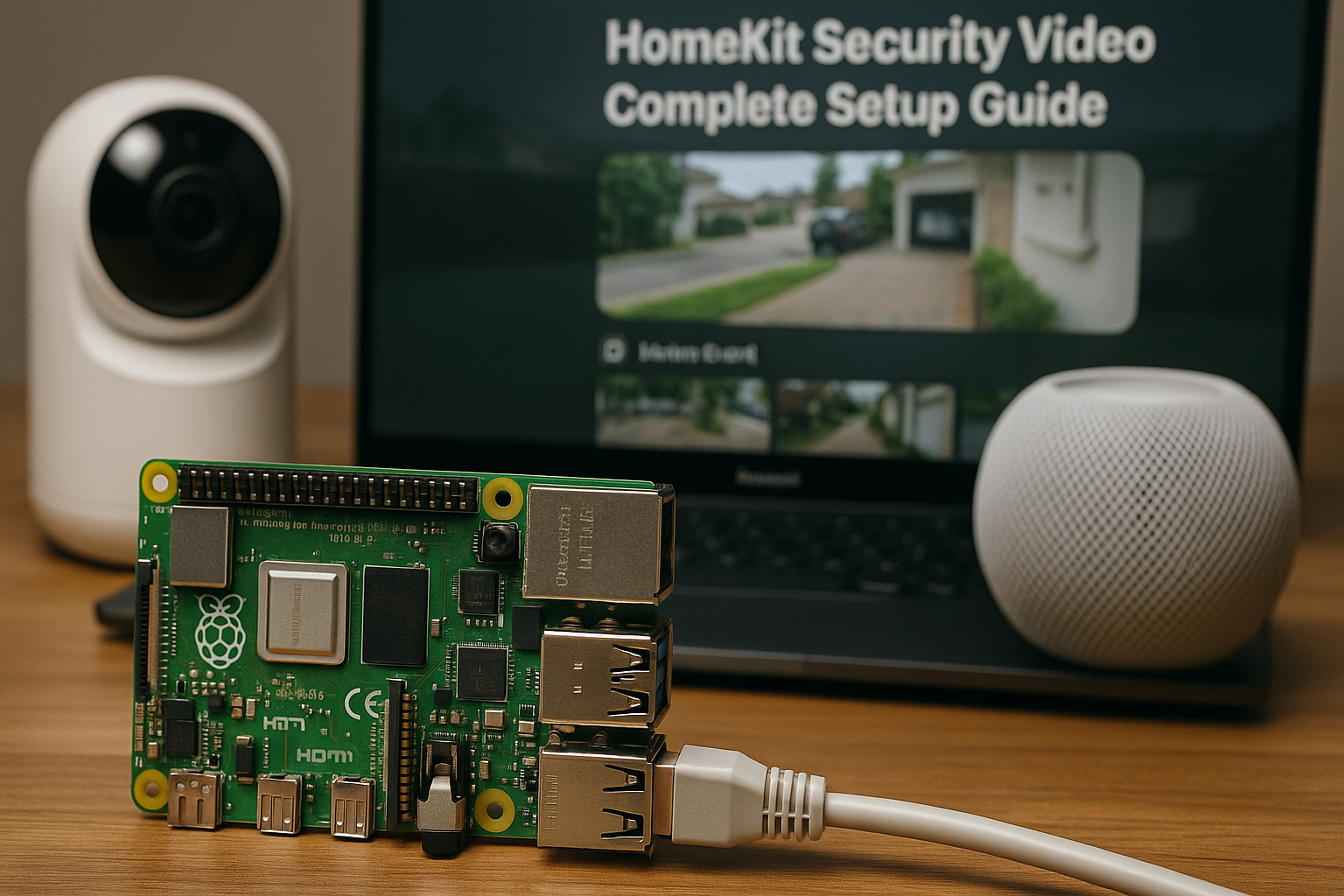
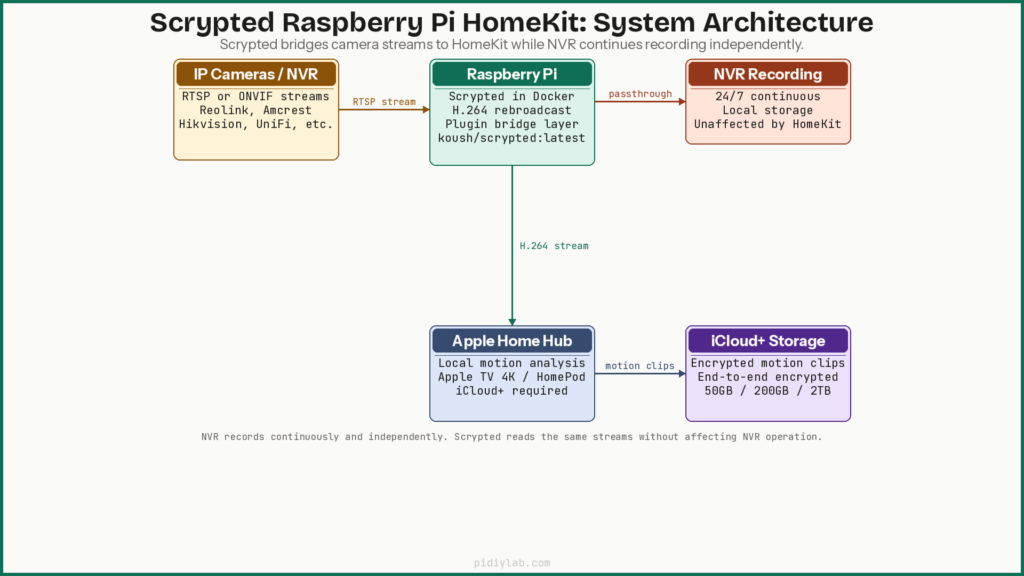
Scrypted Raspberry Pi HomeKit setup bridges your existing IP cameras and NVR into Apple HomeKit Secure Video without replacing any hardware. Scrypted runs in Docker on the Pi, pulls RTSP or ONVIF streams from your cameras or NVR, converts them to H.264, and presents each camera to HomeKit as a native accessory. Your NVR continues recording 24/7 as normal. HomeKit gets encrypted motion clips. Both systems run simultaneously from the same camera streams.
Last tested: Raspberry Pi OS Bookworm Lite 64-bit | March 22, 2026 | Raspberry Pi 4 Model B (4GB) | Scrypted v0.119 | Docker 26 | Reolink and Amcrest cameras
Key Takeaways
- Scrypted acts as a bridge between RTSP/ONVIF cameras and HomeKit Secure Video. No new cameras required if your existing ones support RTSP or ONVIF.
- HomeKit requires H.264. Cameras outputting H.265 must be transcoded by Scrypted before HomeKit will accept the stream. Enable rebroadcasting in Scrypted for each camera.
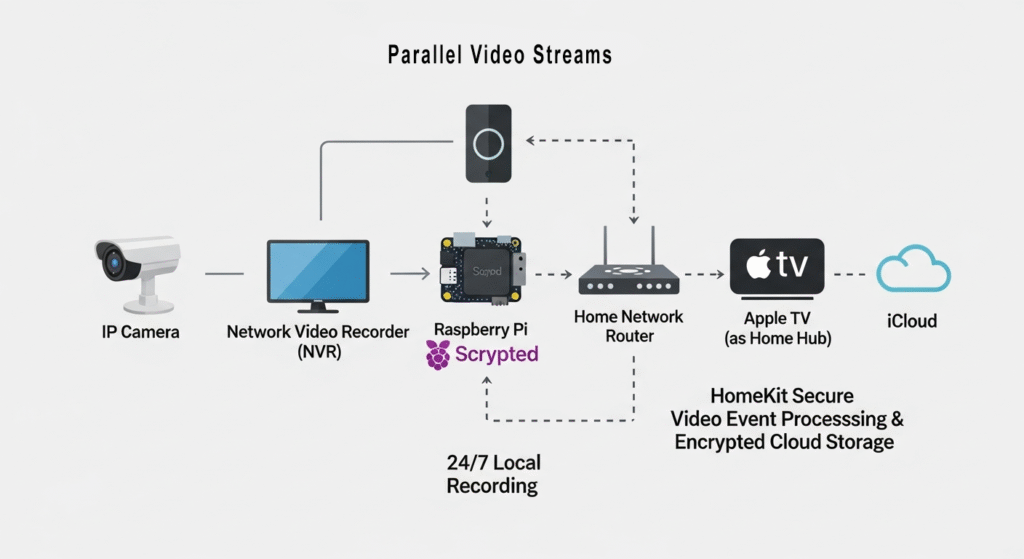
- Your NVR is unaffected. Scrypted reads streams from the NVR or cameras directly. The NVR continues recording independently.
- HomeKit Secure Video requires an iCloud+ subscription and an Apple Home hub (Apple TV 4K or HomePod). The Home hub performs local motion analysis. No hub means no HSV.
- Pi 4 or Pi 5 is required. Pi 3 runs out of CPU headroom quickly when transcoding multiple streams.
- Run Scrypted from a USB SSD rather than microSD. Docker volumes and Scrypted’s database generate continuous writes.
How This Setup Works
What Scrypted does
Scrypted is an open-source home automation platform with a plugin architecture. For this setup, the relevant plugins are the camera plugins (ONVIF, Reolink, Amcrest, Hikvision, and others) and the HomeKit plugin. Scrypted receives RTSP streams from your cameras or NVR, optionally rebroadcasts and transcodes them, and presents each camera to HomeKit as a native accessory with a HomeKit pairing code.
Motion analysis for HomeKit Secure Video happens on your Apple Home hub locally, not in the cloud. Clips are uploaded to iCloud only after a motion event is confirmed, and Apple encrypts them end-to-end. Scrypted does not interact with iCloud directly. It simply provides the compliant video stream that the Home hub needs.
What HomeKit Secure Video does and does not do
| Feature | HomeKit Secure Video | NVR |
|---|---|---|
| Recording mode | Motion events only | 24/7 continuous |
| Storage | iCloud (end-to-end encrypted) | Local HDD/SSD |
| Works without internet | Live view only | Full function |
| Motion intelligence | Person, pet, vehicle, package | Varies by brand |
| Multi-user access | Via Home app sharing | Via NVR app |
Running both simultaneously gives you the best of each: the NVR handles the full archive and works without internet, while HSV provides intelligent motion clips and clean viewing in the Home app. The two systems operate on the same camera streams independently. Neither is aware of the other.
Hardware Requirements
| Component | Minimum | Recommended | Notes |
|---|---|---|---|
| Raspberry Pi | Pi 4 (2GB) | Pi 4 (4GB) or Pi 5 | Pi 3 runs out of CPU under multi-stream transcoding |
| Storage | 32GB microSD | USB 3.0 SSD | Scrypted writes continuously; SSD strongly preferred |
| Power supply | 5V/3A USB-C | Official Pi adapter | Cheap supplies cause Docker instability |
| Network | Wi-Fi | Gigabit Ethernet | Wired essential for multiple HD streams |
| Apple Home hub | HomePod mini | Apple TV 4K | Required for HSV motion analysis and clip upload |
| iCloud+ plan | 50GB plan (1 camera) | 200GB+ plan | More cameras require higher iCloud+ tier |
Storage matters more here than in most Pi builds. Scrypted’s SQLite database, plugin data, and Docker volumes generate sustained writes. An SD card will degrade faster than expected under this workload. See Booting Raspberry Pi from USB SSD for the full setup, and Preventing SD Card Corruption on Raspberry Pi if microSD is your only option.
Step 1: Prepare Raspberry Pi OS
Flash Raspberry Pi OS Bookworm Lite 64-bit using Raspberry Pi Imager. In the advanced settings (gear icon), configure hostname, enable SSH, set credentials, and add Wi-Fi if needed. This replaces the older ssh file and wpa_supplicant.conf approach which does not apply on Bookworm.
After first boot, assign a static IP via your router’s DHCP reservation using the Pi’s MAC address. Then update:
sudo apt update && sudo apt full-upgrade -y
sudo reboot
Expected result: SSH connects to a stable IP after reboot. uname -m returns aarch64 confirming 64-bit OS.
Step 2: Install Docker
curl -fsSL https://get.docker.com -o get-docker.sh
sudo sh get-docker.sh

sudo usermod -aG docker $USER

# Log out and back in, then verify
docker compose version
The convenience script installs Docker Engine and Docker Compose V2 together. The command is docker compose with no hyphen. If docker compose version returns an error after logging back in, the install did not complete. Rerun the script.
Expected result: docker compose version returns a version string such as Docker Compose version v2.x.x.
Step 3: Install Scrypted
Create the compose file
mkdir -p ~/scrypted && cd ~/scrypted
nano docker-compose.yml
Paste the following. The version field is ignored by Compose V2 but harmless to include:
services:
  scrypted:
    image: koush/scrypted:latest
    container_name: scrypted
    restart: unless-stopped
    network_mode: host
    volumes:
      - ~/.scrypted/volume:/server/volume
    environment:
      - TZ=America/Chicago
Replace America/Chicago with your timezone. Using network_mode: host simplifies mDNS and HomeKit pairing discovery. Without it, HomeKit device pairing can fail to complete on some network setups. Save with Ctrl+X, Y, Enter.
Start Scrypted
docker compose up -d
docker compose logs -f scrypted
Expected result: Logs show Scrypted starting and listening. Visit https://<pi-ip>:10443 in a browser. The browser will warn about a self-signed certificate. Click Advanced and proceed. Scrypted prompts you to create an admin account.
Step 4: Add Cameras to Scrypted
Install camera plugins
In the Scrypted web interface, go to Plugins and search for the plugin matching your camera brand. Available plugins include Reolink, Amcrest, Hikvision, UniFi Protect, and ONVIF Camera. The ONVIF plugin works with most IP cameras that support the ONVIF standard. Install the relevant plugin before adding cameras.
Add a camera
After installing a plugin, click the plugin name in the left sidebar. Click Add Device. Enter the camera’s local IP address, username, and password. For NVR-connected cameras, enter the NVR’s IP. The plugin will discover individual channels. Give each camera a descriptive name that will appear in the Home app.
Configure streams
Open each camera device in Scrypted and go to the Streams section. Most cameras offer a main stream (high resolution) and a sub stream (lower resolution, lower bitrate). Configure:
- Set at least one stream to H.264. HomeKit does not accept H.265. If your camera outputs H.265 only, enable transcoding in the stream settings.
- Enable Rebroadcasting. This allows Scrypted to buffer and reprocess the stream, which resolves most HomeKit buffering and black screen issues.
- Use the sub stream for HomeKit detection and live view. Reserve the main stream for NVR recording. This reduces Pi CPU load significantly.
Expected result: The camera thumbnail appears in Scrypted showing a live image. No black screen or “stream unavailable” error.
Step 5: Add Cameras to HomeKit
Install the HomeKit plugin
In Scrypted Plugins, search for and install the HomeKit plugin. After installation, go to each camera device and enable the HomeKit interface under the Interfaces section. Each camera will display a pairing code.
Pair with the Home app
Open the Home app on iPhone or iPad. Tap the + icon, then Add Accessory. Scan the QR code shown in Scrypted for each camera. The camera will appear in Home as a native accessory. Assign it to a room and enable HomeKit Secure Video in the camera settings within the Home app.
HSV requires your Apple Home hub to be active and your iCloud+ subscription to be current. If the HSV toggle is greyed out in the Home app, check that your Home hub is reachable and that your iCloud+ tier supports additional HSV cameras.
Expected result: The camera appears in the Home app with a live view. Motion events appear in the Home app activity feed within a minute of occurring. The camera shows the HSV shield icon indicating encrypted clip recording is active.
Enabling Cloud Link for Remote HTTPS Access
By default, Scrypted uses a self-signed certificate. To get a valid SSL certificate and a stable external URL for the Scrypted dashboard, enable Cloud Link:
- Go to Settings in the Scrypted interface
- Open Scrypted Server Settings
- Enable Cloud Link
This registers the Pi with Scrypted’s cloud relay service and issues a signed certificate. The dashboard becomes accessible at a scrypted.app subdomain URL from anywhere without port forwarding. The video streams themselves still flow locally. Only the dashboard control plane uses the relay.
Adding AI Detection with Scrypted Plugins
Scrypted has object detection plugins that run locally on the Pi before the stream reaches HomeKit. The OpenCV and CoreML plugins can detect people, vehicles, and packages and emit motion events only when a specific object class is detected. This reduces false HomeKit notifications from wind, shadows, and small animals significantly.
On Pi 4, software-based detection adds CPU load. On Pi 5, the improved CPU handles it more comfortably. If you are already running the Coral USB accelerator for another project, Scrypted has a Coral plugin that offloads detection to the TPU at minimal CPU cost. See Coral TPU Raspberry Pi 5 Setup for the accelerator setup.
Maintenance
Update Scrypted
cd ~/scrypted
docker compose pull
docker compose up -d
Monitor resource usage
# Container CPU and memory
docker stats scrypted

# Pi temperature and throttling
vcgencmd measure_temp
vcgencmd get_throttled
Transcoding multiple H.265 streams to H.264 is the most CPU-intensive scenario. If the Pi throttles, reduce the number of transcoded streams by switching cameras to H.264 output at the camera level rather than relying on Scrypted to transcode. This is always preferable if the camera supports it. See Setting Up zram on Raspberry Pi for reducing memory pressure under sustained load.
Log rotation
Add log rotation to /etc/docker/daemon.json to prevent log accumulation filling the SSD:
{
  "log-driver": "json-file",
  "log-opts": {
    "max-size": "10m",
    "max-file": "3"
  }
}
sudo systemctl restart dockerTroubleshooting
Camera shows black screen in Home app
Almost always a codec or stream issue. Confirm H.264 is selected in Scrypted’s stream settings for that camera. Enable Rebroadcasting. If the camera outputs H.265 only, enable transcoding. Verify the stream loads in Scrypted’s own thumbnail view before troubleshooting HomeKit pairing.
HomeKit pairing fails or camera not discovered
The most common cause is the Docker network mode. If Scrypted is running with bridge networking rather than host networking, mDNS packets used for HomeKit discovery do not reach the local network. Confirm network_mode: host is set in the compose file and restart the container.
HSV motion clips not appearing
Check that the Apple Home hub is online and reachable from the Pi’s network. Check that the iCloud+ subscription is active and that the camera count does not exceed your plan’s HSV limit. The 50GB plan supports one HSV camera, 200GB supports five, and 2TB supports unlimited.
High CPU or Pi throttling
Switch cameras to H.264 output at the camera level to eliminate transcoding. Use sub streams for Scrypted detection and HomeKit live view, reserving main streams for the NVR. If running AI detection plugins, disable them on cameras that do not need object classification to recover CPU headroom.
Scrypted container not starting after reboot
docker compose logs scrypted
sudo systemctl status docker
Confirm Docker starts on boot with sudo systemctl enable docker. If the volume mount path does not exist, Docker may fail to start the container. Confirm ~/.scrypted/volume exists and is writable.
FAQ
Can I use my NVR and HomeKit Secure Video simultaneously?
Yes. The NVR reads streams from the cameras directly and records continuously. Scrypted also reads those streams independently and bridges them to HomeKit. Neither system is aware of the other. Your NVR configuration, recording schedules, and playback are completely unaffected.
Do I need specific cameras for this setup?
Any camera that supports RTSP or ONVIF works with Scrypted. Reolink, Amcrest, Hikvision, Dahua, and UniFi all have dedicated Scrypted plugins. Cameras that only expose streams through a proprietary cloud app cannot be used.
Is Raspberry Pi 3 sufficient?
For one camera at 720p with no transcoding, possibly. For two or more cameras, or any H.265 transcoding, Pi 3 will hit CPU limits quickly. Pi 4 with 4GB is the practical minimum for a useful multi-camera setup.
Does HomeKit Secure Video work during an internet outage?
Live view and local motion detection continue during an outage because the Home hub processes video locally. Clip upload to iCloud pauses until internet connectivity is restored. The NVR continues recording regardless of internet status.
Do I need Linux experience?
Basic comfort with SSH and copy-pasting terminal commands is sufficient. You do not need to understand how Docker or Scrypted work internally to complete this setup. The commands are short and the most common failure points are covered in the troubleshooting section above.
Is Scrypted secure?
Scrypted’s security depends on the Pi and network it runs on. Use a strong admin password for the Scrypted dashboard. Enable Cloud Link for a signed SSL certificate. Do not expose port 10443 directly to the internet. Use Tailscale or Cloud Link for remote access instead of port forwarding.
How many cameras can I add?
Scrypted itself has no hard camera limit. The practical limit is Pi CPU capacity. Pi 4 handles four to six cameras comfortably if they output H.264 natively and transcoding is not required. HomeKit Secure Video camera limits are set by your iCloud+ tier: one camera on 50GB, five on 200GB, unlimited on 2TB.
References
About the Author
Chuck Wilson has been programming and building with computers since the Tandy 1000 era. His professional background includes CAD drafting, manufacturing line programming, and custom computer design. He runs PidiyLab in retirement, documenting Raspberry Pi and homelab projects that he actually deploys and maintains on real hardware. Every article on this site reflects hands-on testing on specific hardware and OS versions, not theoretical walkthroughs.
Last tested hardware: Raspberry Pi 4 Model B (4GB). Last tested OS: Raspberry Pi OS Bookworm Lite 64-bit. Scrypted v0.119, Docker 26.