


Thread Matter Raspberry Pi gives you a self-hosted smart home mesh network built on open standards, with local control and no cloud dependency. Thread is the IPv6 mesh transport running on IEEE 802.15.4 radio. Matter is the application layer that runs over Thread (or Wi-Fi) and standardises how lights, locks, sensors, and thermostats communicate across Apple, Google, Amazon, and Home Assistant simultaneously. A Raspberry Pi running OpenThread Border Router bridges the Thread mesh to your IP network and enables commissioning of Matter devices. This guide covers the protocol relationship, hardware options, Docker-based OTBR setup, Connect ZBT-2 configuration, Matter commissioning, and troubleshooting.
Last tested: Raspberry Pi OS Bookworm Lite 64-bit | April 24, 2026 | Raspberry Pi 4 Model B (4GB) | Home Assistant Connect ZBT-2 | OTBR Docker image | Home Assistant 2024.11
Key Takeaways
- Thread and Matter are complementary but distinct. Thread is the radio transport (mesh networking). Matter is the application protocol (device commands and security). You need both for a full setup, but not all Matter devices use Thread. Matter-over-Wi-Fi exists for devices that do not need low-power mesh.
- The recommended OTBR installation method is the official Docker image, not building from source. The source build scripts are maintained for development purposes. The Docker image is tested, pre-configured, and supported for production use on Pi 4.
- Matter multi-admin means one physical device can be added to multiple ecosystems simultaneously. A Thread bulb can appear in Home Assistant, Apple Home, and Google Home at the same time without factory resetting or choosing one platform. This is a core design goal of the Matter standard, not a workaround.
Thread Matter Raspberry Pi: How the Protocols Work Together
Thread is a low-power IPv6 mesh network protocol built on IEEE 802.15.4 radio. It operates at 2.4 GHz and creates a self-healing mesh where powered devices act as routers and battery-powered devices act as sleepy end devices that wake periodically. The mesh has no single point of failure. If a router goes offline, traffic re-routes through remaining nodes. A Thread Border Router connects the mesh to your home IP network, making mesh devices reachable from other devices on your LAN.
Matter is the application-layer protocol developed by the Connectivity Standards Alliance. It defines how devices advertise their capabilities, how controllers send commands, how security credentials are exchanged, and how multi-admin access works. Matter runs over Thread for low-power devices and over Wi-Fi for devices that are always mains-powered. The controller (Home Assistant, Apple Home, Google Home) issues Matter commands. The Border Router and Thread mesh handle delivery to the device.
| Layer | Protocol | Role |
|---|---|---|
| Radio / transport | Thread (IEEE 802.15.4) | Mesh networking, device-to-device routing, IPv6 |
| Application | Matter | Commands, security, commissioning, multi-admin |
| Border Router | OTBR | Bridges Thread mesh to home IP network |
| Controller | Home Assistant / Apple / Google | Pairs devices, sends commands, runs automations |
Thread device roles
| Role | Description |
|---|---|
| Leader | Manages the router table. Elected automatically, re-elected if it fails. |
| Router | Forwards packets. Typically mains-powered devices (smart plugs, bulbs). |
| End Device | Communicates via a parent router. Does not forward packets. |
| Sleepy End Device | Wakes periodically to check for messages. Battery-powered sensors. |
| Border Router | Bridges the Thread mesh to the home IP network. |

Hardware Options
Three hardware paths work for a Pi-based Thread and Matter setup. All three result in a functioning Thread Border Router. They differ in how the radio hardware connects and how the firmware is managed.

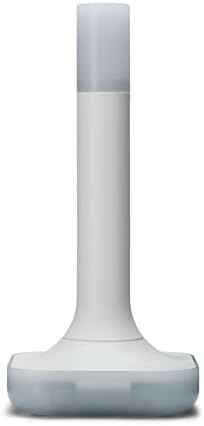
Home Assistant Connect ZBT-2 (recommended starting point)
The Connect ZBT-2 is a USB dongle containing a Silicon Labs EFR32MG21 radio chip. It ships with Zigbee firmware but can be flashed to Thread RCP firmware through the Home Assistant interface. For users already running Home Assistant, it is the lowest-friction path to Thread and Matter. The firmware flash and OTBR configuration are handled through the HA web UI without any command-line work.
Limitation: Connect ZBT-2 cannot run Zigbee and Thread simultaneously without experimental multiprotocol firmware. If you rely on Zigbee devices, you need a separate Zigbee coordinator or a second dongle.
nRF52840 or EFR32 USB dongle
A pre-flashed Thread RCP USB dongle (Nordic nRF52840-based or Silicon Labs EFR32-based) connected to the Pi provides the radio hardware independently of Home Assistant. This is the right choice if you want a standalone OTBR setup without running Home Assistant, or if you want to keep your Zigbee and Thread radios separate from the start.
GPIO-connected radio module
A radio module connected to the Pi’s UART pins (rather than USB) gives a more permanent embedded installation. The setup is the same as USB but requires UART configuration in the OTBR agent settings. This path is most useful for custom enclosures or permanent installations where a USB dongle would be physically inconvenient.
Setting Up OTBR with Docker
The current recommended OTBR installation method is the official Docker image. Building from source is intended for development and testing. Flash Raspberry Pi OS Bookworm Lite 64-bit using Raspberry Pi Imager. In the advanced settings, set hostname, enable SSH, and configure credentials.
sudo apt update && sudo apt full-upgrade -y

# Install Docker using the official script
curl -fsSL https://get.docker.com -o get-docker.sh
sudo sh get-docker.sh
sudo usermod -aG docker $USER
Log out and back in. Connect your Thread RCP dongle and confirm it is visible:
ls /dev/ttyUSB* /dev/ttyACM*
# A pre-flashed RCP dongle typically appears as /dev/ttyACM0 or /dev/ttyUSB0
Run the OTBR Docker container. Replace /dev/ttyACM0 with your actual device path and eth0 with your network interface:
docker run --sysctl "net.ipv6.conf.all.disable_ipv6=0 net.ipv4.conf.all.forwarding=1 net.ipv6.conf.all.forwarding=1" \
  -p 8080:80 --dns=127.0.0.1 \
  -it --volume /dev/ttyACM0:/dev/ttyACM0 \
  --privileged openthread/otbr \
  --radio-url spinel+hdlc+uart:///dev/ttyACM0 \
  --backbone-interface eth0
This starts the OTBR web interface on port 8080. Navigate to http://<pi-ip>:8080 to access the OTBR dashboard. From here you can form a new Thread network, view mesh topology, and check the border router status.
To run OTBR as a persistent service using Docker Compose, create ~/otbr/compose.yaml:
services:
  otbr:
    image: openthread/otbr:latest
    container_name: otbr
    restart: unless-stopped
    privileged: true
    network_mode: host
    volumes:
      - /dev/ttyACM0:/dev/ttyACM0
    sysctls:
      net.ipv6.conf.all.disable_ipv6: 0
      net.ipv4.conf.all.forwarding: 1
      net.ipv6.conf.all.forwarding: 1
    command: >
      --radio-url spinel+hdlc+uart:///dev/ttyACM0
      --backbone-interface eth0
cd ~/otbr && docker compose up -d
docker compose logs -f otbrExpected result: The OTBR web interface loads at http://<pi-ip>:8080. The Status page shows the border router active and the radio interface connected. Use the Form Network option to create a new Thread network with a network name and channel.
Verify the Thread network with ot-ctl
# Access the OpenThread CLI inside the container
docker exec -it otbr ot-ctl

# Check border router state
state

# View the network topology
router table

# Show the network name and channel
networkname
channel
Expected result: state returns leader or router. networkname returns the name you set during network formation. router table shows at least one router entry (the border router itself).
Connect ZBT-2 Setup with Home Assistant
For Home Assistant users, the Connect ZBT-2 path handles OTBR configuration through the UI. Update Home Assistant to 2024.6 or later before starting.
- Plug the Connect ZBT-2 into the Pi running Home Assistant OS.
- In Home Assistant, go to Settings > Devices and Services. The Connect ZBT-2 should appear as a discovered device.
- If the dongle is currently running Zigbee firmware, use the Connect ZBT-2 configuration page to switch to Thread RCP firmware. This takes about 2 minutes and requires a reboot of the integration.
- After the firmware switch, Home Assistant automatically installs the OpenThread Border Router add-on and configures it to use the Connect ZBT-2 as the radio.
- Install the Thread integration from Settings > Devices and Services > Add Integration > Thread.
- Install the Matter integration from Settings > Devices and Services > Add Integration > Matter.
Expected result: The Thread integration shows the border router active. The Matter integration shows ready for commissioning. The OTBR web UI is accessible at http://homeassistant.local:8080.
Commissioning Matter Devices
Commissioning is the process of securely adding a Matter device to your network. It involves a BLE handshake (for most devices), credential exchange, and joining the Thread mesh or Wi-Fi network. The controller (Home Assistant, Apple Home, or Google Home) handles commissioning.
What happens during commissioning
- The controller connects to the device via Bluetooth Low Energy.
- Cryptographic attestation verifies the device is genuine and unmodified.
- The controller sends Thread network credentials (for Thread devices) or Wi-Fi credentials (for Wi-Fi devices).
- The device joins the Thread mesh or Wi-Fi network.
- The controller adds the device to its Matter fabric with an IPv6 address and a node ID.
Commissioning via Home Assistant
Open the Home Assistant Companion app on your phone. Go to Settings > Devices and Services > Matter > Add Device. Hold the phone near the new device and scan its QR code. The code encodes the device setup discriminator, pairing code, and vendor ID. Follow the prompts. Commissioning typically completes in 30 to 90 seconds.
Multi-admin: adding a device to multiple platforms
After commissioning to Home Assistant, you can share the same device with Apple Home or Google Home without factory resetting it. In Home Assistant, go to the device’s Matter page and select “Share device.” This generates a new QR code that the second platform scans. The device now appears in both platforms simultaneously. Each platform has its own Matter fabric and cannot see the other credentials. Both can control the device independently.
Ecosystem Integration
| Platform | Thread Border Router | Matter commissioning | Notes |
|---|---|---|---|
| Home Assistant | OTBR add-on or Docker | Companion app QR scan | Best for automation and scripting |
| Apple Home | HomePod mini or Apple TV 4K | Home app QR scan | iOS 16.1+ required |
| Google Home | Nest Hub 2nd gen+ | Google Home app QR scan | Nest device acts as border router |
| Amazon Alexa | Echo 4th gen+ | Alexa app | Matter support varies by device firmware |
Each platform maintains its own Thread border router. If you have a HomePod mini and a Pi running OTBR on the same network, both advertise Thread credentials. Devices will join through whichever border router they discover first. Multiple border routers improve mesh resilience and coverage but all must be configured with compatible Thread network credentials to avoid mesh fragmentation.
For Home Assistant-specific configuration including the MQTT bridge for non-Matter Zigbee devices running alongside Thread, see Home Assistant Raspberry Pi. For MQTT routing from Thread-adjacent devices, see Mosquitto MQTT Raspberry Pi.
Performance and Mesh Health
Thread’s self-healing mesh means individual device failures do not bring down the network. The leader re-election happens automatically within seconds. End devices switch parent routers if their current parent becomes unreachable. In practice, a well-configured Thread mesh with 3 or more routers is more resilient than Zigbee or Z-Wave meshes of equivalent size.
Thread uses the 2.4 GHz band and shares spectrum with Wi-Fi (channels 11-26 on 802.15.4 map to channels 1-6 on Wi-Fi 2.4GHz). Channel selection matters: Thread channel 25 (2479 MHz) avoids overlap with Wi-Fi channels 1, 6, and 11. Set the Thread network channel once during formation. Changing it later requires re-commissioning all devices.
Monitor mesh health from inside the OTBR container:
docker exec -it otbr ot-ctl

# Connected devices
neighbor table

# Router table showing mesh topology
router table

# Link quality indicators
neighbor linkquality
Always-on mains-powered devices (smart plugs, powered sensors) automatically become Thread routers and strengthen the mesh. Battery-powered sensors run as sleepy end devices and consume minimal power. Most run for months on a single CR2032.
Troubleshooting
OTBR container starts but radio not detected
# Confirm the dongle is visible to the host OS
ls /dev/ttyACM* /dev/ttyUSB*

# Check kernel log for USB device enumeration
dmesg | tail -20

# Verify the container has access to the device
docker exec -it otbr ls /dev/ttyACM0
If the device appears on the host but not in the container, the volume mount in the compose file is incorrect. Confirm the path matches exactly. If the device does not appear on the host at all, the dongle may need firmware. An un-flashed nRF52840 dongle appears as a different USB device ID than a flashed RCP dongle.
Matter commissioning times out
Hold the phone within 30cm of the device during BLE commissioning. Commissioning relies on Bluetooth Low Energy for the initial handshake. Walls and interference cause timeouts at longer range. If the QR code scan succeeds but commissioning fails partway through, the most common cause is that the device’s Thread join attempt failed. Check that the OTBR is running and the Thread network is formed before attempting commissioning.
# Confirm OTBR is running
docker ps | grep otbr

# Confirm Thread network is formed
docker exec -it otbr ot-ctl state
Device already on another fabric
If a Matter device was previously commissioned to another platform and not properly removed, it retains its previous fabric credentials and may reject new commissioning attempts. Factory reset the device using its physical button or pairing procedure (varies by manufacturer) before attempting to commission to a new platform.
Thread network drops intermittently
Intermittent drops usually indicate either radio interference or too few routers. Add a mains-powered Thread device to strengthen the mesh in the affected area. Check the Thread channel for Wi-Fi overlap using docker exec -it otbr ot-ctl channel and consider switching to Thread channel 25 or 26 to reduce 2.4 GHz Wi-Fi interference. Confirm the OTBR container has restart: unless-stopped in the compose file so it recovers automatically after Pi reboots.
Connect ZBT-2 firmware switch fails
If the firmware flash through Home Assistant fails or the dongle stops being recognised after a flash attempt, unplug the Connect ZBT-2, wait 10 seconds, and replug. Home Assistant should re-detect it. If it does not appear, check Settings > System > Hardware. If the dongle appears but the firmware state is unknown, use the Connect ZBT-2 configuration page to run the firmware recovery option.
FAQ
Do I need Thread for Matter to work?
No. Matter runs over both Thread and Wi-Fi. Smart plugs, thermostats, and other always-powered devices often use Matter-over-Wi-Fi and require no Thread border router. Thread is primarily for battery-powered devices like sensors and buttons where low power consumption is essential. A mixed network is common and works correctly. The controller handles both transport types transparently.
Can I run Zigbee and Thread on the same Pi?
Yes, with two separate USB dongles: one for Zigbee (a CC2652-based coordinator for Zigbee2MQTT) and one for Thread (Connect ZBT-2 or nRF52840 RCP). Running both protocols on a single radio simultaneously requires experimental multiprotocol firmware on the Connect ZBT-2 and is not stable for production use. For a stable dual-protocol setup, use two separate dongles.
How many Thread devices can a Pi OTBR support?
The Thread specification supports up to 32 routers per mesh and hundreds of end devices per router. A Pi 4 with OTBR Docker handles the border routing workload without measurable CPU impact at typical home scale (20-100 devices). The practical limit is determined by radio range and the number of routers in the mesh, not the Pi’s processing capacity.
Does Matter require internet access?
No. Matter is designed for local control. All device commands are issued on the local network. Internet access is only required during initial commissioning for device attestation verification (checking the device certificate against the CSA’s product attestation authority) and for any cloud features the device manufacturer adds optionally. After commissioning, the device operates without internet.
How do I know if a device supports Thread?
Look for the Thread logo on the device packaging. The product listing should specify IEEE 802.15.4 radio support. The CSA maintains a product database at csa-iot.org listing all certified Matter and Thread devices. Most battery-powered Thread devices are sensors, buttons, or locks. Mains-powered Thread devices like bulbs and plugs exist but the lower-power benefit is less significant for them.
References
- https://openthread.io/guides/border-router
- https://github.com/openthread/ot-br-posix
- https://www.home-assistant.io/integrations/thread/
- https://csa-iot.org/all-solutions/matter/
- https://github.com/project-chip/connectedhomeip
About the Author
Chuck Wilson has been programming and building with computers since the Tandy 1000 era. His professional background includes CAD drafting, manufacturing line programming, and custom computer design. He runs PidiyLab in retirement, documenting Raspberry Pi and homelab projects that he actually deploys and maintains on real hardware. Every article on this site reflects hands-on testing on specific hardware and OS versions, not theoretical walkthroughs.
Last tested hardware: Raspberry Pi 4 Model B (4GB), Home Assistant Connect ZBT-2. Last tested OS: Raspberry Pi OS Bookworm Lite 64-bit. Home Assistant 2024.11, OTBR Docker image.