
By Chuck Wilson | Updated: March 2026
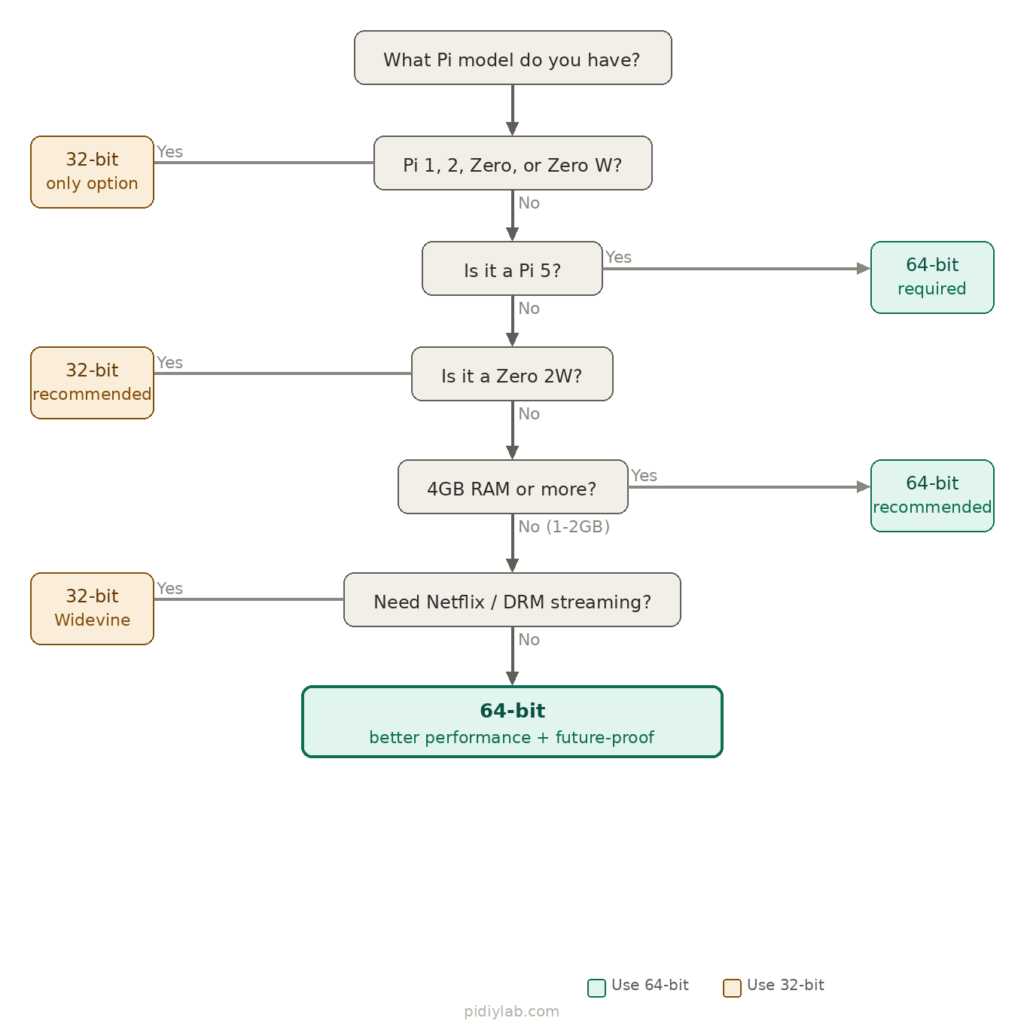
Quick answer: If you have a Pi 3 or newer with 2GB+ RAM, use 64-bit. If you’re on a Zero 2W or any Pi with 1GB or less, 32-bit is often the smarter call. If you have a Pi 5, 64-bit is mandatory — the Cortex-A76 requires a 64-bit kernel. Read on for the full model-by-model breakdown for Raspberry Pi 32-bit vs 64-bit and what actually changes in practice.
Which OS for Your Model: The Decision Matrix
Stop guessing. Here’s the answer for every current Pi board:
| Pi Model | RAM | Use 64-bit? | Reason |
|---|---|---|---|
| Pi 5 | 4GB / 8GB | Yes — required | Cortex-A76 requires 64-bit kernel |
| Pi 4 Model B | 8GB | Yes — strongly | 32-bit caps each process at ~3GB; 8GB goes to waste |
| Pi 4 Model B | 4GB | Yes | Performance gains outweigh minimal RAM overhead |
| Pi 4 Model B | 1GB / 2GB | Yes (marginal) | Small overhead; still recommended for future-proofing |
| Pi 400 | 4GB | Yes | Same chip as Pi 4; full benefit |
| Pi 3B / 3B+ | 1GB | Either | Limited RAM benefit; choose based on software needs |
| Pi Zero 2W | 512MB | 32-bit preferred | 64-bit overhead (~90MB extra at boot) hurts on 512MB |
| Pi Zero / Pi 1 / Pi 2 | — | No — 32-bit only | Hardware does not support 64-bit |
| Compute Module 4 | 1–8GB | Yes (with 4GB+) | Treat like Pi 4 |
Note: Pi 5 ships with a 64-bit kernel by default. You cannot run a 32-bit kernel on Pi 5.


What 32-bit vs 64-bit Actually Means
Bit architecture refers to how a processor handles data. A 32-bit processor works in 32-bit chunks; a 64-bit processor works in 64-bit chunks. More bits means more registers, more addressable memory, and often better performance — if the OS and software actually take advantage of it.
Most Raspberry Pi boards use ARM-based CPUs. Earlier models like the Pi 1 and Pi Zero ran on 32-bit ARMv6 processors. The Pi 2 moved to ARMv7; the Pi 3 and later moved to ARMv8, which is 64-bit capable. The Pi 5’s Cortex-A76 goes further — it drops legacy 32-bit kernel support entirely.
Having a 64-bit capable chip doesn’t mean the OS uses it. For years, Raspberry Pi OS (formerly Raspbian) shipped only a 32-bit release, even for 64-bit boards. The official 64-bit version is now stable and the recommended default for Pi 3 and newer.
Raspberry Pi 5: 64-bit Is Not Optional
This is the most important update for 2026. The Raspberry Pi 5 uses the ARM Cortex-A76, which requires a 64-bit kernel. You can still run 32-bit userland applications on top of that kernel, but the kernel itself must be 64-bit. If you’re buying or setting up a Pi 5, there’s no decision to make — install the 64-bit version of Raspberry Pi OS.
The Pi 5 also ships with 16KB memory pages enabled by default in 64-bit mode, which provides a modest performance improvement. The tradeoff is reduced compatibility with older 32-bit binaries, but that’s an acceptable trade at this point in the platform’s evolution.
This is the direction the entire platform is heading. 32-bit support on desktop-class Pi hardware is a dead end — later ARM CPUs are expected to mandate 64-bit for everything.
RAM Limits and the 4GB Ceiling
A 32-bit OS can only address around 4GB of RAM — in practice closer to 3.5GB after system overhead. That limit is baked into how memory addressing works at the hardware level.
So even with a Raspberry Pi 4 running 8GB of RAM, the 32-bit version of Raspberry Pi OS won’t use all of it. The kernel can access it through PAE (Physical Address Extension), but individual processes are still capped at roughly 3GB each. If you’re running Docker, a database, or a machine learning model, that ceiling matters.
On the 64-bit OS, a single process can theoretically address up to 16 million TB. In practice for a Pi, it means your whole 8GB is usable per process — relevant for PostgreSQL, InfluxDB, or running TensorFlow Lite models in memory.
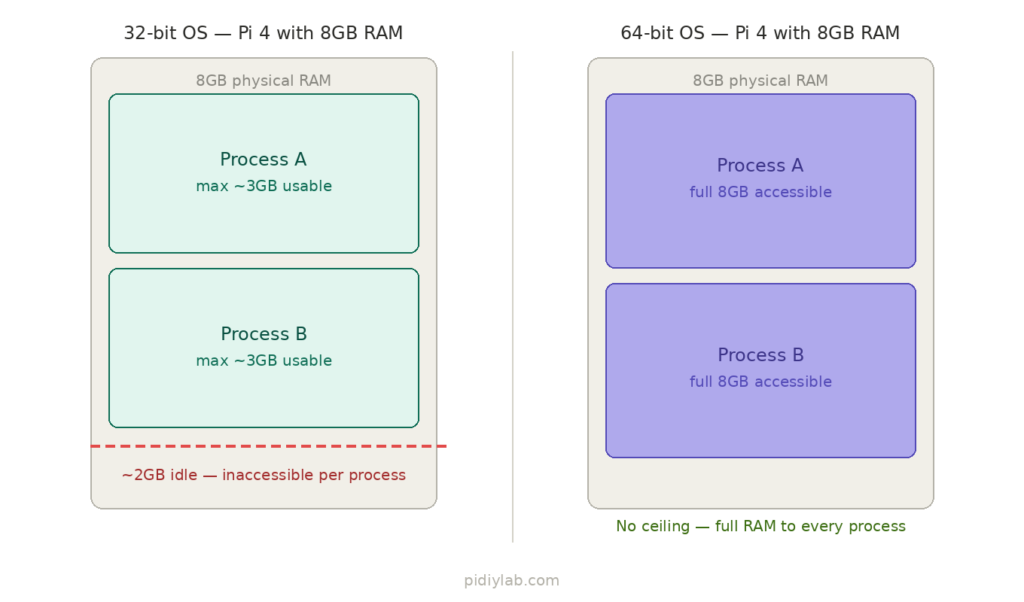
For boards with 1GB or less, this distinction is irrelevant. The 64-bit overhead (~90MB extra at boot) is meaningful on a 512MB Zero 2W, but negligible on a Pi 4 with 4GB.
Real Performance Differences
What the benchmarks say
Phoronix ran extensive benchmarks comparing 32-bit and 64-bit Raspberry Pi OS on a Pi 400 with 4GB RAM. Across dozens of workloads, the 64-bit build showed an average performance improvement of around 48%. In their expanded test set, the 64-bit OS completed tasks faster 86% of the time.
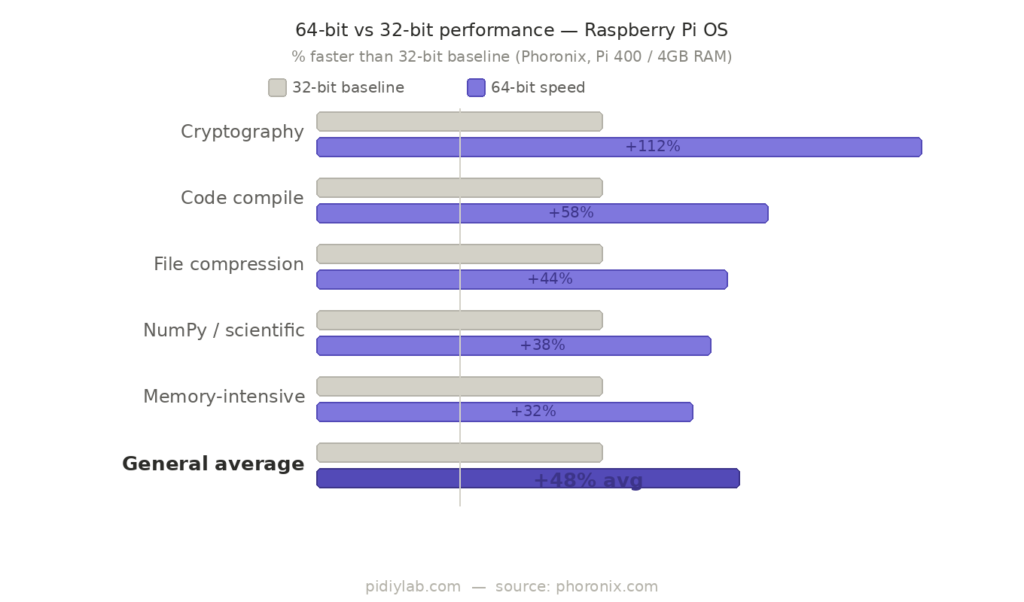
The biggest gains are in:
- Cryptographic operations — if you’re running a VPN server, handling SSL/TLS, or doing encryption-heavy work, the performance gap is dramatic. The AArch64 instruction set includes hardware-accelerated crypto that 32-bit mode doesn’t expose the same way.
- Compile-heavy workloads — building Python packages, compiling Node.js modules, or running
makeon any large codebase is measurably faster. More registers mean the compiler can optimize better. - Memory-intensive apps — Chromium, LibreOffice, and anything that pages heavily all benefit from better memory access patterns.
What doesn’t change much
Web browsing with a handful of tabs, media playback, basic Python scripting, GPIO work, and SSH sessions won’t feel meaningfully different. If your Pi is mostly idle and you’re SSHing in to restart a service occasionally, you won’t notice.
Boot time and day-to-day feel
On a Pi 4, 64-bit typically boots 10–15% faster than 32-bit. That translates to a few seconds on a good SD card, or more if you’re using an SSD. File management and multi-tab browsing feel a bit snappier, especially when using Samba or transferring over the network.
Thermals
Running 64-bit does push the processor slightly harder. On a Pi 4, expect roughly 3–7°C higher temps under sustained load. That’s the difference between 55°C and 62°C in a typical setup. Passive cooling handles it fine in most cases. If you’re overclocking or running in an enclosed case, factor that in.
Emulation
RetroPie and emulators like Dolphin benefit from 64-bit builds — N64 and Dreamcast games that struggled on 32-bit are more playable. The Pi is still not a PS5, but 64-bit squeezes more out of what’s there.
Software Compatibility — What Breaks and What Doesn’t
Apps that require 64-bit
Some software won’t run at all on 32-bit Raspberry Pi OS:
- UniFi Network Controller — 64-bit only
- Newer Docker images — many official arm64 images have no armhf equivalent
- Some Node.js builds — newer LTS versions ship arm64 binaries; armhf is increasingly an afterthought
- Certain TensorFlow Lite builds — the optimized arm64 wheels outperform armhf significantly
Apps with known 64-bit issues
Not everything is better on 64-bit. Some software has genuine compatibility problems:
- DRM streaming (Netflix, Disney+, Amazon Video) — Widevine’s CDM library is not available for 64-bit Chromium on Raspberry Pi OS. If you need DRM-protected streaming, 32-bit is the only path on Raspberry Pi OS. (There’s ongoing community work to resolve this, but it’s not clean as of 2026.)
- Wolfram Mathematica — known issues on arm64
- Some legacy GPIO libraries — older community scripts that use compiled C extensions may need armhf. Check your specific library before committing.
- OMXPlayer — deprecated, but if you rely on it, it behaves differently across builds
Docker and containers
Docker is where 64-bit pays off most clearly. Containers built on Debian or Ubuntu arm64 images get better resource use, and the ecosystem of available images is far richer for arm64 than armhf. Multi-container stacks like Node-RED + InfluxDB + Grafana hit memory ceilings quickly on 32-bit. On 64-bit, they breathe.
Python
64-bit Python handles memory per object better and performs noticeably on scientific libraries. NumPy and pandas are faster on arm64. The one catch: some smaller modules with compiled C extensions may not have a working arm64 wheel in PyPI yet. Check before migrating a production setup.
OS Options: Raspberry Pi OS, Ubuntu, and Others
Raspberry Pi OS ships in both 32-bit (armhf) and 64-bit (arm64) versions. The 32-bit version runs on every Pi ever made. The 64-bit version requires Pi 3 or newer. The Foundation now recommends 64-bit for any board that supports it.
Ubuntu offers a full 64-bit image for Raspberry Pi based on standard desktop Ubuntu, built for ARM64. Ubuntu 22.04 LTS and 24.04 LTS are 64-bit only for Pi. If you’re building something meant to run for years without reflashing, Ubuntu’s LTS commitment is worth considering.
Other distros — DietPi, Manjaro ARM, Arch Linux ARM — all have 64-bit builds. These are good choices if you want leaner installs or more current packages. The tradeoff is less hand-holding when something breaks.
Package availability is the real gotcha on 64-bit. Some community and maker-focused software still ships armhf-only. You’ll find more precompiled libraries and scripts for armhf than arm64, particularly in older tutorials. The gap is closing, but it’s real.
Kernel, Userland, and Long-Term Support
The 64-bit Raspberry Pi OS uses a different kernel build than its 32-bit sibling — better support for 64-bit syscalls, full memory mapping, and compatibility with newer kernel modules. If you’re tinkering with low-level code or hardware that needs up-to-date drivers, 64-bit is the right foundation.
The userland — the programs and tools running on top of the kernel — is what most users interact with. Some distros mix a 64-bit kernel with a 32-bit userland. This avoids RAM headaches while maintaining compatibility, but introduces subtle issues. The full 64-bit Raspberry Pi OS uses a clean arm64 userland and avoids those headaches.
On LTS: Ubuntu 22.04 and 24.04 for Raspberry Pi are 64-bit only. Raspberry Pi OS updates both versions, but the trajectory is clear — 64-bit is getting more attention, more packages, and longer support windows. If you’re building something you want to run for years, 64-bit has a clearer future.
When 32-bit Still Makes Sense
Despite everything above, there are legitimate reasons to stay on 32-bit:
- Pi Zero, Pi 1, Pi 2 — no choice; these boards only run 32-bit
- Pi Zero 2W — 512MB RAM makes the 64-bit overhead meaningful; 32-bit is leaner
- DRM streaming — if Netflix or Disney+ is a primary use case, 32-bit Chromium is the only working path on Raspberry Pi OS right now
- Legacy drivers and GPIO libraries — older projects with compiled C extensions that have no arm64 wheel
- Teaching environments — broader compatibility, fewer surprises for beginners
- Existing working setups — if everything works and you don’t need what 64-bit offers, there’s no reason to reflash
The rule of thumb: if it’s working and you don’t hit any of the 64-bit advantages in your actual use case, don’t fix what isn’t broken.
How to Switch or Install
Check what you’re currently running
uname -mOutput of aarch64 = 64-bit. Output of armv7l or armv6l = 32-bit.
Download the right image
Go to raspberrypi.com/software and select your board. Both 32-bit and 64-bit versions are listed. For Ubuntu, visit ubuntu.com/raspberry-pi.
Flash with Raspberry Pi Imager
Download Raspberry Pi Imager, insert your SD card, and write the image. Select the 64-bit version. Press Ctrl+Shift+X before writing to pre-configure Wi-Fi, SSH, username, and password — saves significant setup time.
Update firmware first (Pi 4 and Pi 400)
Older firmware can block 64-bit boot. From your current OS:
sudo apt update && sudo apt full-upgrade
sudo rpi-eeprom-update
sudo reboot
This updates your Pi’s bootloader to the latest supported version before you switch.
There is no in-place upgrade
You cannot upgrade from 32-bit to 64-bit Raspberry Pi OS without reflashing. Back up your data, flash a fresh 64-bit image, and reinstall your packages. Keep the old SD card as a fallback until you’ve confirmed everything works.
Verify after install
uname -m       # should return aarch64
cat /etc/os-release   # confirm OS version
free -h        # check RAM is fully visible
Summary Comparison Table
| Feature | 32-bit Raspberry Pi OS | 64-bit Raspberry Pi OS |
|---|---|---|
| Supported boards | All models | Pi 3, Pi 4, Pi 400, Pi 5 |
| Max RAM per process | ~3GB | Full 8GB+ |
| App compatibility | Broader (older tools) | Growing; modern tools better |
| Performance (heavy workloads) | Baseline | ~48% avg improvement |
| Docker support | Basic | Stronger; more images available |
| DRM streaming (Netflix etc.) | Works | Broken in Chromium |
| Legacy hardware support | Yes | No |
| LTS OS options | Fewer | More (Ubuntu 22.04/24.04) |
| Pi 5 compatible | No (kernel only) | Yes |
| Thermals under load | Slightly lower | ~3–7°C higher |
FAQ
Can I run 64-bit apps on a 32-bit OS?
No. A 32-bit OS doesn’t understand 64-bit instructions. You’ll get errors or nothing at all. The architectures are not interchangeable.
Is Raspberry Pi 4 truly 64-bit?
Yes. The Pi 4 uses a Broadcom BCM2711 with Cortex-A72 cores — ARMv8-A architecture, fully 64-bit capable. It has been since launch.
Does the Pi 5 require 64-bit?
Yes. The Cortex-A76 in the Pi 5 requires a 64-bit kernel. You can run 32-bit userland applications on top of it, but you cannot use a 32-bit kernel on Pi 5 hardware.
Can I switch from 32-bit to 64-bit without reinstalling?
No — not cleanly. Back up your files, flash a fresh 64-bit image, and reinstall from scratch. It’s not a one-click upgrade.
Does the 32-bit OS use all the RAM on a Pi 4 with 8GB?
The kernel can access all 8GB through PAE, but individual processes are still capped at roughly 3GB each. The 64-bit OS removes that per-process ceiling entirely.
Will 32-bit be phased out?
Eventually, yes. Raspberry Pi OS 32-bit still receives updates and works on older hardware, so it won’t disappear soon. But the Pi 5 already dropped 32-bit kernel support, and later ARM CPUs are expected to mandate 64-bit entirely. The trajectory is clear.
Does 64-bit run hotter?
Yes, slightly. Expect 3–7°C higher under load on a Pi 4. In a well-cooled case this is irrelevant; in a fanless enclosure or with overclocking it’s worth monitoring.
What about Netflix and DRM streaming?
This is the clearest reason to stay on 32-bit. The Widevine CDM library needed for DRM-protected streaming in Chromium is not available for arm64 on Raspberry Pi OS. If streaming services are a primary use case, use 32-bit Raspberry Pi OS.
Is 64-bit better for Docker?
Significantly. More arm64 images are available, containers run with better resource use, and multi-container stacks (Node-RED, InfluxDB, Grafana, Home Assistant) are more stable and hit memory ceilings less quickly.
Related Articles
- Raspberry Pi OS vs Ubuntu Server: Which Is Better?
- Raspberry Pi Performance Tuning That Holds Up Under Load
- Preventing SD Card Corruption on Raspberry Pi Systems
- Why Raspberry Pi Reboots When Load Increases
References
- Official Raspberry Pi OS Downloads
- Raspberry Pi OS 64-bit Announcement
- Phoronix: Raspberry Pi OS 32-bit vs 64-bit Benchmarks
- Ubuntu for Raspberry Pi
- Debian Wiki: Raspberry Pi
- Raspberry Pi Forums: 64-bit Discussions