

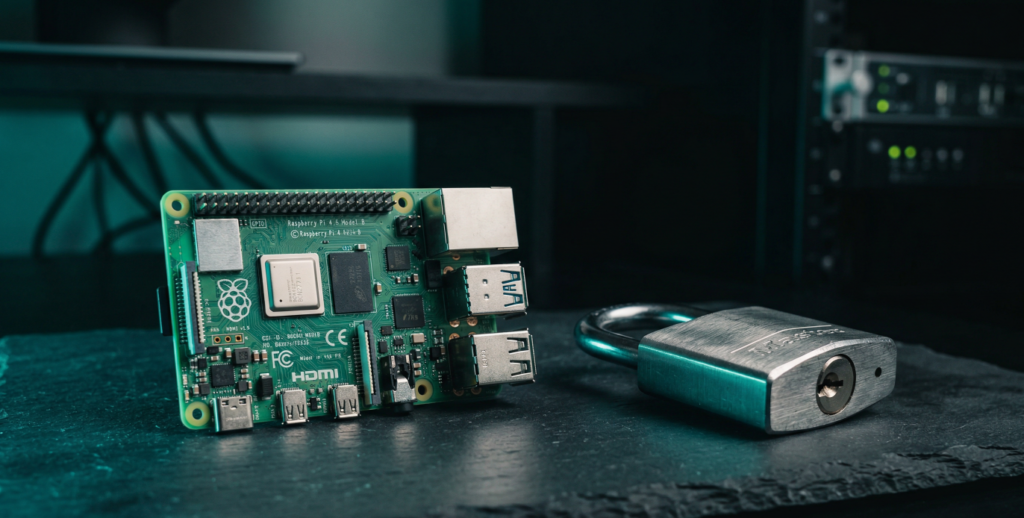
How to Make Your Pi Ignore Power Cuts and Walk Away Clean
Setting up a Raspberry Pi read-only root filesystem is the most robust thing you can do for a fixed-purpose, unattended deployment. When the root filesystem never writes, there is nothing to corrupt during a power cut. The SD card becomes effectively inert: reads only, no metadata churn, no journal commits, no interrupted writes. Pull the plug at any moment and the system boots clean every time.
Spoiler alert: it is not quite as simple as flipping a switch. Services expect write paths. Logs need somewhere to go. Updates need a plan. Get those wrong and you trade SD card corruption for silent service failures that are harder to diagnose remotely. This guide covers what to set up before enabling read-only, what write paths to redirect, how to actually enable it on Bookworm, and how to get back in to make changes when you need to.
I’m sure a lot of you have tried the raspi-config overlay option, watched it appear to work, then found your system in a broken state a week later. There is a reason for that, and we will get to it.
Key Takeaways
- Prepare write paths before enabling read-only, because services that cannot write will fail silently
- The raspi-config overlay option has known issues on Pi 5 64-bit Bookworm, so the overlayroot package method is more reliable
- tmpfs mounts for /tmp, /var/tmp, /var/log, and /var/run cover the most common write path requirements
- Disable swap before enabling read-only, as a swapfile on a read-only filesystem causes boot failures
- Keep a documented remount procedure ready, as you will need it for updates and config changes
- Read-only root is best suited for fixed-purpose, predictable workloads rather than general-purpose desktops
Is Read-Only Root Right for Your Use Case?
Where It Works and Where It Creates Problems
Read-only root is not a universal improvement. It is a deliberate constraint that trades flexibility for resilience. Before starting, confirm your use case fits the pattern where it actually helps.
Read-only root is a strong fit when your Pi runs a fixed, predictable workload such as a sensor node, a kiosk display, a Pi-hole, a network monitor, or a single-service headless appliance. The workload does not change between reboots. Updates happen rarely and on a schedule. You control when and how the system gets modified.
It is a poor fit for general-purpose desktop use, development machines, systems that update frequently, or anything where the service configuration changes regularly. The maintenance overhead of remounting read-write for every change adds up fast on systems that were never meant to be appliances.
| Good fit | Poor fit |
|---|---|
| Pi-hole DNS server | Desktop Pi used for development |
| Temperature / sensor logger | Home server with frequently changing config |
| Kiosk / display board | Media server with active library changes |
| Network monitor | Any Pi receiving frequent apt updates |
| Single-service headless appliance | Systems accessed by multiple users |
Step 1: Prepare the System Before Enabling Read-Only
Do This Before Touching Overlay Settings
This is where most guides go wrong. They jump straight to enabling the overlay without preparing the services that will fail when they cannot write. Fix the write paths first, then enable read-only.
Start with a fully updated system:
sudo apt update && sudo apt full-upgrade -y && sudo rebootDisable Swap
A swapfile on a read-only filesystem causes a boot failure. Disable it completely before proceeding. If you have already set up zram as covered in the Setting Up zram on Raspberry Pi guide, you are already done and can skip to the next section. If not, disable the default dphys-swapfile:
sudo dphys-swapfile swapoff
sudo systemctl disable dphys-swapfile
sudo systemctl stop dphys-swapfile
sudo rm -f /var/swap
Set Up tmpfs Write Paths
These are the directories that will still need to accept writes after the root filesystem is read-only. Redirect them to RAM-backed tmpfs mounts in fstab. Open the fstab file:
sudo nano /etc/fstabAdd these lines at the end:
tmpfs  /tmp               tmpfs  defaults,noatime,nosuid,nodev,size=100m       0  0
tmpfs  /var/tmp           tmpfs  defaults,noatime,nosuid,nodev,size=30m        0  0
tmpfs  /var/log           tmpfs  defaults,noatime,nosuid,nodev,noexec,size=50m 0  0
tmpfs  /var/spool/rsyslog tmpfs  defaults,noatime,nosuid,nodev,noexec,size=25m 0  0
Size the tmpfs mounts to fit your workload. 50MB for /var/log is enough for most headless services. If journald fills it up, restrict its allocation in /etc/systemd/journald.conf by setting RuntimeMaxUse=25M.
Limit journald Log Size
When /var/log lives in tmpfs, journald needs to be told not to fill it up:
sudo nano /etc/systemd/journald.confUncomment and set:
RuntimeMaxUse=25MRedirect NTP Drift File
The NTP daemon writes a drift file to track clock accuracy. On a read-only filesystem this write fails silently and clock sync degrades over time. Redirect it to /var/tmp which is backed by tmpfs:
sudo nano /etc/ntpsec/ntp.confFind the driftfile line and change it to:
driftfile /var/tmp/ntp.driftOn older Pi OS versions using ntp rather than ntpsec, the file is at /etc/ntp.conf.
Reboot and Test Write Paths
Reboot now and confirm everything is working correctly before enabling read-only. It is much easier to fix service problems while the filesystem is still writable.
sudo reboot

# After reboot, check tmpfs mounts are active
mount | grep tmpfs

# Check your services are running cleanly
sudo systemctl --failed

# Check for errors in the journal
sudo journalctl -b 0 -p err
Resolve any failed services before continuing. A service that fails now will still fail after read-only is enabled, but will be harder to fix.
Step 2: Enable Read-Only Root
Two Methods: raspi-config and overlayroot
There are two practical methods for enabling a read-only root on Raspberry Pi OS Bookworm. The raspi-config method is quicker but has known reliability issues on Pi 5 64-bit. The overlayroot package method is slightly more involved but works consistently across all models.
Method A: raspi-config (Pi 3, Pi 4, 32-bit Bookworm)
This method works reliably on Pi 3, Pi 4, and Pi 5 running 32-bit Raspberry Pi OS Bookworm. If you are running 64-bit Bookworm on a Pi 5, use Method B instead.
sudo raspi-configNavigate to: Performance Options > Overlay File System
When prompted to enable the overlay filesystem, select Yes. When asked whether to write-protect the boot partition, select Yes for maximum protection or No if you want to keep /boot/firmware writable for easier config changes.
Exit raspi-config and reboot when prompted.
Method B: overlayroot Package (Pi 5 64-bit, or Any Model)
The overlayroot package provides a more reliable implementation that is less dependent on the initramfs configuration that causes issues on Pi 5 64-bit Bookworm.
sudo apt install overlayroot -yEdit the overlayroot configuration file:
sudo nano /etc/overlayroot.local.confAdd this line:
overlayroot="tmpfs"Save, exit, and reboot:
sudo rebootIf you are on Pi 5 64-bit Bookworm and the overlay is not taking effect after reboot, add kernel=kernel8.img and initramfs initramfs8 to /boot/firmware/config.txt before rebooting. This is a known issue with how Pi OS manages kernel versions on the Pi 5.
Step 3: Verify Read-Only Is Active
Confirm the Filesystem Is Actually Protected
After rebooting, confirm the root filesystem is mounted read-only and the overlay is in place:
# Check mount flags (root should show ro for read-only)
mount | grep " on / "

# For overlayroot method you should see something like:
# overlayroot on / type overlay (rw,relatime,lowerdir=/media/root-ro,...)
# /dev/mmcblk0p2 on /media/root-ro type ext4 (ro,relatime)

# Quick write test (this should fail with a read-only filesystem error)
sudo touch /test-write-file
echo $?
# Any non-zero exit code confirms root is read-only
Check that your services are running correctly:
sudo systemctl --failed
sudo journalctl -b 0 -p err
Scroll through the journal output and look for errors from services trying to write to unexpected locations. The most common culprits are applications with hardcoded log paths, package managers trying to update lock files, and services that create PID files in non-standard locations.
Making Changes: The Remount Workflow
How to Update Software and Change Configuration
This is the part of read-only root that people underestimate. Every time you need to install a package, edit a config file, or change a service, you need to temporarily return the filesystem to writable. Get this workflow documented and tested before you deploy remotely. Finding out it does not work when you are trying to push an update to a remote site is a bad day.
For the raspi-config method: use raspi-config to disable the overlay, reboot, make your changes, then re-enable the overlay and reboot again. Two reboots per change cycle.
# Disable overlay for maintenance
sudo raspi-config nonint do_overlayfs 1
sudo reboot

# Make changes, install updates, edit configs
sudo apt update && sudo apt upgrade -y

# Re-enable overlay when done
sudo raspi-config nonint do_overlayfs 0
sudo reboot
For the overlayroot method: use overlayroot-chroot for quick single-file changes, or disable the overlay entirely for a full maintenance session.
# Quick changes via chroot into the real read-write filesystem
sudo overlayroot-chroot
# Make your changes here, then exit when done
exit

# Full maintenance session: edit overlayroot config on the real filesystem
sudo nano /media/root-ro/etc/overlayroot.local.conf
# Change overlayroot="tmpfs" to overlayroot="disabled"
sudo reboot
# Make all changes needed, then re-enable when done:
# Change back to overlayroot="tmpfs"
sudo reboot
The overlayroot-chroot command lets you make changes to the underlying read-write filesystem without a full reboot cycle. It is the fastest path for single-file config changes and package installs during maintenance windows.
Automating Updates
For remote deployments where you need to push updates without manual intervention, a maintenance script that handles the remount cycle is worth building once and testing thoroughly before you need it in the field:
#!/bin/bash
# maintenance-update.sh
# Disable overlay, apply updates, re-enable overlay

sudo raspi-config nonint do_overlayfs 1
sudo reboot
# Schedule the update and re-enable steps via a systemd oneshot
# triggered on next boot
Common Services That Need Extra Attention
Things That Break Quietly Without Visible Errors
The most frustrating read-only root problems are not the ones that crash loudly. They are the ones that appear to work but silently degrade over time. Here are the most common culprits on a typical Pi deployment.
fake-hwclock saves the system time periodically to survive power loss on boards without a real-time clock. On a read-only filesystem it cannot write its timestamp file. Fix it by temporarily remounting read-write for the save operation:
sudo nano /etc/cron.hourly/fake-hwclock

# Wrap the save call with a remount:
if (command -v fake-hwclock >/dev/null 2>&1) ; then
    mount -o remount,rw /
    fake-hwclock save
    mount -o remount,ro /
fi
avahi-daemon will log errors about not being able to write to its state directory. These are harmless in most cases since avahi still functions for mDNS, but the log noise is annoying. Redirect its state directory to tmpfs or disable avahi if you do not need mDNS discovery.
dhcpcd / dhclient writes lease files to /var/lib/dhcpcd or /var/lib/dhcp. These need to be either redirected to tmpfs or handled via a bind mount. The simplest fix for most setups is using a static IP instead, which eliminates the lease file write entirely.
Docker is incompatible with a read-only root using overlayfs in most configurations. If you are running Docker, read-only root is not the right approach. Focus on the write-reduction mitigations from the SD card corruption prevention guide instead.
Troubleshooting
Pi Will Not Boot After Enabling Overlay
The most common cause is swap still enabled. The swapfile on a read-only filesystem causes the boot to hang or drop to emergency mode. Connect a monitor and keyboard, remount read-write, and disable swap as described in Step 1.
If you cannot boot at all, mount the SD card on another machine and edit /etc/overlayroot.local.conf to add overlayroot=disabled, or remove boot=overlay from cmdline.txt depending on which method you used.
Overlay Enabled in raspi-config But Changes Are Still Persistent
This is the known Pi 5 64-bit Bookworm issue. The overlay is not activating because the initramfs is not loading the overlay hook correctly. Add the following to /boot/firmware/config.txt while the filesystem is still writable:
kernel=kernel8.img
initramfs initramfs8
Then reboot. If this does not resolve it, switch to Method B (the overlayroot package) which does not depend on initramfs loading order.
Services Failing After Enabling Read-Only
Run sudo journalctl -b 0 -p err immediately after boot to see which services are throwing errors. For each failing service, check where it is trying to write, which is usually visible in the error message. Options for each: redirect the write path to a tmpfs directory via symlink or config change, override the service unit with a RuntimeDirectory= directive pointing to /run, or disable the service if it is not needed for your workload.
Cannot Disable Overlay After Enabling via raspi-config
This is a known raspi-config bug on some Bookworm versions. Use the direct method instead:
# Edit the overlayroot config on the underlying read-write filesystem
sudo nano /media/root-ro/etc/overlayroot.local.conf
# Add or change to: overlayroot=disabled
sudo reboot
Does read-only root completely prevent SD card corruption?
It eliminates the most common cause, which is writes to the root filesystem during unexpected power loss. It does not protect /boot/firmware unless you also write-protect that partition. And it does not help if the corruption is caused by power instability during the boot process itself, before the overlay activates.
Will I lose all changes on every reboot?
Yes, that is the point. All writes go to a tmpfs overlay layer that is discarded on reboot. The underlying SD card never changes during normal operation. This is why configuration needs to be complete and stable before you enable read-only root. Anything not already on the SD card when you enable it will be gone after the next reboot.
Can I keep a separate writable partition for data?
Yes. Mount a second partition or external drive with rw,noatime in fstab for persistent data. On Bookworm, the overlayroot approach changes all mounted partitions to read-only by default. You may need to explicitly re-mount your data partition as read-write after the overlay activates, or use a bind mount workaround.
Does this work with Pi OS Lite headless setups?
Yes, and headless Lite is actually the ideal environment for read-only root. There are fewer services competing for write paths, no desktop environment adding complexity, and the workload is more likely to be the fixed, predictable type that suits this approach.
How do I apply security updates on a read-only root system?
You need to follow the remount workflow: disable the overlay, reboot, apply updates, re-enable the overlay, then reboot again. On remote deployments this requires either a reliable automated script or physical access for the two-reboot cycle. This maintenance overhead is the main reason read-only root is not recommended for general-purpose systems.
Should I use read-only root or just boot from USB SSD?
For most people, USB SSD boot is the better first choice. It is dramatically simpler to maintain, still eliminates the corruption risk, and does not require planning write paths or a special remount workflow for updates. Read-only root makes sense on top of USB SSD for truly hardened appliance deployments, or when you specifically need the system to be physically tamper-proof.
Next Steps
Read-only root is the most aggressive write-elimination strategy available for Raspberry Pi. If you have reached this point, your deployment is about as hardened as it gets on SD card storage. The full mitigation stack from least to most involved:
- For the complete picture of what causes corruption and how all mitigations fit together, see: Preventing SD Card Corruption on Raspberry Pi
- For the fastest five-minute win that eliminates swap writes, see: Setting Up zram on Raspberry Pi
- For the highest-impact hardware change and the simplest long-term solution, see: Booting Raspberry Pi from USB SSD
References
- https://www.raspberrypi.com/documentation/computers/configuration.html#overlay-file-system
- https://manpages.debian.org/bookworm/overlayroot/overlayroot.conf.5.en.html
- https://www.dzombak.com/blog/2024/03/running-a-raspberry-pi-with-a-read-only-root-filesystem/