


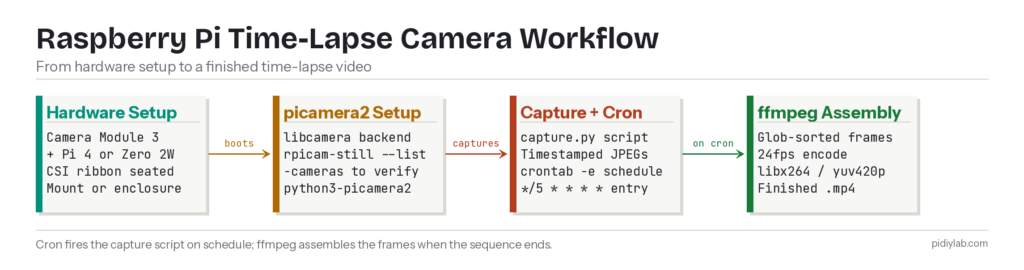
A Raspberry Pi time-lapse camera runs a Python script that calls picamera2 to capture a still image at a set interval, names each file with a timestamp, and stores frames to local or USB storage. A cron job fires the script on schedule without any manual intervention. When the sequence is complete, ffmpeg assembles the frames into a video in under a minute. This guide covers hardware selection, the Bookworm-compatible software stack using picamera2 and rpicam-still, the capture script with cron automation, and deployment considerations for long-term unattended use.
Last tested: Raspberry Pi OS Bookworm Lite 64-bit | May 2025 | Raspberry Pi 4 Model B (4GB) | Camera Module 3, picamera2 0.3.19, libcamera 0.3.0, ffmpeg 6.0
Key Takeaways
- The
picameraPython library is deprecated and removed from Bookworm. Do not install it. The current library ispicamera2, which uses the libcamera backend. On Bookworm,picamera2is available via APT aspython3-picamera2without needing a virtual environment for basic use. Any guide referencingimport picameraorraspistillis using the legacy camera stack that no longer ships with current Raspberry Pi OS. - Camera Module 3 (released 2023) is the current standard. It replaces Camera Module V2 as the primary recommendation: autofocus, wider dynamic range, and IMX708 sensor. Camera V2 still works on Bookworm but is no longer the module to buy for new builds. The NoIR variants of both modules are available for near-infrared capture in low-light and plant-monitoring deployments.
- Use
crontab -e(user crontab), notsudo crontab, for scheduling the capture script. Running the camera script as root viasudo crontabis unnecessary and causes permission issues when writing image files to user-owned directories. The libcamera stack works correctly at the user level on Bookworm.
Hardware for a Raspberry Pi Time-Lapse Camera
The Camera Module 3 connects to the Pi’s CSI ribbon cable connector and is the correct camera to buy for new builds. It uses the Sony IMX708 sensor, supports autofocus, and produces noticeably better dynamic range than the V2 in outdoor conditions where lighting changes across a time-lapse sequence. The Pi Zero 2W is viable for ultra-compact or battery-powered deployments at the cost of slower image processing. The Pi 4 (2GB) is the practical minimum for a reliable stationary setup. Pi 5 adds nothing meaningful for a time-lapse workload but works without issue.
Hardware checklist: Raspberry Pi 4 (2GB minimum) or Pi Zero 2W for compact builds. Official Camera Module 3 (standard or wide angle) or Camera Module V2 if reusing existing hardware. CSI ribbon cable (15-pin for Pi 4, 22-pin adapter required for Pi Zero). 5V/3A USB-C PSU for Pi 4; 5V/3A micro-USB for Pi Zero 2W. microSD card (32GB minimum) or USB SSD for longer deployments. Camera mount, tripod, or enclosure depending on deployment location.
For outdoor deployments, the Pi and camera need weatherproofing. A clear acrylic enclosure with a silicone-sealed lens port is the common solution. Condensation inside the enclosure is the main failure mode for long outdoor time-lapses. A small silica gel desiccant pack inside the enclosure and a sealed lens port prevent it. Avoid enclosures that trap heat. The Pi 4 throttles above 80°C, which introduces inconsistent frame timing.
Storage for long time-lapses fills up faster than expected. At 1920×1080 JPEG quality 85, each frame is approximately 500KB. One frame every 5 minutes over 7 days produces 2,016 frames, totalling roughly 1GB. One frame per minute over the same period produces 10,080 frames and roughly 5GB. Size your storage accordingly before deployment. A USB SSD is strongly preferred over an SD card for multi-week deployments due to write endurance. For Pi 5 NVMe storage setup, see Raspberry Pi 5 NVMe Boot: Complete Setup Guide.
Setting Up the Raspberry Pi Time-Lapse Camera Software
Flash Raspberry Pi OS Bookworm Lite 64-bit using Raspberry Pi Imager. Set hostname, username, password, and enable SSH in the Imager advanced settings. The camera interface does not need to be manually enabled on Bookworm. libcamera is active by default. After first boot, update and install the required packages:
sudo apt update && sudo apt full-upgrade -y
sudo apt install -y python3-picamera2 ffmpeg
Verify the camera is detected:
rpicam-still --list-camerasExpected result: Output shows camera index 0 with sensor details. For Camera Module 3 this includes imx708 in the sensor name. If the command returns “No cameras available,” check that the ribbon cable is fully seated in both the Pi’s CSI connector and the camera board connector. The CSI connector has a locking tab that must be pulled up before inserting the cable and pushed down to lock it.
Test a single capture to confirm everything works before writing the automation script:
rpicam-still -o /tmp/test.jpg
ls -lh /tmp/test.jpg
Expected result: A JPEG file between 2MB and 6MB depending on scene complexity. Transfer it to your desktop with scp or view it with feh /tmp/test.jpg if a display is connected. If the file is 0 bytes or absent, run rpicam-still -v -o /tmp/test.jpg for verbose output to identify the failure point.
Capturing Images and Automating the Raspberry Pi Time-Lapse Camera
Create the capture script. This version uses picamera2 directly for tighter control over camera parameters than the command-line tool provides:
mkdir -p ~/timelapse/frames

cat > ~/timelapse/capture.py << 'SCRIPT'
#!/usr/bin/env python3
from picamera2 import Picamera2
from datetime import datetime
import os

OUTPUT_DIR = os.path.expanduser('~/timelapse/frames')
os.makedirs(OUTPUT_DIR, exist_ok=True)

cam = Picamera2()
config = cam.create_still_configuration(
    main={"size": (1920, 1080)},
    lores={"size": (640, 480)},
    display="lores"
)
cam.configure(config)
cam.start()

# Allow autoexposure to settle
import time
time.sleep(2)

timestamp = datetime.now().strftime('%Y%m%d_%H%M%S')
filename = os.path.join(OUTPUT_DIR, f'frame_{timestamp}.jpg')
cam.capture_file(filename)
cam.stop()
print(f'Captured: {filename}')
SCRIPT

chmod +x ~/timelapse/capture.py
Test the script manually before scheduling:
python3 ~/timelapse/capture.py
ls ~/timelapse/frames/
Expected result: A timestamped JPEG appears in ~/timelapse/frames/. File size should match the test capture. If the script exits with a camera busy error, confirm rpicam-still is not still running in the background with ps aux | grep rpicam.
Schedule the capture with the user crontab. Open the editor with crontab -e and add a line for your chosen interval. The example below captures one frame every 5 minutes:
# Capture one frame every 5 minutes
*/5 * * * * /usr/bin/python3 /home/youruser/timelapse/capture.py >> /home/youruser/timelapse/capture.log 2>&1
Replace youruser with the username set at flash time. The full path to python3 is required in crontab because the PATH environment in cron is minimal. Redirect output to a log file so failures are visible. Common intervals: one frame per minute (* * * * *), every 2 minutes (*/2 * * * *), every 10 minutes (*/10 * * * *), every hour (0 * * * *).
Expected result: After the first scheduled interval passes, a new timestamped file appears in ~/timelapse/frames/. If it does not, check cat ~/timelapse/capture.log for the error output. The most common cron failure is a wrong path to the Python script or interpreter.
When the sequence is complete, assemble the frames into a video with ffmpeg. Sort the frames alphabetically (the timestamp naming ensures correct order) and encode at 24fps:
ffmpeg -framerate 24 \
  -pattern_type glob -i '~/timelapse/frames/frame_*.jpg' \
  -c:v libx264 -pix_fmt yuv420p \
  ~/timelapse/output.mp4
Expected result: An MP4 file in ~/timelapse/. At 24fps, 2,016 frames (7 days at 5-minute intervals) produces an 84-second video. Adjust -framerate to control playback speed: a lower framerate produces a slower result and a higher framerate makes motion faster. Encoding 2,000 frames takes roughly 3-5 minutes on a Pi 4.
Storage, Power, and Long-Term Deployment
The two failure modes for long-term Raspberry Pi time-lapse camera deployments are storage filling up and power interruption causing SD card corruption. Both are preventable.
Monitor available storage with a daily check added to the crontab. If storage drops below a threshold, stop captures and send a log entry rather than silently failing mid-sequence:
# Add to capture.py before cam.capture_file():
import shutil
free_gb = shutil.disk_usage(OUTPUT_DIR).free / (1024**3)
if free_gb < 1.0:
    print(f'WARNING: Less than 1GB free ({free_gb:.2f}GB). Skipping capture.')
    cam.stop()
    exit(0)
For power protection, a UPS HAT prevents the Pi from losing power mid-write, which is the primary cause of SD card corruption on unattended deployments. The PiJuice HAT provides battery backup with a graceful shutdown script. For a complete UPS setup, see UPS HAT Raspberry Pi: Safe Shutdown and Power Loss Protection.
For remote monitoring of an ongoing capture, enable SSH and use rsync to pull frames to a local machine periodically, or mount a network share as the output directory. Tailscale provides secure remote access without port forwarding for deployments away from home. See Tailscale Raspberry Pi: Complete Secure Remote Access Guide.
For outdoor solar-powered builds, the Pi Zero 2W draws roughly 0.4W at idle versus the Pi 4's 3W. That difference matters for battery sizing. A 10,000mAh power bank runs a Pi Zero 2W capturing one frame per minute for approximately 48 hours. Add a 6W solar panel for continuous operation in locations with reasonable sun exposure. The capture script needs no modification for solar operation. The Pi manages its own power state and the cron job resumes naturally after any power cycle.
For a read-only filesystem approach that eliminates SD card corruption risk entirely on a stationary deployment, see Raspberry Pi Read-Only Root Filesystem Setup. In this configuration the frames directory is mounted on a separate writable partition or USB drive while the OS partition is read-only.
FAQ
Which camera module should I use for a Raspberry Pi time-lapse camera?
Camera Module 3 for any new build. It uses the Sony IMX708 sensor with phase-detect autofocus and produces better dynamic range than the V2 in outdoor lighting conditions that change across a time-lapse sequence. The wide-angle variant (120-degree field of view) suits landscape and garden builds. Camera Module V2 still works on Bookworm and is a valid option if you already own one. The NoIR variant of either module removes the infrared filter for near-infrared capture, useful for plant growth monitoring under grow lights.
Why is the picamera Python library not working on Bookworm?
The picamera library was deprecated with the transition to libcamera in Raspberry Pi OS Bullseye and is not included in Bookworm. It relied on the legacy MMAL camera stack, which no longer ships with current Raspberry Pi OS. The replacement is picamera2, which uses libcamera as its backend. Install it with sudo apt install python3-picamera2. The API is different from the old picamera. Scripts written for picamera need to be rewritten, not just renamed.
How do I set the capture interval for a Raspberry Pi time-lapse camera?
The crontab entry controls the interval. Each line in crontab runs the script once; the interval is set by the cron schedule expression, not inside the Python script. */5 * * * * runs every 5 minutes. */1 * * * * or * * * * * runs every minute. 0 * * * * runs once per hour at the top of the hour. For sub-minute intervals, use a sleep loop inside the script instead of cron. One consideration: the capture script takes 2-4 seconds to run including the 2-second autoexposure settle time, so intervals shorter than 10 seconds are impractical with this approach.
How do I assemble time-lapse frames into a video on Raspberry Pi?
Use ffmpeg, which is available via APT on Bookworm. The glob pattern approach (-pattern_type glob -i 'frames/frame_*.jpg') automatically sorts frames alphabetically, which works correctly with the timestamp naming convention in the capture script above. Adjust -framerate to control playback speed. For a smoother result on fast-moving subjects, use a higher framerate. For a social-media-friendly output, add -vf scale=1920:1080 to ensure consistent dimensions if any frames were captured at different resolutions during testing.
How do I prevent SD card corruption on a long-running Raspberry Pi time-lapse camera?
Three measures in order of impact. First, use a USB SSD instead of an SD card for the frames directory. SSDs handle random write workloads far better than SD cards. Second, add a UPS HAT so a power interruption triggers a graceful shutdown rather than a mid-write corruption. Third, consider a read-only root filesystem with a separate writable partition for frames. This makes the OS partition immune to corruption while keeping the frames directory writable. For setups where none of these are practical, a high-endurance SD card (Samsung Pro Endurance or SanDisk Endurance series) rated for continuous write workloads substantially extends SD card lifespan compared to standard cards.
References:
- picamera2 documentation: datasheets.raspberrypi.com
- libcamera and rpicam-apps documentation: raspberrypi.com/documentation/computers/camera_software
- Camera Module 3 product page: raspberrypi.com/products/camera-module-3
- ffmpeg documentation: ffmpeg.org/documentation
- Raspberry Pi Imager: raspberrypi.com/software
About the Author
Chuck Wilson has been programming and building with computers since the Tandy 1000 era. His professional background includes CAD drafting, manufacturing line programming, and custom computer design. He runs PidiyLab in retirement, documenting Raspberry Pi and homelab projects that he actually deploys and maintains on real hardware. Every article on this site reflects hands-on testing on specific hardware and OS versions, not theoretical walkthroughs.
Last tested hardware: Raspberry Pi 4 Model B (4GB), Camera Module 3. Last tested OS: Raspberry Pi OS Bookworm Lite 64-bit. picamera2 0.3.19, libcamera 0.3.0, ffmpeg 6.0.